13. Network
By connecting to internet you might have access to selected internet services.
13.1 Connecting to Network
13.1.1 Connecting to the LAN
1. Connect one end of the Ethernet
cable to the product and the other end
to the LAN router.
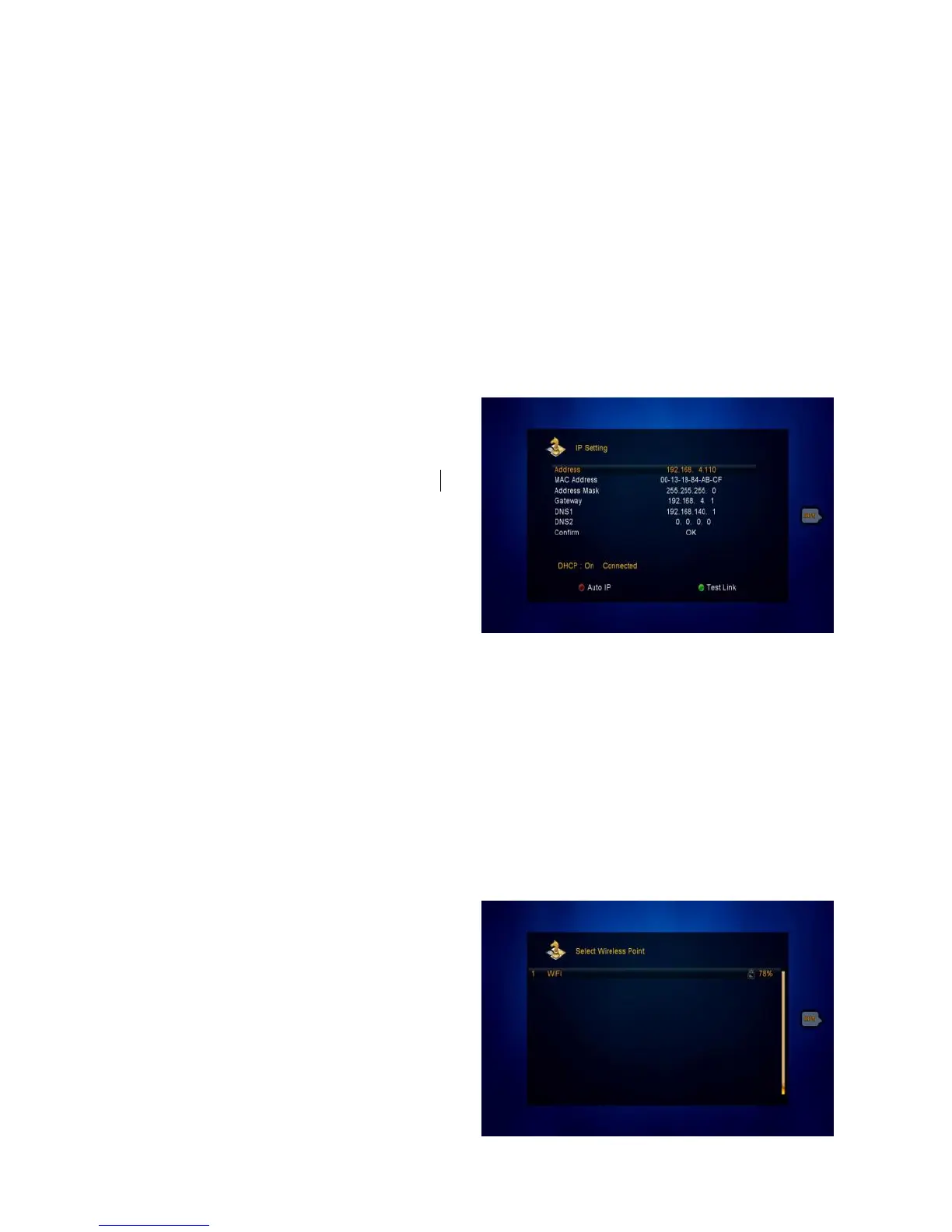
2. Menu->Expansion->IP Setting
If the Ethernet cable is connected fine, it
will display “Connect”. In this menu,
you can set IP address manually, also
you can get IP address automatically.
RED: Get IP address automatically.
GREEN: Test the network if connect correctly.
13.2 Connecting to Wifi (Wireless LAN) - OPTIONAL
Note: this menu is available only after inserting Wifi dongle. After inserting dongle
LAN by Ethernet cable will be disabled automatically.
1. Plug in the wireless USB dongle to the USB port.
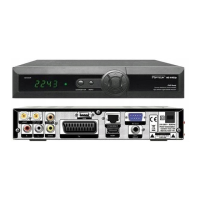
2. Enter
Menu->EXPANSION->Wireless
Setting->Search Access Point.
3. Select the network name of your
Wi-Fi access point from the list.
4. Press the OK button, then input



 To Next Page