2. Preparation
20
For assistance, please contact an authorized Panasonic dealer.
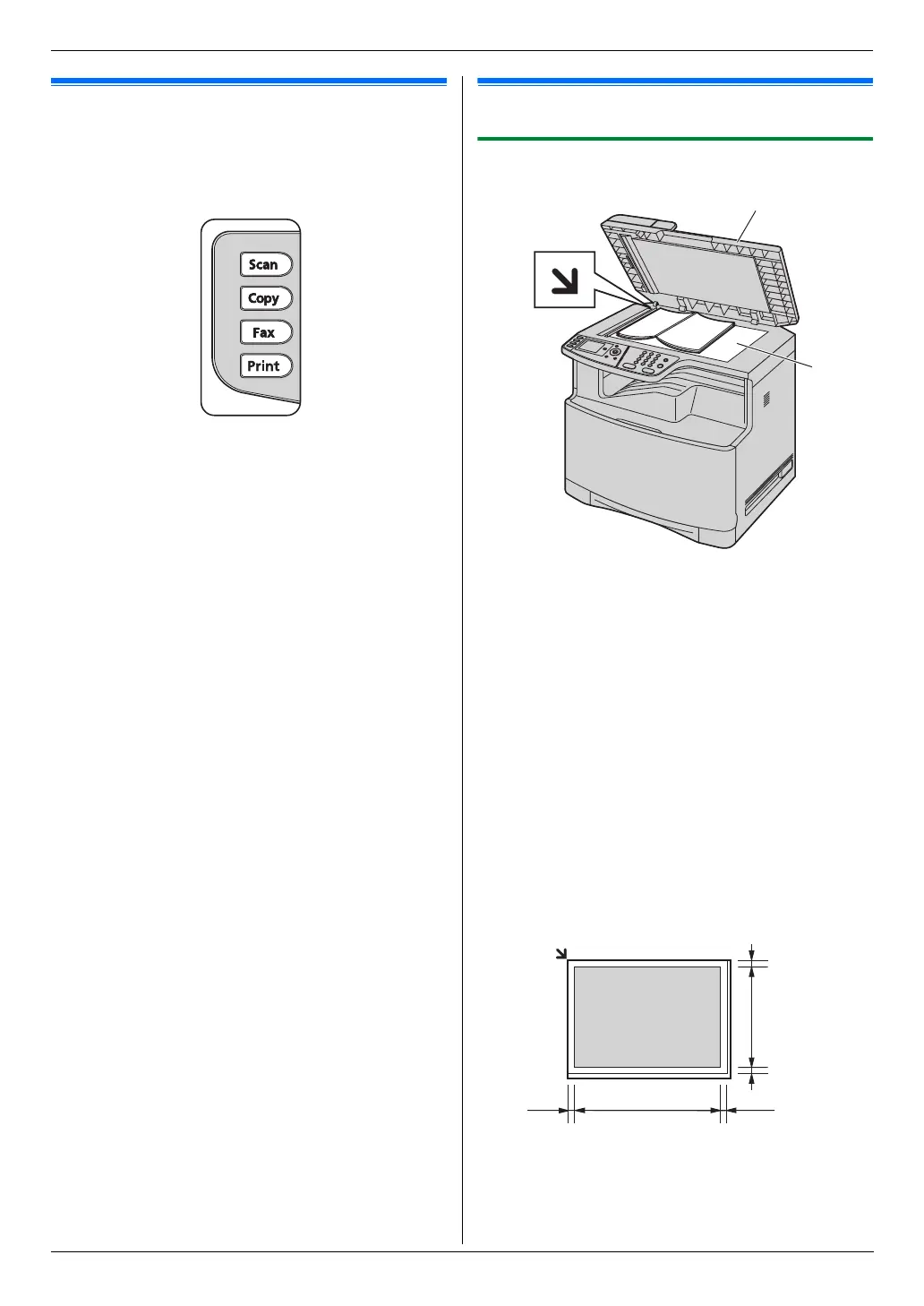
2.4 Selecting the operation mode
(Scan/Copy/Fax/Print)
You can select the desired mode by pressing one of the
following buttons.
– {Scan}: Select this mode when using the unit as a
scanner (page 35).
– {Copy}: Select this mode when using the unit as a
copier (page 40).
– {Fax}: Select this mode when using the unit as a fax
machine (page 45).
– {Print}: Select this mode when using the unit as a
printer (page 31).
Note:
L The default operation mode is the copy mode.
L You can change the default operation mode (feature
#463 on page 62) and the timer before returning to
the default operation mode (feature #464 on page
62).
Documen t Requiremen ts
2.5 Setting the original
2.5.1 Using the scanner glass
1
Open the document cover (1).
2 Place the document FACE DOWN on the scanner
glass (2), aligning the top left of the document with
the corner to which the m mark points.
3 Close the document cover.
Note:
L Confirm that there are no documents in the
automatic document feeder.
L Place the original onto the scanner glass gently. Do
not press down too firmly to avoid malfunction.
L If the original is a thick book, do not close the
document cover.
L Check that any ink, paste or correction fluid has dried
completely.
L Effective scanning area is as follows:
Effective scanning area
L Shaded area will be scanned.
2
1
208 mm
(8
3
/
16
")
347
mm
(13
11
/
16
")
4 mm
(
5
/
32
")
4 mm
(
5
/
32
")
4 mm
(
5
/
32
")
4 mm
(
5
/
32
")



 To Next Page