3. Printer
34
3.4 Printing a received e-mail
attachment automatically (LAN
connection only)
If you configure the POP server settings beforehand, the
unit will automatically print files attached to an e-mail
that are sent from a compatible unit via the Internet
(scan to e-mail print). This is useful if you want to print
only attached files, without checking your e-mails.
Important:
L The unit does not print e-mail messages.
L The unit will only print attached files sent from a
compatible unit, which can send e-mails directly
(without using a computer).
L The attachment file formats that can be printed
are as follows:
–TIFF
– JPEG
– PDF (files scanned from the unit, files
scanned from the computer using Quick
Image Navigator/Multi-Function Viewer, or
received fax documents saved as an e-mail
attachment)
L Received e-mails and the attached files will be
deleted automatically after printing.
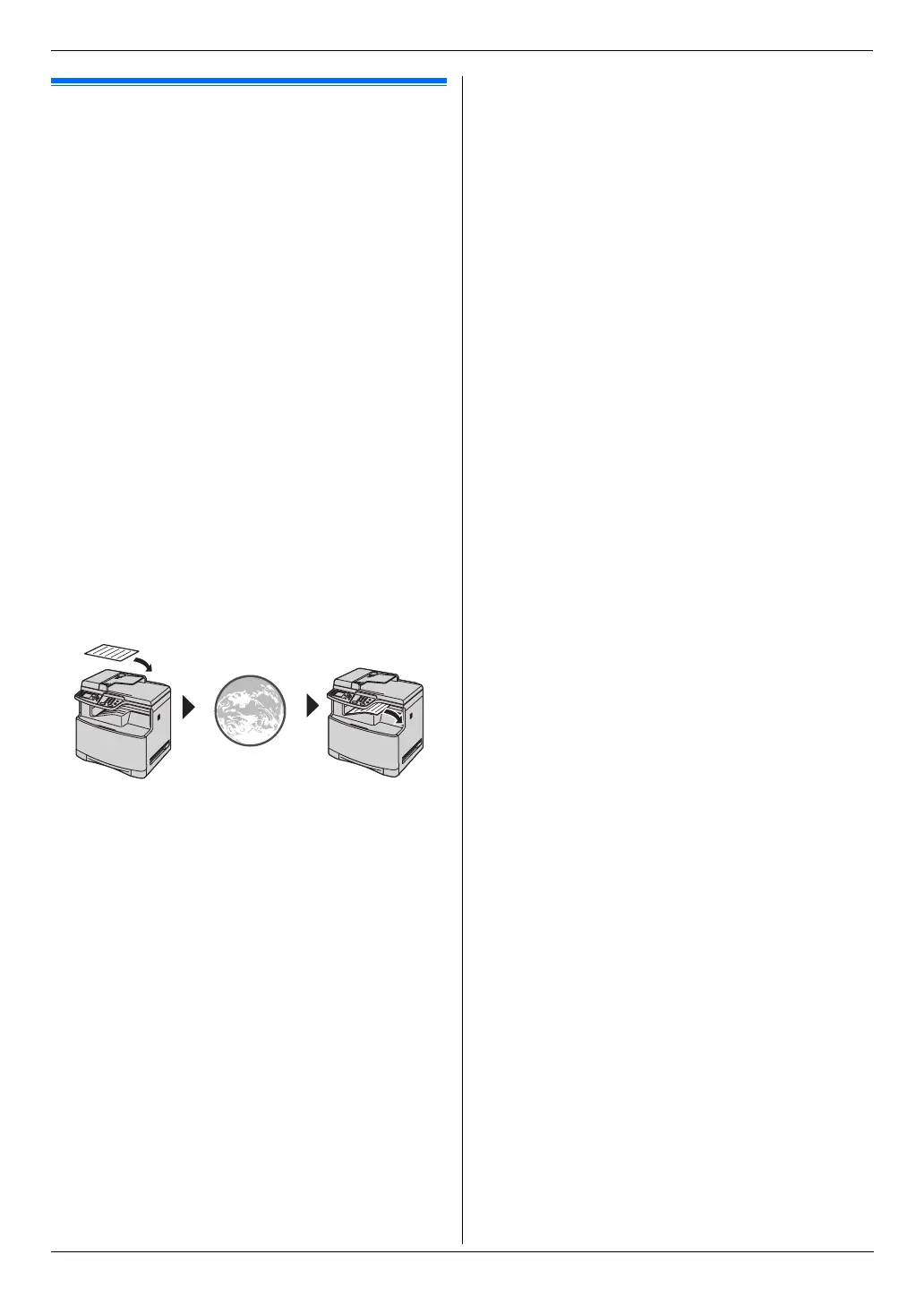
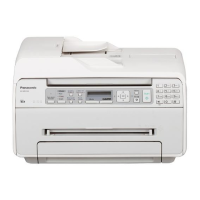
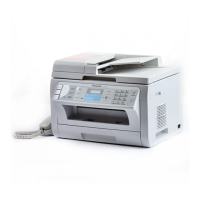
A Send from a compatible multi-function unit (example:
“4.1.5 Scan to e-mail server (LAN connection only)”,
page 36)
B E-mail is sent via the Internet (e-mail server)
C Receiving unit prints attached files
1 Start Multi-Function Station.
2 [Utilities] i [Configuration Web Page] i
[Network Configuration]
3 Type “root” as the user name, then enter the
password (feature #155 on page 60). i [OK]
4 Click the [Scan to E-Mail Print] tab.
5 Set each item.
To activate this feature:
Select [Enabled] next to [Scan to E-Mail Print].
i [Submit]
To set the e-mail server information:
1. Click [Edit] next to [E-Mail Server].
2. Enter the e-mail server and POP server
information. i [Submit]
6 Close the web browser.
Note:
L Printing will not stop even if you press {Stop}.
L This feature can be programmed only through the
web browser interface (page 59).
L To view the recent scan to e-mail print information,
click [List] next to [E-Mail Print Log] (page 77).
L If the attached file is too large or is in an unsupported
format, it will not be printed properly.
L You can change the e-mail checking interval (page
77) or header print setting (page 77).
L Consult your service provider or network
administrator for details.
AB C



 To Next Page