11. Help
87
For assistance, please contact an authorized Panasonic dealer.
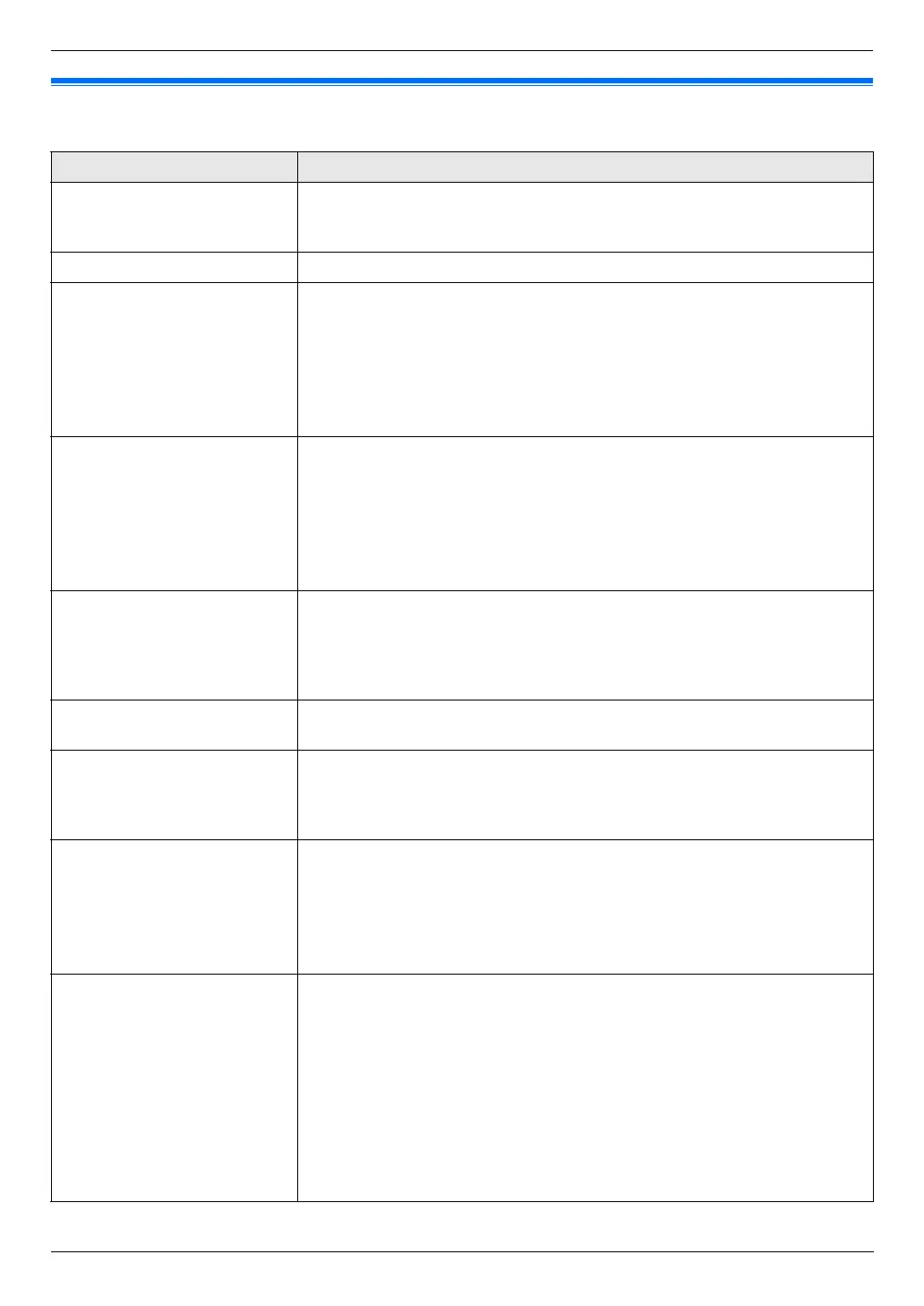
11.2 Error messages – Display
If the unit detects a problem, one or more of the following messages will appear on the display.
Display Cause & Solution
“Access Error” L The access to an SD card did not work correctly due to some existing
problem. Press {Stop} to clear the message, or remove the SD card, and
then try again.
“Call Service” L There is something wrong with the unit. Contact our service personnel.
“Change Supplies Toner
Empty”
“Change Supplies Black
:Empty”
L The toner cartridge life is finished (page 9). Replace the toner cartridge
immediately.
Note:
L “Black”: Black toner
L “Cyan”: Cyan toner
L “Magenta”: Magenta toner
L “Yellow”: Yellow toner
“Change Supplies Toner
Low”
“Change Supplies Black
:Low”
L The toner cartridge life is near its end (page 9). Replace the toner cartridge
as soon as possible.
Note:
L “Black”: Black toner
L “Cyan”: Cyan toner
L “Magenta”: Magenta toner
L “Yellow”: Yellow toner
“Change Supplies
Replace Waste Toner”
“Change Supplies
Replace Waste Toner
Cartridge”
L The waste toner cartridge life is finished. Replace the waste toner cartridge
immediately (page 10, 113).
“Change Supplies Waste
Toner Full”
L The waste toner cartridge life is near its end. Replace the waste toner
cartridge as soon as possible.
“Check Document” L The document was not fed into the unit properly. Remove the document,
and then press {Stop} to clear the message. Re-insert the document. If
misfeeding occurs frequently, clean the document feeder rollers (page 108)
and try again.
“Check Install Input
Tray #1”
L The paper input tray is not installed correctly. Pull out the paper input tray
and re-insert it.
Note:
L “#1”: Standard input tray
L “#2”: Optional input tray
L “#1+#2”: Standard input tray and optional input tray
“Check Paper” L You are printing on envelopes. Check the standard input tray to be sure that
envelopes are installed, and then press {Black}/{Color}.
L The recording paper size is not the same as the size selected for copy.
Change the recording paper size setting (feature #380 on page 61 or
feature #382 on page 61), and install the appropriate recording paper.
L The recording paper size is not the same as the size selected when printing
from the PC. Change the recording paper size setting (feature #380 on page
61 or feature #382 on page 61), and install the appropriate recording paper.
L The recording paper size is not the same as the size selected for receiving
a fax. Change the recording paper size setting (feature #380 on page 61 or
feature #382 on page 61), and install the appropriate recording paper.



 To Next Page