6. Fax
49
L If a party is busy or does not answer, it will be skipped
and redialed later 1 time.
L After transmission, the unit will automatically print a
report (broadcast sending report).
To send the same document using the automatic
document feeder
1. Set the original (page 21).
2. Press {<} or {>} to initiate the navigator directory.
3. Press {V} or {^} repeatedly to select the desired
broadcast memory location. i {Set}
4. If necessary, change the resolution (page 45) and
the contrast (page 45).
5. {Black}
6.5 Sending a computer
document as a fax message from
your computer
You can access the fax function from a Windows
application using Multi-Function Station.
For example, to send a document created from
WordPad, proceed as follows.
1 Open the document you want to send.
2 Select [Print...] from the [File] menu.
L The [Print] dialog box will appear.
3 Select the PCFAX unit’s name as the active printer.
4 Click [Print] or [OK].
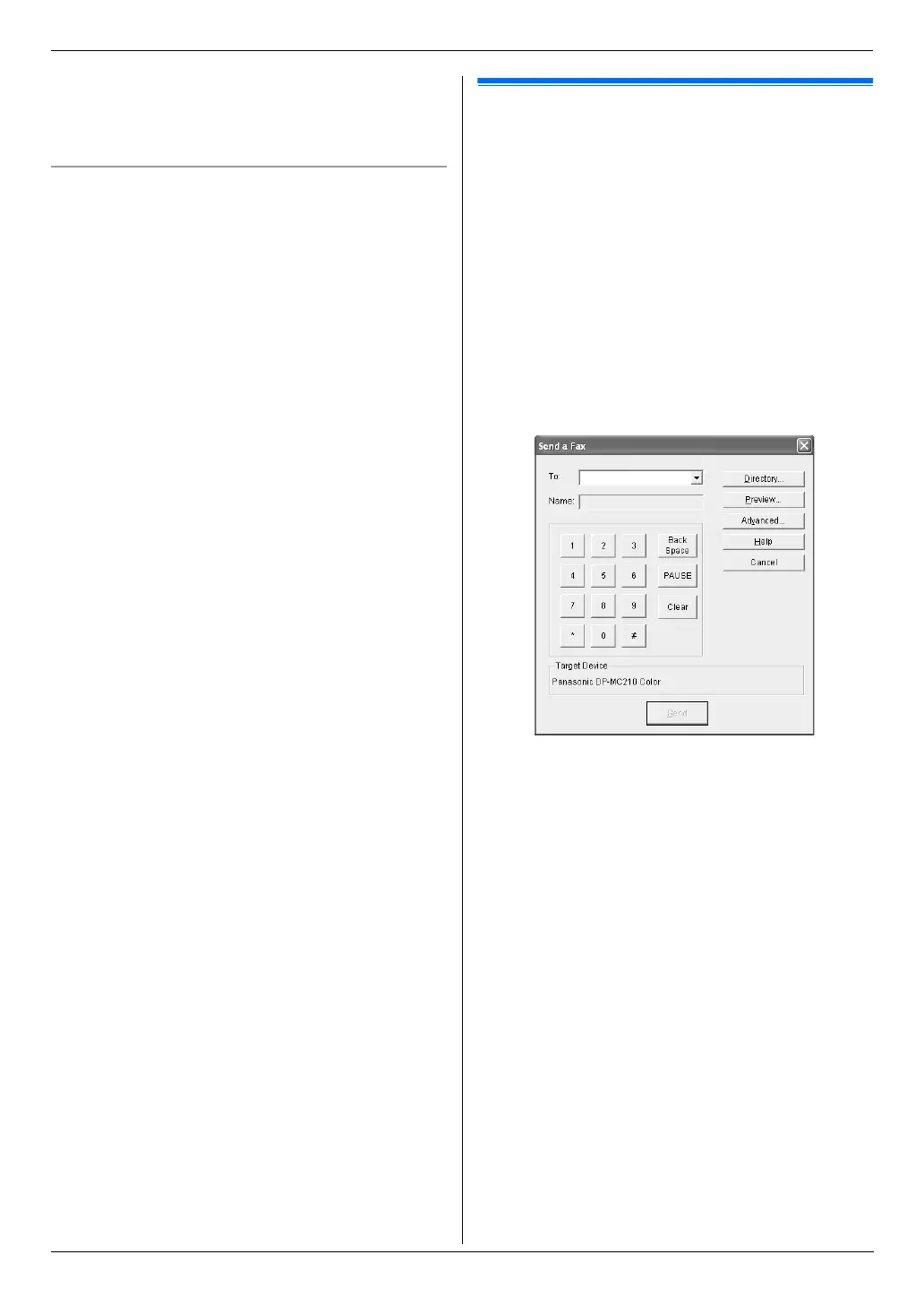
L The [Send a Fax] dialog box will appear.
5 Enter the fax number using the keypad display or the
directory.
L To stop the operation, click [Cancel].
6 [Send]
L The document will be sent through the unit from
your computer.
Note:
L To stop sending, see page 79.
L If the document exceeds the memory capacity of the
unit, sending will be canceled.
L For details, see the help file by selecting [p] from
Multi-Function Station.
L Click [Select...] to change the active unit.



 To Next Page