6. Fax
46
Printing a confirmation report
A confirmation report provides you with a printed record
of transmission results. To print confirmation reports,
make sure feature #401 is activated (page 63). For an
explanation of error messages, see page 86.
Printing a journal report
A journal report provides you with a printed record of the
30 most recent faxes. To print it manually, see page 110.
To print it automatically after every 30 new fax
transmissions and receptions, make sure feature #402 is
activated (page 63). For an explanation of error
messages, see page 86.
6.1.2 Using the automatic document feeder
1
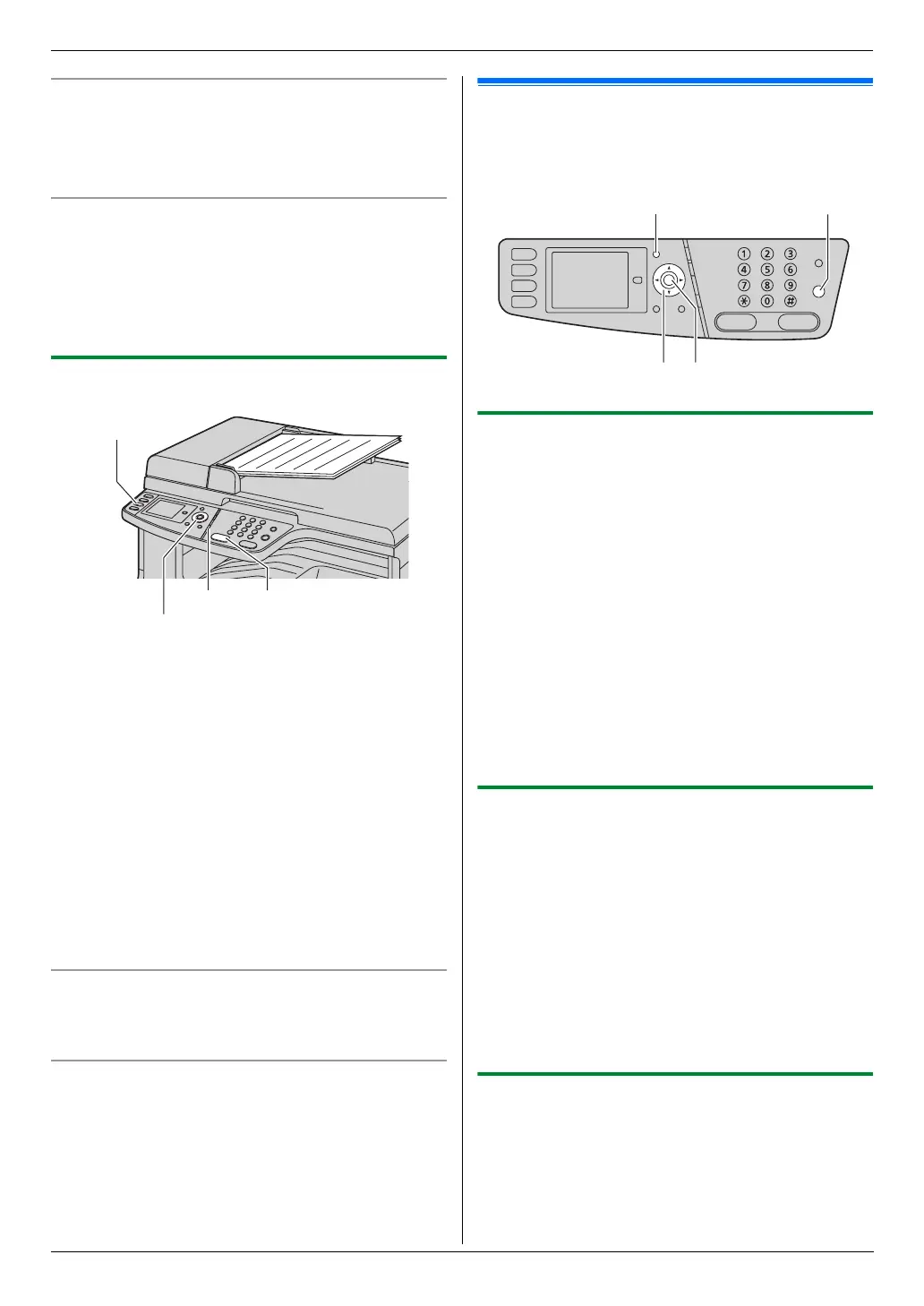
If the {Fax} light is OFF, turn it ON by pressing
{Fax}.
2 Set the original (page 21).
3 If necessary, change the resolution and contrast
according to the type of document.
L To select the resolution, see page 45.
L To select the contrast, see page 45.
4 {Monitor}
5 Dial the fax number. i {Black}
Note:
L To stop sending, see page 79.
L Do not open the document cover when sending a fax
with the automatic document feeder.
Pre-dialing a fax number
1. Enter the fax number.
2. Set the original (page 21). i {Black}
Sending from memory (Quick scan feature)
1. Set the original (page 21).
2. Enter the fax number.
3. Press {V} or {^} repeatedly to select “Quick
Scan”, then press {<} or {>} repeatedly to select
“On”. i {Black}
6.2 Storing items for the
navigator directory
The unit provides a navigator directory (300 items).
6.2.1 Storing navigator directory items
1
{Menu}
2 Press {V} or {^} repeatedly to select “Directory
Set”.
3 Press {<} or {>} repeatedly to select “New
Addition”. i {Set}
4 Enter the name, up to 20 characters (see page 78 for
character entry). i {Set} i {V}/{^}
5 Enter the telephone number, up to 32 digits. i
{Set} i {Set}
L To program other items, repeat steps 4 to 5.
6 {Menu}
Note:
L A hyphen or a space entered in a telephone number
counts as 2 digits.
6.2.2 Editing a stored item
1
{Menu}
2 Press {V} or {^} repeatedly to select “Directory
Set”.
3 Press {<} or {>} repeatedly to select “Edit”. i
{Set}
4 Press {V}, {^}, {<} or {>} repeatedly to select the
desired item. i {Set}
5 Edit the name if necessary. i {Set} i {V}/{^}
6 Edit the telephone number if necessary. i {Set}
i {Set} i {Menu}
6.2.3 Erasing a stored item
1
{Menu}
2 Press {V} or {^} repeatedly to select “Directory
Set”.
3 Press {<} or {>} repeatedly to select “Edit”. i
{Set}
{V}{^}{<}{>}
{Monitor}
{Black}
{Fax}
{V}{^}{<}{>}
{Menu}
{Set}
{Stop}



 To Next Page