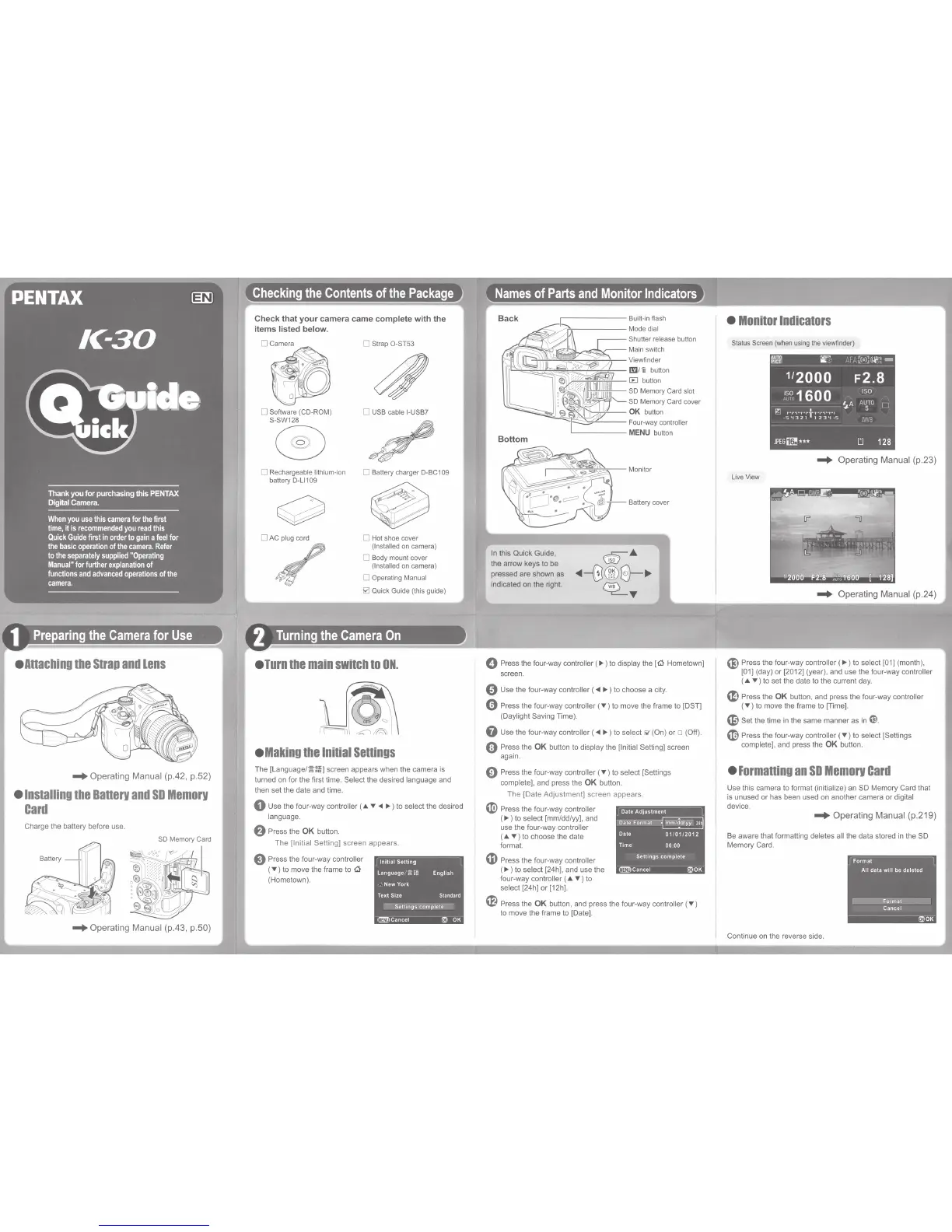
1
Preparing
the
Camera
for
Use
eAnaching
the
Strap
and
Lens
...
Operating Manual (p.42, p.52)
•Installing
the
Banerv
and
so
Memorv
card
Charge the battery before use.
...
Operating Manual (p.43, p.50)
Check that your camera came complete with the
items listed below.
0 Software
(CD-ROM)
S-SW128
®
D Rechargeable
lithium-ion
battery
D-LI1
09
D
AC
plug
cord
0
Strap
O-ST53
0
USB
cable
I-USB?
D Battery charger
D-BC109
D
Hot
shoe cover
(Installed
on
camera)
D
Body
mount
cover
(Installed
on
camera)
D
Operating
Manual
0
Quick
Guide
(this guide)
2
Turning
the
Camera
On
•
Turn
the
main
switch
to
ON.
eMaking
the
Initial
senings
The
[Language/§~)
screen appears when the camera is
turned
on
for the first time. Select the desired language and
then set the date and time.
0 Use the four-way controller ( .o1..,.
<4
~)to
select the desired
language.
f)
Press the
OK
button.
The [Initial Setting) screen appears.
e Press the four-way controller
(.,.) to move the frame to
~
(Hometown).
ln111a1
Settmg
language
/!"lg
English
New York
Text
S1ze
Standard
Settmgs complete
f'DCancel
~
OK
,..-------Built-in
flash
r.------
Mode
dial
Shutter release
button
~~~~~=Main
switch
~
Viewfinder
I!!J
imi
button
lEI
button
SD
Memory
Card
slot
SD
Memory Card cover
OK
button
:::::::~"-"-----Four-way
controller
'-------
MENU
button
Bottom
In
this Quick Guide,
the arrow keys to be
pressed are shown as
indicated on the right.
0 Press the four-way controller
(~)to
display
the[~
Hometown]
screen.
0 Use the four-way controller (
<4
~)to
choose a city.
0 Press the four-way
controller("')
to
move the frame to [DST]
(Daylight Saving Time).
0 Use the four-way controller (
<4
~)to
select
or
(On)
or
o (Off).
Q Press the
OK
button to display the [Initial Setting) screen
again.
Cl)
Press the four-way
controller("')
to
select [Settings
complete], and press the
OK
button.
The [Date Adjustment] screen appears.
~
Press the four-way controller
(
~)
to select [mm/dd/yy). and
use the four-way controller
(
.o1.
.,. ) to choose the date
format.
m Press the four-way controller
(~)to
select [24h), and use the
four-way controller ( .o1..,.) to
select [24h)
or
[12h).
Date Adjustment
Date Format
~~
Date
01
/
01
/
2012
T1me
00 00
Settmgs complete
f'DCancel
(t!OK
G Press the
OK
button, and press the four-way controller (.,.)
to move the frame to [Date).
•
Monitor
Indicators
Status
Screen
(when
using
the
viewfinder)
...
Operating Manual (p.23)
Live
View
e Press the four-way controller
(~)to
select [01) (month),
[01) (day) or [2012] (year), and use the four-way controller
(
.o1.
.,.
) to set the date to the current day.
~
Press the
OK
button, and press the four-way controller
("')to
move the frame to [Time].
(L;
Set the time
in
the same manner as
in
@.
~
Press the four-way controller
(.,.)to
select [Settings
complete]. and press the
OK
button.
•
Formaning
an
so
Memorv
Card
Use this camera to format (initialize) an
SO
Memory Card that
is
unused or has been used on another camera or digital
device.
...
Operating Manual (p.219)
Be aware that formatting deletes all the data stored
in
the
SO
Memory Card.
Format
All data
w1ll
be deleted
)
--
Format
Cancel
~OK
Continue
on
the reverse side.


 To Next Page