Editing Images and Movies
108
4
Playing Back and Editing Images
By changing the recorded pixels and quality level of an image, you can reduce
the file size. You can use this function to continue taking pictures when the
SD Memory Card or built-in memory is full, by making the images smaller and
overwriting the original images to make more space available in the memory.
1 In Playback mode, touch the arrow icons (qr) to
choose the image you want to resize.
2 Touch the LCD monitor.
The [Playback Toolbar] appears.
3 Touch the n icon.
• The [Playback Palette] appears.
• If the desired icon does not appear, touch the arrow icons (qr) to
advance the screen.
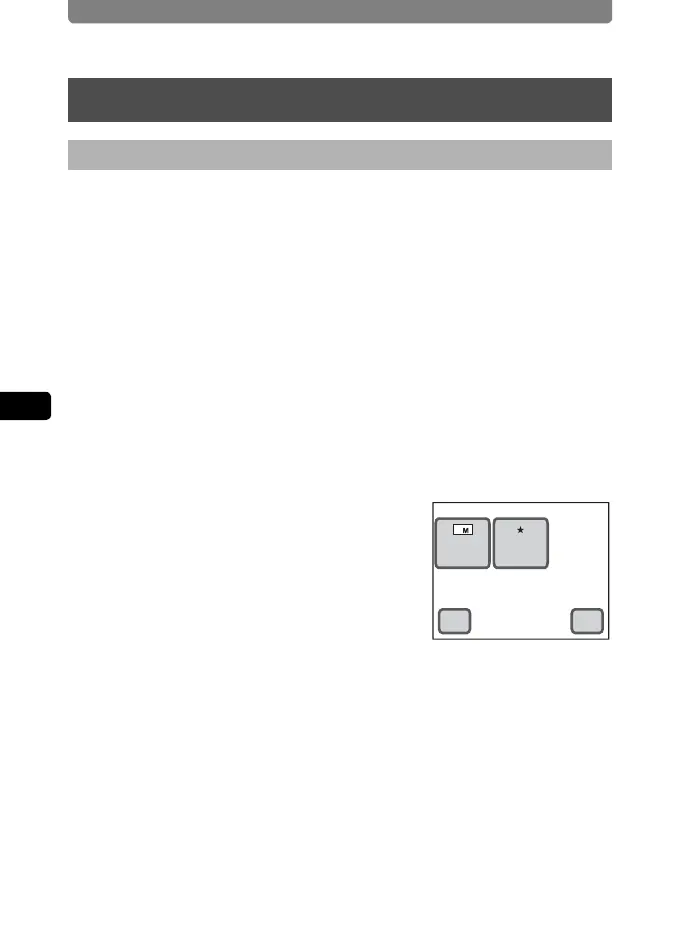
4 Double-touch the n icon.
• The Resize screen appears.
• Touch an icon with the guide checkbox
checked to display the guide display.
• By default, the same [Recorded Pixels]
setting and the [Quality Level] setting at
one lower level are set for resizing.
To change the settings, touch either
[Recorded Pixels] or [Quality Level].
5 Touch [OK].
A save dialog for selecting the save method appears.
6 Touch [Overwrite] or [Save as].
• The resized image is saved.
• Protected images are automatically saved as new files.
Editing Images and Movies
Changing the Image Size and Quality (Resize)
Resize
Quality
Level
Recorded
Pixels
7
OKCancel



 To Next Page