Editing Images and Movies
126
4
Playing Back and Editing Images
1 In Playback mode, touch the arrow icons (qr) to
choose the image for which you want to change the
brightness.
2 Touch the LCD monitor.
The [Playback Toolbar] appears.
3 Touch the n icon.
• The [Playback Palette] appears.
• If the desired icon does not appear, touch the arrow icons (qr) to
advance the screen.
4 Double-touch the h icon.
• The Special Effect screen appears.
• Touch an icon with the guide checkbox checked to display the guide
display.
5 Touch the [Bright Filter] icon.
The Brightness Adjustment screen appears.
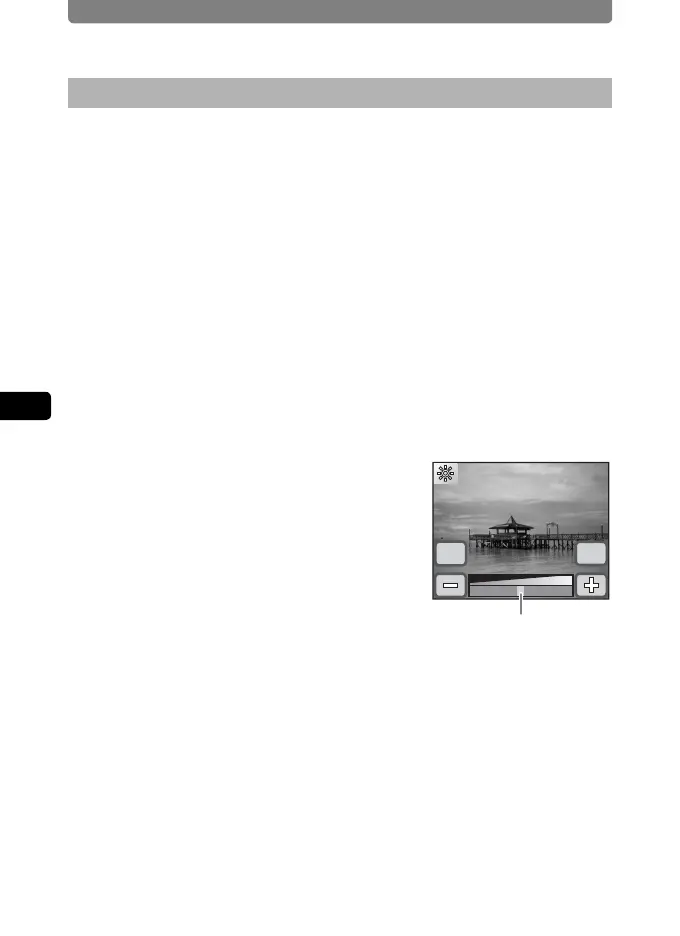
6 Touch the p or q icon to adjust
the brightness.
• You can preview the results of the
brightness adjustment.
• You can also drag the cursor along the
brightness bar to the desired setting.
7 Touch [OK].
The screen returns to the Special Effect screen.
8 Touch [Exit].
A save dialog for selecting the save method appears.
9 Touch [Overwrite] or [Save as].
• The image with the added effect is saved.
• Protected images are automatically saved as new files.
Changing the Image Brightness (Bright Filter)
OK
Cancel
Brightness bar



 To Next Page