166
6
Editing and Printing Images
You can delete the unwanted part of a picture and save the cropped
image as a separate image.
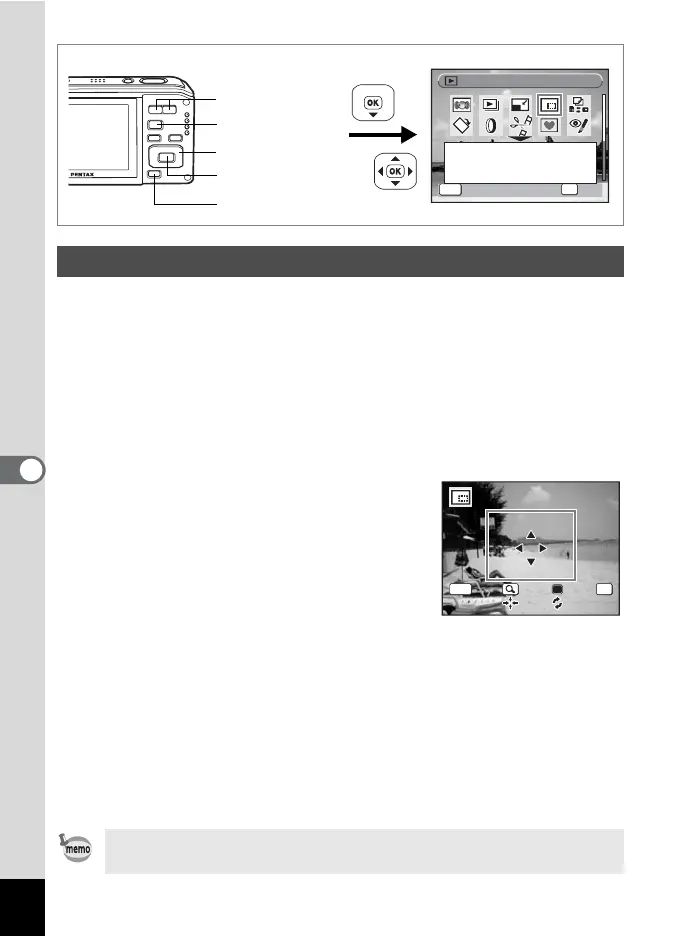
1 Enter the Q mode and use the four-way controller
(45) to choose the image you want to trim.
2 Press the four-way controller (3).
The Playback Mode Palette appears.
3 Use the four-way controller (2345) to select o
(Cropping).
4 Press the 4 button.
The cropping screen appears.
The maximum range for cropping is shown
with a green frame on the screen. Cropping
cannot be performed inside of this area.
5 Choose the cropping conditions.
The following operations move the green
frame and set the area for cropping on the screen.
Zoom/f/y button
Changes the size of the cropped section
Four-way controller (2345)
Moves the cropping position up, down, left and right
Green button Rotates the cropping frame
6 Press the 4 button.
The cropped image is saved with a new file name.
The cropped image is saved in the same quality as the original image.
The number of recorded pixels is selected automatically according to
the size of the cropped section.
Cropping Images
Movies cannot be cropped.
OK
MENU
OK
OK
Cancel
Cancel
1/2
1/2
Cropping
Cropping
For cropping images to the
size you like. Saved as a
new image.
Four-way controller
4 button
Q button
Green button
Zoom/f/y
button
OKMENU
Cancel OK
OK



 To Next Page
 Loading...