38 EN
Set HDMI video resolution
Set the resolution of the video signal being
output from the HDMI OUT.
1 Press HOME.
2 Select [Settings] > [Advanced Set-up] >
[Video Output] > [HDMI Video
Resolution].
When you make a selection, the TV
monitor temporarily goes blank and
then comes back again.
If it does not, press OUTPUT to
change the resolution or press and hold
PLAY on the front panel for 5
seconds to change the setting back to
its default.
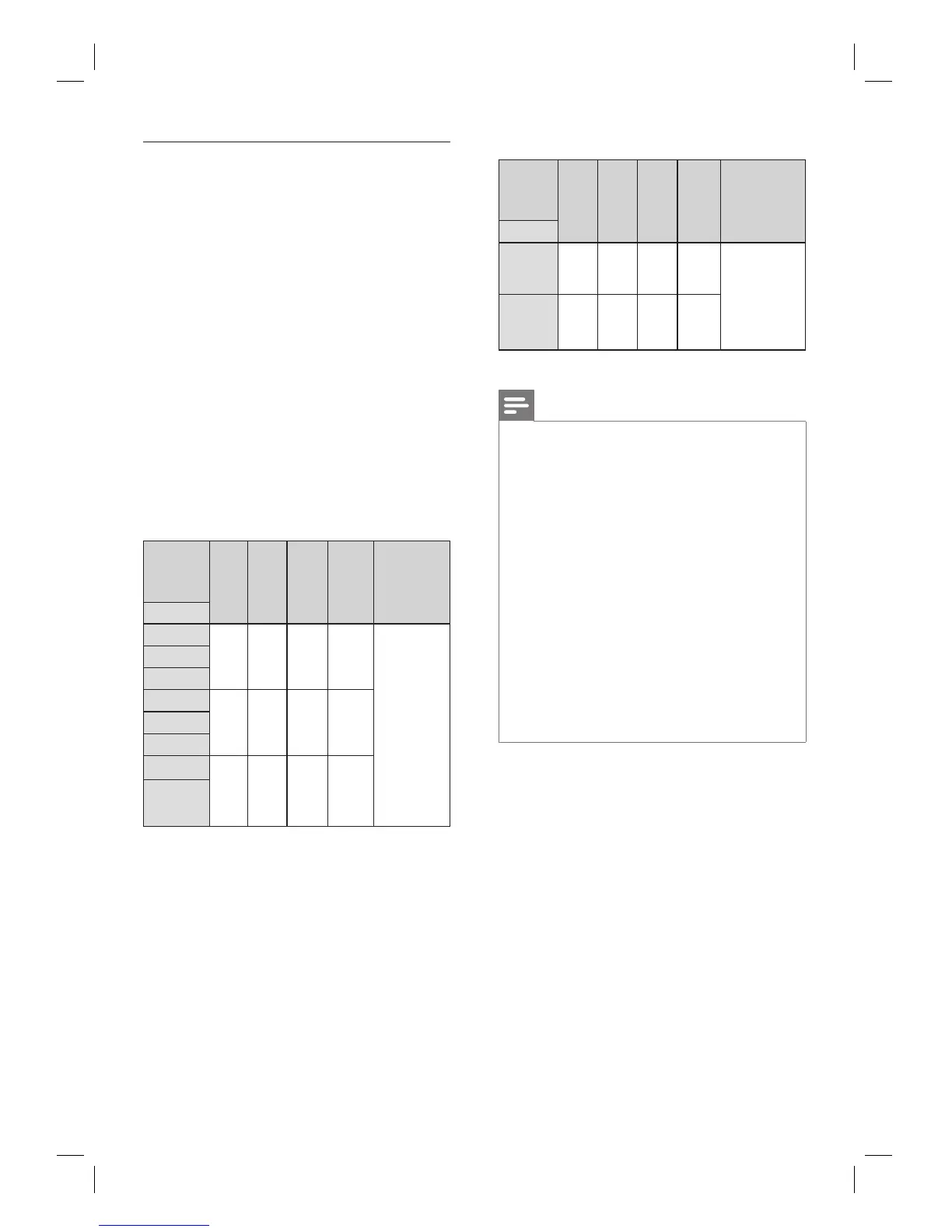
Actual output resolution by Blu-ray disc
HDMI
Video
Resolution
setting
480p/
576p
720p 1080i 1080p Auto
Source
480i/60Hz 480p/
60Hz
720p/
60Hz
1080i/
60Hz
1080p/
60Hz
The highest
resolution
supported by
your display
device will be
in effect
automatically
720p/60Hz
1080i/60Hz
576i/50Hz 576p/
50Hz
720p/
50Hz
1080i/
50Hz
1080p/
50Hz
720p/50Hz
1080i/50Hz
720p/24Hz 480p/
60Hz
720p/
60Hz
1080i/
60Hz
1080p/
24Hz
or
60Hz
(*1)
1080p/24Hz
(*1) To output the video in 24Hz, the connected
display device must support 24Hz output, and [HDMI
1080p/24] should be set to [Auto]. Otherwise, the
image will be output in 60Hz.
•
•
Actual output resolution by DVD
HDMI
Video
Resolution
setting
480p/
576p
720p 1080i 1080p Auto
Source
480i/60Hz 480p/
60Hz
720p/
60Hz
1080i/
60Hz
1080p/
60Hz
The highest
resolution
supported by
your display
device will be in
effect
automatically
576i/50Hz 576p/
50Hz
720p/
50Hz
1080i/
50Hz
1080p/
50Hz
Note
When HDMI cable is connected, only [480i/576i]
and the resolution selected in the [HDMI Video
Resolution] will be available for the [Component
Output].
Composite video out (VIDEO OUT) can only
output 480i/60 or 576i/50.
When outputting 24Hz signal from the HDMI OUT,
no signal will be output from the COMPONENT
VIDEO OUT and the VIDEO OUT.
The selected resolution must also be supported by
your display device.
If your TV and the unit is connected by a DVI cable
and if you select [Auto], [480p/576p] will be in effect
automatically.
Pressing PLAY on the front panel for 5 seconds
changes the setting back to its default. ([Component
Output] setting will also be reset to default
[480i/576i]).
Refer also to your TV’s manual.
•
•
•
•
•
•
•


 To Next Page