26
W
hether you’re watching a movie or a
sporting event, your TV has automatic
video control settings matched for your cur-
rent program source or content. The
SmartPicture™ feature quickly resets your
TV’s video controls for a number of different
types of programs and viewing conditions you
may have in your home. Each SmartPicture™
setting is preset at the factory to automatical-
ly adjust the TV’s Brightness, Color, Picture,
Sharpness, Tint, Color Temperature, DNR and
Contrast+ levels.
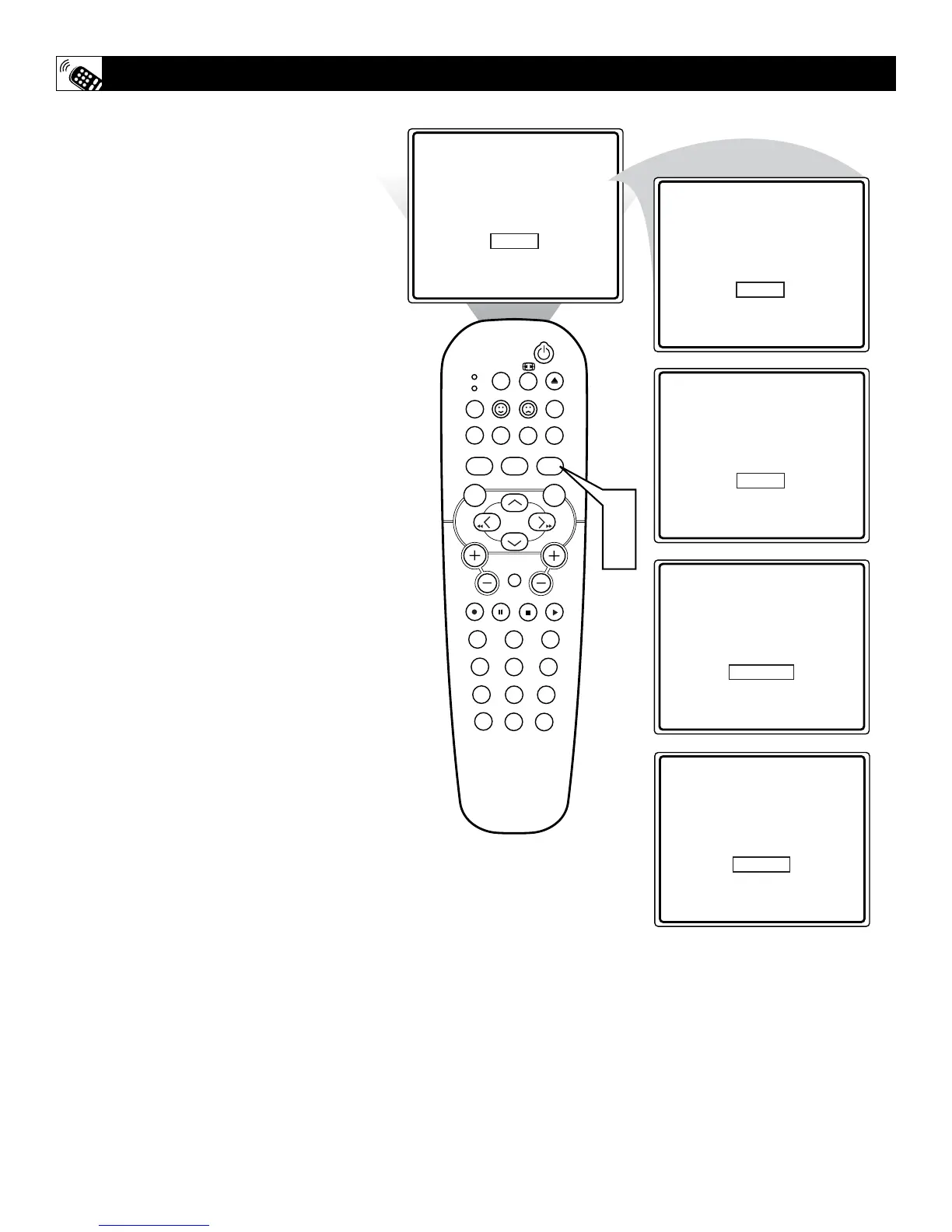
1
Press the SMART PICTURE button
on the remote control. The current Auto
Picture setting will appear in the middle
of the screen.
2
Press the SMART PICTURE button
repeatedly to select either PERSONAL,
MOVIES, SPORTS, WEAK SIGNAL,
or MULTIMEDIA picture settings.
Note: The PERSONAL setting is the setting
that you setup using the PICTURE options
within the on-screen menu. This is the only
Smart Picture setting that can be changed. All
other settings are setup at the factory during
the time of production.
MOVIES - Preset picture options for watch-
ing Video Tapes, or DVDs.
SPORTS - Preset picture options for watch-
ing sporting events.
WEAK SIGNAL - Preset picture options for
watching programs where the reception is not
at its best.
MULTIMEDIA - Preset picture options for
use with video gaming.
SETTING THE SMARTPICTURE™ CONTROL



 To Next Page