28
A
“list” or series of previously viewed
channels can be selected with the
QuadraSurf™ (colored) buttons on your
remote control. With this feature you can easi-
ly switch between different TV programs that
currently interest you. The QuadraSurf™ con-
trol allows you set up four different personal
Surf lists using the colored buttons (on the
remote control), each holding up to ten chan-
nels in its quick viewing“list.”
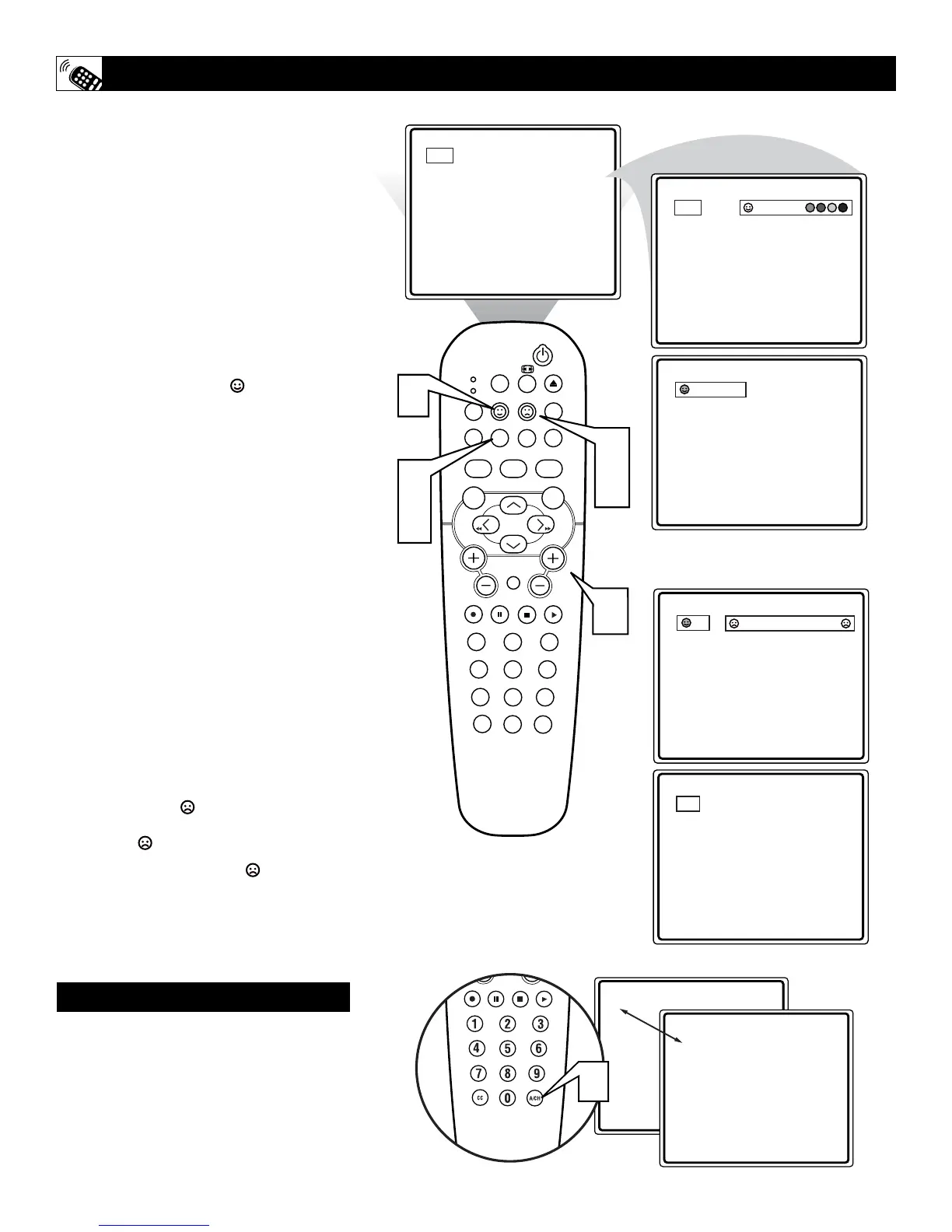
1
Press the CHANNEL (+) or (–) but-
tons (or the NUMBER buttons) to
select a channel to add to one of the
SURF lists.
2
Press the SMILEY button on the
remote control to ADD the channel to
one of the SURF lists.
3
Press the corresponding COLORED
(Red, Green, Yellow or Blue) button
to add the channel to that button’s Surf
list. (Up to ten channels per button can
be stored.)
Repeat steps 1 through 3 to add additional
channels (up to 10) to each of the the SURF
lists.
To remove a channel from one of the SURF
lists;
4
Press the COLORED QuadraSurf™
button until the desired channel
appears. The screen will display the
channel number with a colored
“Smiley” face to indicate the Colored
button it relates to.
5
While the “Smiley” face channel
indicator is displayed, press the
FROWNIE face button. The
screen will read, “Remove item? -
Press .”
6
Press the FROWNIE face button
again to confirm your decision to
remove the channel from the Surf list.
Repeat steps 4-6 to remove other channels
from Surf lists.
USING THE QUADRASURF™ BUTTONS



 To Next Page