SLEEP
EJECT
SYSTEM MENU
REPEATAUDIO REPEAT A-B SUBTITLE
SMART SOUND SMART PICTURE
TV/DVD
MENU
DVD
MENU
VOL
CH
MUTE
1
23
456
789
0
CC
A/CH
OK PAUSE STOP PLAY
MODE
POWER
TV
VCR
OSD
7
1
5
3
5
6
4
2
Toolbar
Preferences
Setup
Welcome to DVD menu. Use navigation keys to move around
the menu.
Play Option Slide Show View
Use or to select other options, to enter the option,
RETURN to leave the menu
Disc Navigation
Audio
Play Option Slide Show View
Sub-title
Toolbar
Use to select other options, to enter the submenu
Disc Navigation
Audio
Play Option
Sub-title
Toolbar
Title 1 Chapter 12
Use or to change values, or for other lists, OK to confirm
Disc Navigation
Audio
Play Option
Sub-title
Toolbar
Title
20
1
2
3
4
Use or to change values, OK to confirm, to leave the
sub-menu
Disc Navigation
Audio
Play Option
Sub-title
Toolbar
Audio
4 fr
1 en
2 en
3 es
Use or to change values, OK to confirm, to leave the
sub-menu
Disc Navigation
Audio
Play Option
Sub-title
Toolbar
Sub-title
None
1 en
OPERATING THE DVD P
LAYER - TOOLBAR MENU
T
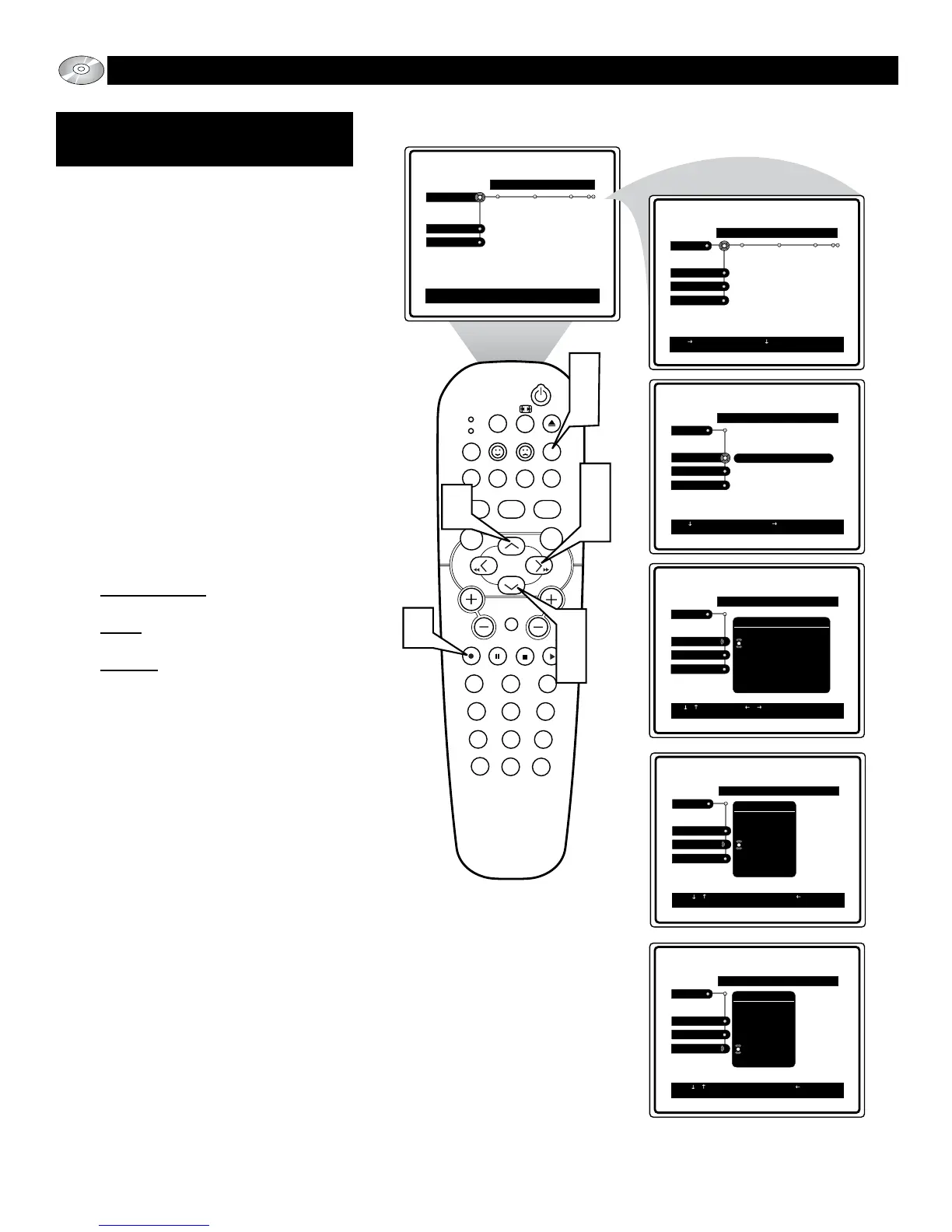
he Play Option area of the DVD Player
onscreen menu contains three control that
allow you to navigate the disc by titles and
chapters, set the audio language, and set the
sub-title language.
1
Press the SYSTEM MENU (OSD)
button on the remote control to display
the on-screen menu. the Toolbar option
will be highlighted.
2
Press the CURSOR RIGHT button
until the words Play Option are high-
lighted.
3
Press the CURSOR DOWN button to
highlight the Disc Navigation, Audio,
or Sub-title control.
4
Press the CURSOR RIGHT button to
gain access to the highlighted control’s
options.
Disc Navigation: Search the disc by
title and chapter.
Audio: Use to set the audio language
from a list of available choices.
Sub-title: Use to set the sub-title lan-
guage from a list of available choices.
5
Press the CURSOR UP or DOWN
buttons to scroll and highlight the
available menu options.
6
Press the OK button to select or acti-
vate the chosen option.
7
Press the SYSTEM MENU (OSD)
button to clear the on-screen menu
from the TV screen.
PLAY OPTION: DISC
NAVIGATION, AUDIO, SUB-TITLE





 To Next Page