Not possible now.
Welcome to DVD menu. Use navigation keys to move around
the menu.
OPERATING THE DVD P
LAYER - MENU BAR OPERATION
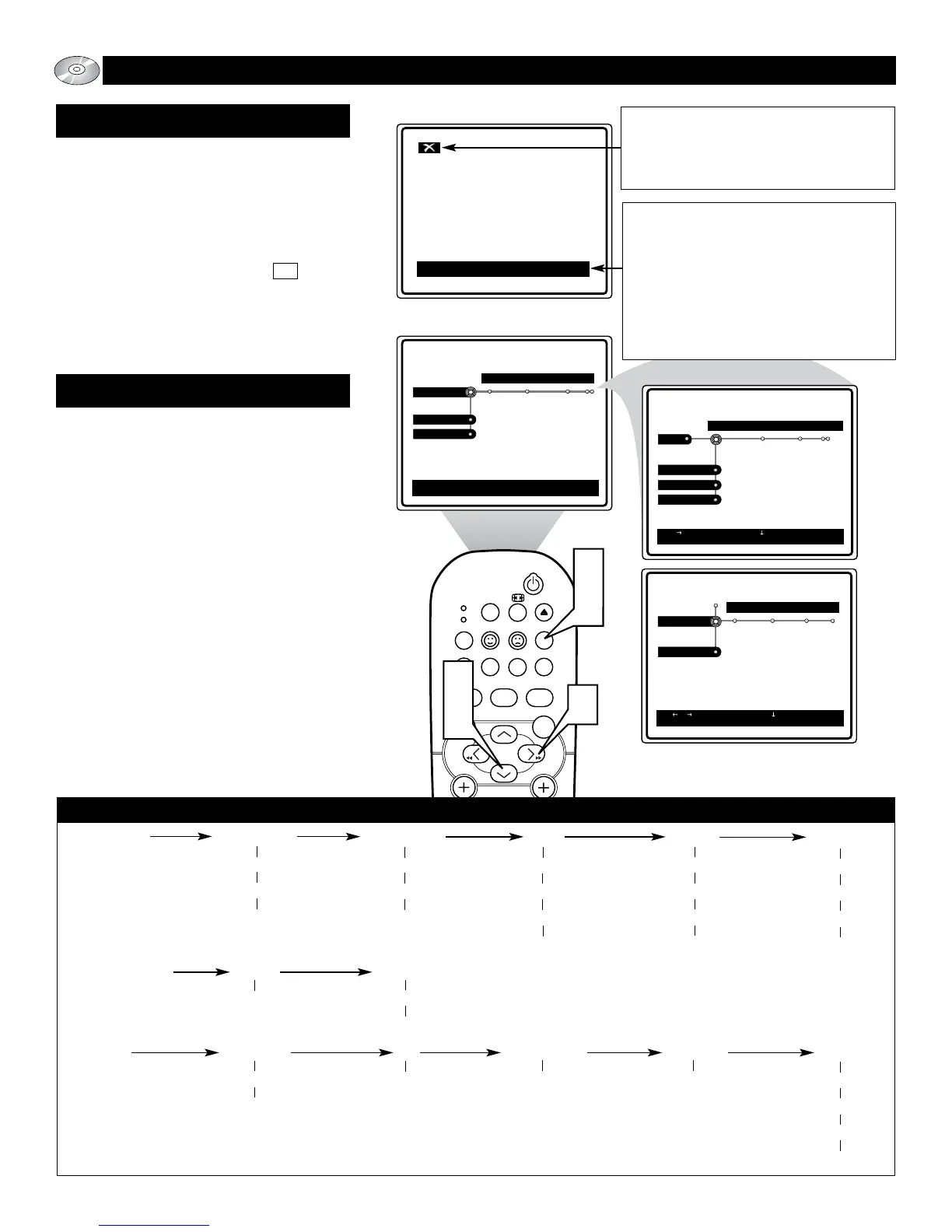
GENERAL EXPLANATION
When the “X” icon appears on the TV
screen, it means the function cannot be
preformed or is not an available option
for that disc.
T
his manual gives the basic instructions for
operating this DVD Player. Some DVD
(discs) require specific operation or allow
only limited operation during playback. In
these cases, the player may not respond to all
operating commands. When this occurs,
please refer to the instructions contained with
the DVD (disc). When the symbol X
appears on the TV screen, the operation is not
permitted by the player or the disc.
Unless otherwise stated, all operations can
be performed by using the remote control.
1
Press the SYSTEM MENU (OSD)
button to display the DVD Player’s
on-screen menu.
2
Press the CURSOR RIGHT button
to highlight and select TOOL BAR
options: Play Option, Slide Show,
View, Search, or Program.
OR, press the the CURSOR DOWN
to highlight and select either
Preference or Setup options.
3
Once you have chosen a specific
TOOL BAR option, press the CUR-
SOR DOWN button to highlight or
select it’s sub-option control. (See the
Onscreen Menu Options outline at the
bottom of this page.)
4
Repeatedly pressing the SYSTEM
MENU (OSD) button while the on-
screen menu is displayed will remove
the menu from the TV screen.
MENU BAR OPERATION
If the HELP LINE feature is set to ON,
information about the status window can
be displayed to help understand the best
action to take. With the HELP LINE fea-
ture set to OFF, the text box at the bot-
tom of the screen will not be displayed.
Please refer to the Preference Options
section of the manual for more details.
Tool Bar: Play Option Slide Show View Search Program
Disc navigation Pic time Angle Time Program
Audio Trans time Zoom Fast Tracks
Sub-title Trans effect Chapter preview Slow Playlist
Rotate Frame by frame Clear all
Preferences: Sound Features
Night mode Help line
Status Window
Setup: Language TV Audio Menu Features Access
Default audio TV system Digital output PBC Enter current pin
Default Sub-title Parental level
Change pin
Disk lock
Onscreen Menu Options (Outline)
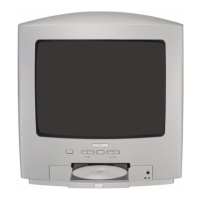
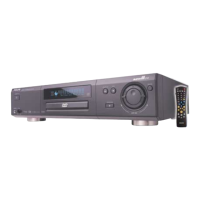
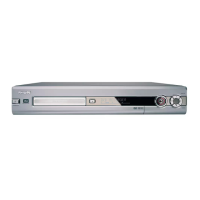
Sample of onscreen menus.



 To Next Page