Welcome to DVD menu. Use navigation keys to move around
the menu.
RETURN to leave the menu.
RETURN to leave the menu.
OPERATING THE DVD P
LAYER - SETUP MENU
Y
ou can select different languages so the DVD
Player will automatically display its
Onscreen Menu and DVD Disc Menus in the
language you of your choice. The Default Audio
and Sub-title can also be changed to a desired
language. To change the Default Audio
Language or Default Sub-title Language, follow
the steps below.
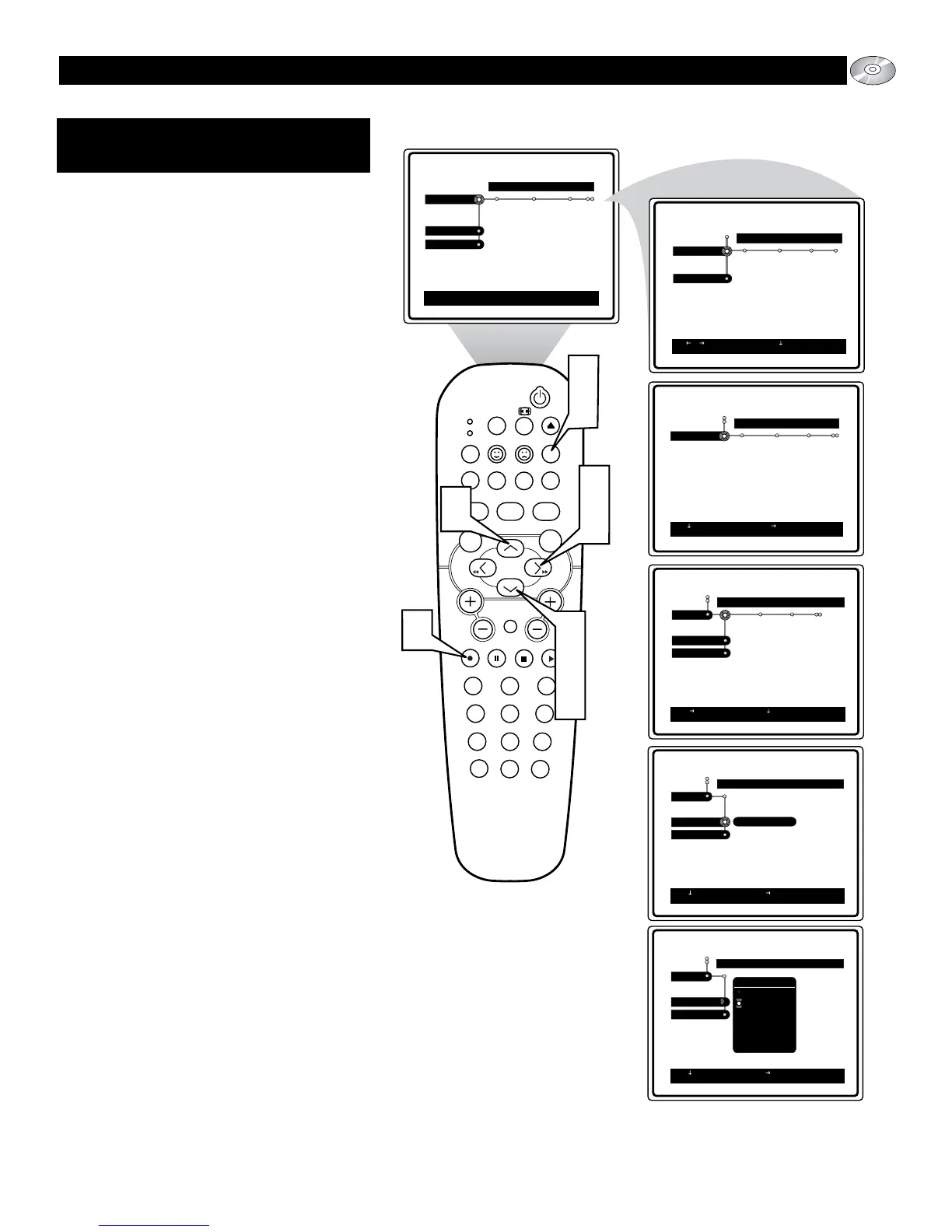
1
Stop playback if a disc is playing in the
player. Press the SYSTEM MENU
(OSD) button on the remote control to
display the on-screen menu.
2
Press the CURSOR DOWN button until
the word Setup is highlighted.
3
Press the CURSOR RIGHT button to
move the puck to the right highlighting
the work Language.
4
Press the CURSOR DOWN button to
highlight either the Default Audio, or
Default Sub-Title control.
5
Press the CURSOR RIGHT button to
gain access to the highlighted control’s
options.
6
Press the CURSOR UP or DOWN but-
tons to scroll the list of available lan-
guages. Choose from: English, Español,
Français, Português, Italiano, Russian,
Deutsch, Greek, Japanese, Korean,
Chinese, Quechua, Guaraní, Aymará,
or Inuplaq.
7
Press the OK button to select or activate
the chosen option.
8
Press the SYSTEM MENU (OSD) but-
ton to clear the on-screen menu from the
TV screen.
LANGUAGE:
DEFAULT AUDIO, DEFAULT SUB-TITLE



 To Next Page