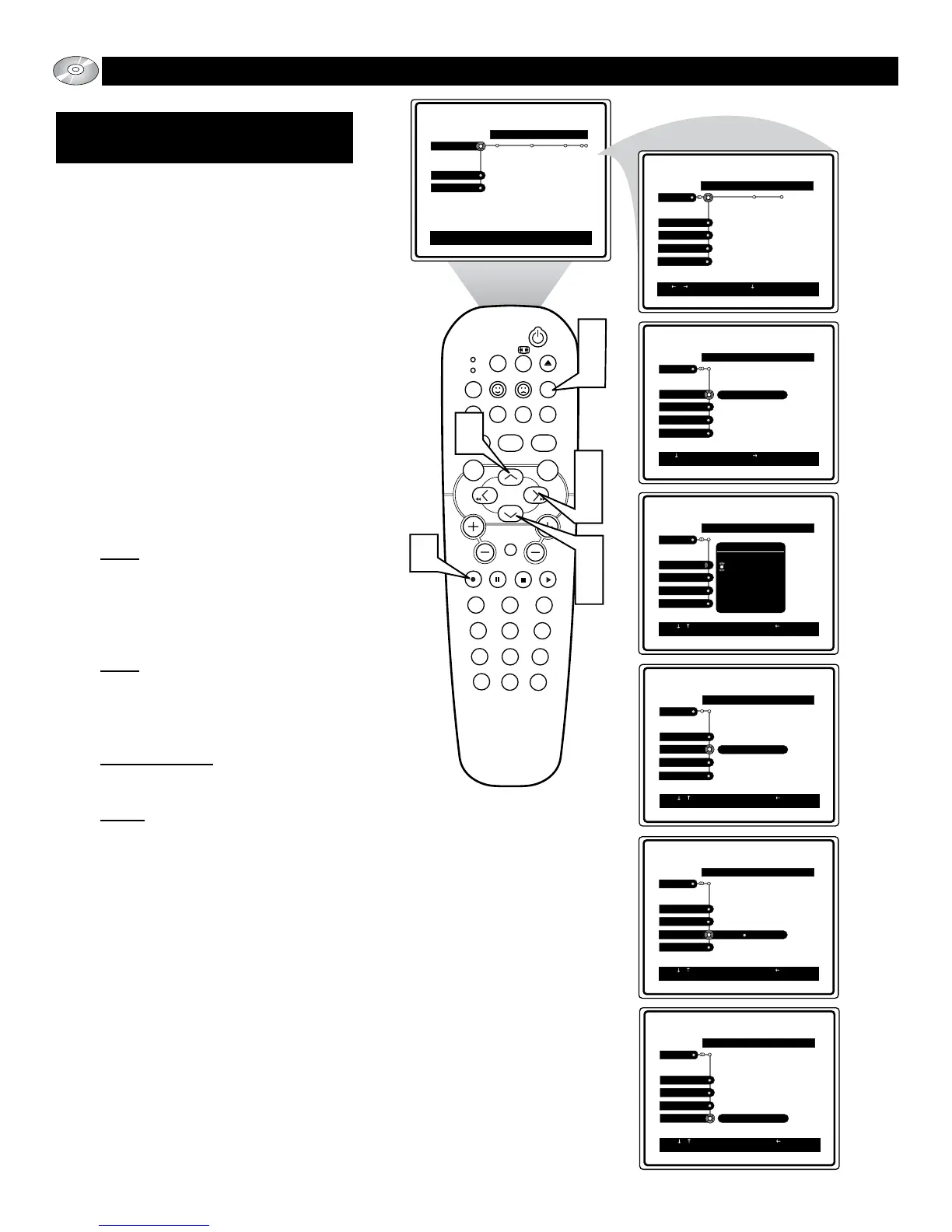
Welcome to DVD menu. Use navigation keys to move around
the menu.
RETURN to leave the menu.
sub-menu.
sub-menu.
sub-menu.
sub-menu.
OPERATING THE DVD PLAYER - TOOLBAR MENU
VIEW: ANGLE, ZOOM,
CHAPTER REVIEW, ROTATE
S
ome Discs contain additional information
that will allow the viewer to change the
camera angles, zoom the picture, rotate the pic-
ture, and scan chapters with chapter preview.
1
Press the SYSTEM MENU (OSD)
button on the remote control to display
the on-screen menu. the Toolbar option
will be highlighted.
2
Press the CURSOR RIGHT button
until the word View is highlighted.
3
Press the CURSOR DOWN button to
highlight either the Angle, Zoom,
Chapter Preview, or Rotate control.
4
Press the CURSOR RIGHT button to
gain access to the highlighted control’s
options.
Angle: If additional camera angle exist
on the disc, press the Cursor Right to
access the sub-meun, then the Cursor
Up or Down to select desired angle.
new camera angle will appear on the
screen.
Zoom: Press the Cursor Right to acti-
vate, then use the Cursor buttons to
select an area to zoom. Press the OK
button repeatedly to zoom 2x, 4x, 8x,
or to return to 1x picture size.
Chapter Preview: Use turn Chapter
Preview On or Off. When On disc will
preview all available chapters.
Rotate: If available on the disc, select
rotate to turn the picture 90 degrees
clockwise from the original. Great fea-
ture when viewing a photo CD.
5
Press the CURSOR UP or DOWN
buttons to scroll and highlight the
available menu options.
6
Press the OK button to select or acti-
vate the chosen option.
7
Press the SYSTEM MENU (OSD)
button to clear the on-screen menu
from the TV screen.



 To Next Page