PAGE 5-151097626, VER. 03
5. Once again select the drop down arrow and select the COM port which was just populated.
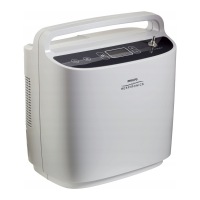
6. This is the communication port that the Computer has assigned to communicate with the Sim-
plyGo or SimplyFlo. Refer to the Communication Port Settings, if you are using the assigned port
for the first time.
7. Remove the SimplyGo/SimplyFlo Communication Cover from the rear of the device to access the
miniDIN connector.
8. Align and carefully connect the miniDIN Interface Cable connector to the SimplyGo/SimplyFlo con-
nector.
9. If connected to a SimplyGo, verify a charged battery is inserted in the SimplyGo, or a known good
battery with the SimplyGo Power Supply connected between the SimplyGo and a specified AC
power source. If connected to a SimplyFlo, connect the SimplyFlo to an AC power source.
10. Turn on the SimplyGo/SimplyFlo.
11. The Software will automatically begin recovering the Event data from the SimplyGo/SimplyFlo.
12. The Event data will then be displayed and a (Save as) display window will also appear. If desired,
the event data can be saved at this point or can be saved by selecting the File menu from the Tool
bar header at any point after closing the (Save as) window as long as the device is not turned off


 To Next Page
 Loading...