32 33
14.3 NewNet
Erases the microphone’s current network (including
SubNets). All required devices, e.g., receivers and
additional microphones, will need reconnecting.
How to use it:
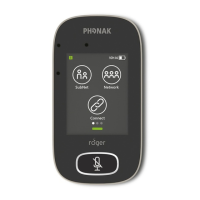
• Swipe screen left-right to locate NewNet icon
• Tap NewNet
• Tap Yes to conrm
15 Microphone modes
The Roger Touchscreen Mic features four microphone
modes to suit every learning situation:
• Automatic (default)
• Small Group
• Pointing
• Lanyard
How to change microphone mode:
• Swipe screen left-right to locate Mic mode icon
• Tap Mic mode
• Select preferred microphone mode
15.1 Automatic mode – how does it work?
The microphone automatically chooses its own
microphone mode: either Small Group, Pointing (if
enabled) or Lanyard. This automated choice is based on
the microphone’s built-in accelerometer, which analyzes
its orientation.


 To Next Page