Page 11 of 43
4.2 Installing a printer
To be able to print a screenshot, a self-adhesive label for the patient paper record or a
measurement report (optional, License Z), suitable printer must be installed. You can
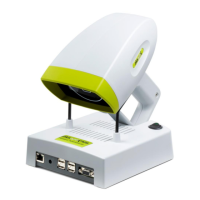
attach the printer to the plusoptiX A09 directly via the USB or via your practice
network.
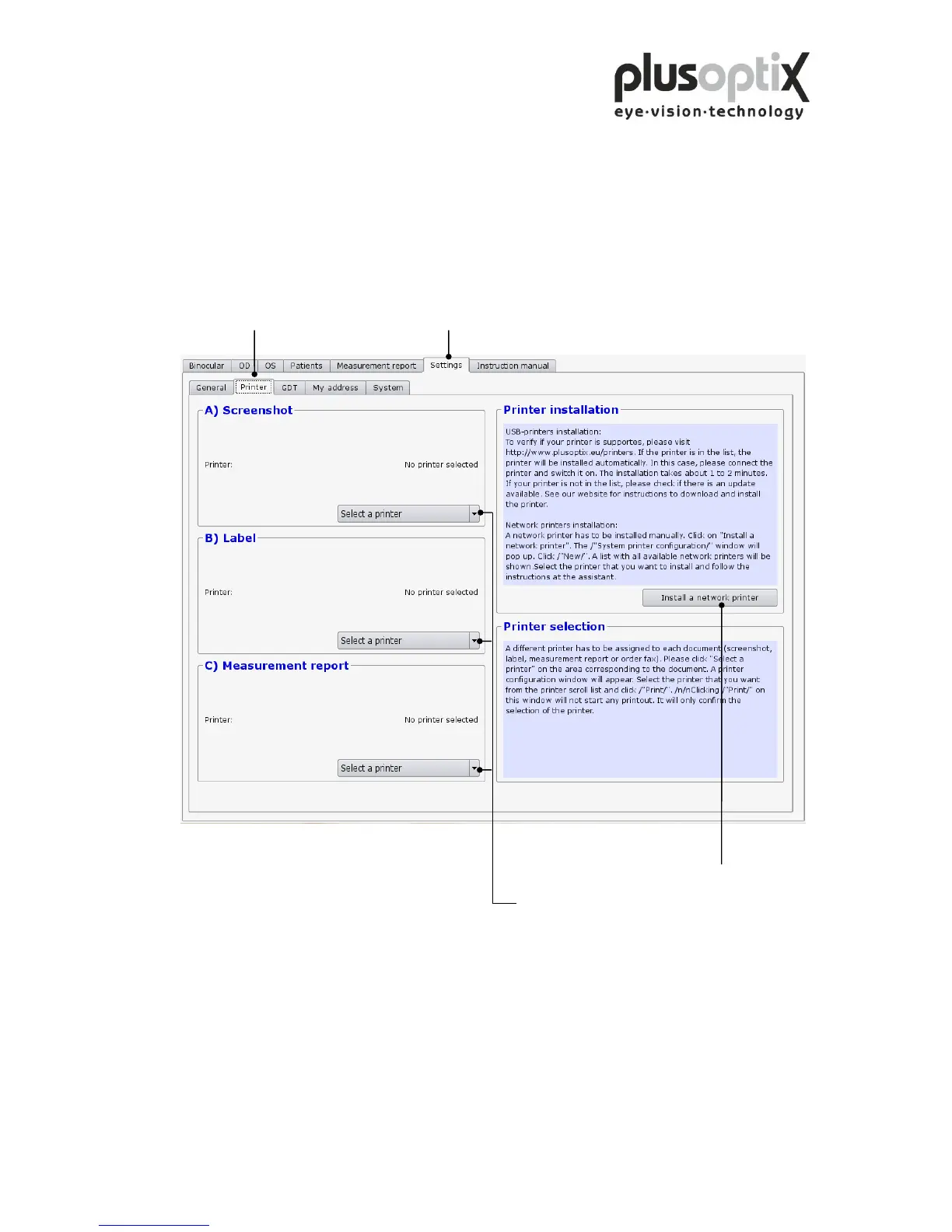
Click on “Settings” and then on "Printer".
Click here to select the network printer.
Click here to select the printer to be used to
print the corresponding document.
A pdf-printer (“PDF”) is already installed on the plusoptiX A09.
If you select the pdf-printer, it is necessary to insert a USB stick into one of the free
USB ports on the plusoptiX A09. After a successful measurement and after clicking on
“Measurement report” or “Screenshot” the document will be saved automatically on the
stick. After about 10 seconds you can remove the stick from the device and print the
document at a computer connected to a printer.


 To Next Page