R
richard82Aug 28, 2025
Why does my Polaroid Digital Camera power off during self-timer?
- FfoconnellAug 28, 2025
If your Polaroid Digital Camera powers off during self-timer countdown, the batteries may be dead. Replace or recharge your batteries.



 To Next PageTo Next Page
Why does my Polaroid Digital Camera power off during self-timer?
If your Polaroid Digital Camera powers off during self-timer countdown, the batteries may be dead. Replace or recharge your batteries.
What to do if my Polaroid Digital Camera doesn't record images?
If the image is not recorded when you press the shutter button on your Polaroid Digital Camera, the camera may be turned off, the flash unit may be charging, or the memory may be full. Turn the camera on, wait until the flash unit finishes charging, delete images you no longer need, or use another memory card.
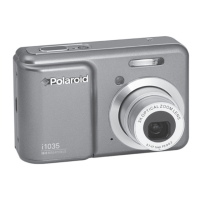
Why does my Polaroid i1037 suddenly turn off?
If your Polaroid Digital Camera suddenly powers off, it could be due to the Auto Power Off function being activated, or the batteries are dead. Try turning the camera back on. If the problem persists, replace or recharge your batteries.
What to do if my Polaroid Digital Camera won't turn on?
If you cannot activate your Polaroid Digital Camera by pressing the power switch, it may be due to insufficient battery power or a missing battery. Recharge the batteries or install the batteries to resolve this issue.
How to fix a Polaroid i1037 that does not turn on?
If your Polaroid Digital Camera does not turn on, the most likely cause is an exhausted battery. Try charging the battery or replacing it with a fully charged one.
 General
| Megapixel | 10 MP |
|---|---|
| Camera type | Compact camera |
| Sensor type | CCD |
| Image stabilizer | Yes |
| Supported aspect ratios | 16:9 |
| Maximum image resolution | - pixels |
| Digital zoom | 4 x |
| Optical zoom | 3 x |
| Focal length range | 6.3 - 18.9 mm |
| Digital SLR | No |
| Aperture range (F-F) | 3.1 - 5.6 |
| Compatible operating systems | Windows Mac |
| Internal memory | 16 MB |
| Compatible memory cards | sd, sdhc |
| Video formats supported | AVI |
| Display diagonal | 2.7 \ |
| USB version | 2.0 |
| Product color | Black |
| Battery type | AA |
| Number of batteries supported | 2 |
| Flash modes | auto, fill-in, Flash off, Red-eye reduction |
| Scene modes | Self-portrait |
| White balance | Auto |
| Camera playback | movie, single image |
 Weight and Dimensions
| Width | - mm |
|---|
Lists the items included in the Polaroid i1037 digital camera package.
Instructions on how to securely attach the wrist strap to the camera.
Step-by-step guide for inserting AA batteries into the camera.
Guidance on battery types and tips to extend battery life for optimal performance.
How to monitor the camera's battery power indicator on the LCD screen.
Procedure for powering the digital camera on and off using the power button.
How to view active camera settings by checking the LCD screen.
Introduction to different modes for recording still images, video, and audio clips.
Functionality for reviewing, rotating, protecting, or deleting pictures and video clips.
Details on the two working modes: Capture Mode and Playback Mode.
Steps to select between Still Image, Video, and Audio recording modes.
Instructions for using buttons to navigate menu bars and select options.
Guide to accessing and changing basic camera settings via the setup menu.
How to set start-up, shutter, and beep sounds in the Setup mode.
Configuring the duration the captured picture is shown on the LCD screen.
Managing camera power conservation by setting automatic shut-off periods.
Procedure for configuring the camera's date, time, and date format.
Selecting the preferred language for the camera's LCD screen display.
Managing file numbering to avoid duplication when downloading images.
Customizing the camera by setting a recorded image as the startup animation.
Erasing all data from the camera's internal memory; use with caution.
Ensuring accurate battery level display by matching the setting to the battery used.
Restoring all camera settings to their original factory default values.
Controlling the visibility of information on the LCD screen by toggling it.
Guide to capturing standard still images with focus and exposure settings.
Instructions for capturing close-up subjects with specific focus ranges.
Selecting appropriate modes for various shooting conditions to optimize results.
Simplified interface for beginners, offering basic settings for easy picture taking.
Configuring flash behavior (Auto, Red-eye, Always On, Slow Sync, Off) for optimal lighting.
Using the self-timer function for countdown shots (2 or 10 seconds).
Capturing a rapid sequence of images by holding down the shutter button.
Understanding and using optical and digital zoom for magnifying subjects.
Adjusting picture resolution and JPEG compression for optimal image output.
Ensuring correct light exposure by selecting metering modes (Center, Multi, Spot).
Adjusting color tones to appear natural under different lighting conditions.
Controlling camera sensitivity to light for different shooting scenarios.
Adjusting exposure value (-2EV to +2EV) for backlit or low-light conditions.
Using Auto Exposure Bracketing to capture multiple exposures of the same scene.
Making the subject stand out by slightly blurring the background.
Adjusting edge contrast for sharper or softer focus effects on subjects.
Applying color tones and moods like B&W, Sepia, or Red Eye Removal.
Option to display or hide the recorded date and time on pictures.
Activating the stabilizer to prevent blurred images caused by camera shake.
Using auto digital zoom to lock and follow the main subject in the picture.
Automatically captures pictures when detected subjects smile.
Adding decorative frames to still images for a more interesting look.
Enabling the AF lamp for improved focusing in low light conditions.
Using Movie mode to record video clips with audio, including zoom functionality.
Selecting the desired resolution and frame rate for video recordings.
Configuring video settings for easy uploading to the YouTube website.
Instructions for recording audio clips using the Voice REC mode.
Adding a voice memo to a specific image during playback mode.
Navigating through captured still images using the playback mode.
Zooming in on displayed pictures and trimming them to create new images.
Changing the orientation of a picture for better viewing or presentation.
Applying image editing effects like Red Eye Removal, B&W, or Sepia.
Resizing large images to smaller dimensions for easier sharing.
Viewing multiple picture and video clip files simultaneously on the LCD screen.
Displaying stored pictures and video clips in a sequential slide show format.
Viewing recorded video clips directly on the camera's LCD screen.
Listening to recorded audio clips through the camera's playback function.
Replaying voice memos recorded for specific images.
Securing pictures, movies, and audio clips from accidental deletion.
Removing unwanted files from the camera's memory.
Connecting the camera to a television to view pictures and video clips.
Introduction to the PictBridge technology for direct camera-to-printer printing.
Procedure for stopping an ongoing print job and ejecting paper.
Troubleshooting steps for common printing errors and reconfiguring settings.
Instructions for connecting the camera to a printer using a USB cable.
Choosing specific images or all images for printing via the PictBridge menu.
Setting print quality options (AUTO, FINE, NORMAL, DRAFT) for the desired output.
Configuring the layout of printed images, including number of images per page.
Choosing the appropriate paper size for printing from a list of available options.
Specifying the type of paper (AUTO, PHOTO, PLAIN, F PHOTO) for printing.
Adding or removing date and time stamps on printed images.
Controlling the inclusion of file names in printed images.
Returning all PictBridge print settings to their default values.
Choosing the print format (Standard, Index, DPOF) for image output.
Understanding Digital Print Order Format for specifying print jobs on memory cards.
Configuring DPOF settings for images on a memory card, including selection and copies.
Information on expanding camera memory with SD cards and precautions.
Step-by-step guide for properly inserting an SD memory card into the camera.
Instructions for safely removing an SD memory card from the camera.
Process for erasing all data on an SD card to restore normal operation.
Transferring pictures, video, and audio clips from internal memory to an SD card.
Guide for installing camera software and drivers on a Windows PC.
Details on the Polaroid Digital Camera Driver and ArcSoft applications.
Minimum hardware and software specifications for PC and Mac to use the camera.
Steps for uploading movie files to YouTube using the included ArcSoft software.
Important prerequisites for PC users before connecting the camera for file transfer.
Instructions for establishing a direct USB connection between the camera and computer.
Process for copying pictures and movie clips from the camera to a PC or Mac.
Information on accessing online support and resources via the Polaroid website.
Contact details and resources for technical support for ArcSoft software.
Detailed technical data for the camera's sensor, lens, flash, and other components.
Procedure for removing the Polaroid i1037 camera driver from a Windows PC.
List of default settings for Still Image and Movie modes.
Guidance on safe operation, environmental conditions, and camera care.
FCC compliance notice and warnings regarding device operation and interference.