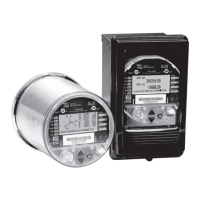
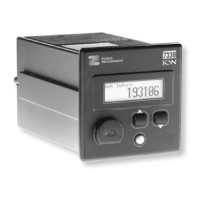
ION 8000 Series User Guide Using the Front Panel
Chapter 17 - Resets Page 183
3. Remove any anti-tamper sealing device located at the base of the meter. These
devices seal the meter cover to the backplate.
4. Turn the plastic cover one-quarter counterclockwise and then pull it off.
5. Using a pin or similar instrument, press and hold the Master Reset button until
the “Master Reset in Progress” message is displayed on the front panel.
CAUTION
After initiating a Master Reset, wait until the “Master Reset Completed” message appears on the front
panel (or about two minutes, depending on your firmware). This allows the meter to completely reset
parameters. This is especially important if you are powering down the meter after a Master Reset.
Parameters affected by a Master Reset
The Master Reset button resets many of the device's measurements and logs. The
mode that the meter is in (NORM mode or TEST mode - see “Modes of Operation”
on page 31) defines the values that will be reset.
NORM or ALT mode
In NORM or ALT mode, the following parameters are reset to zero:
Energy and Demand
Peak Demand
Loss Calculation
Power Quality disturbance counters
Time of Use
The following are cleared:
Event Log
All Data Recorders
All Waveform Recorders


 To Next Page
 Loading...