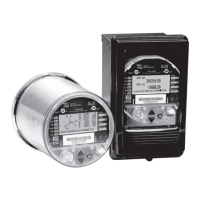
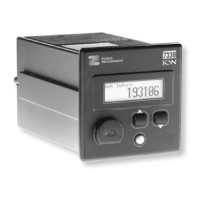
Default Front Panel Display Screens ION 8000 Series User Guide
Page 168 Chapter 15 - Displays
ALT mode default display screens
The factory-configured ION 8000 series meter scrolls through the following ALT
mode displays. If the settings in the Scroll module have not been altered, each
screen is displayed for five seconds if no front panel buttons are pressed (until five
minutes have elapsed).
Viewing ALT display modes
1. Press the Alt/Enter button once to toggle between the NORM and ALT display
modes.
2. Press the Up or Down arrow buttons to scroll back or forth through the displays.
If no buttons are pressed the meter reverts back to NORM mode after five minutes.
NOTE
These screens vary depending on the firmware version on the meter and custom display configuration.
1. Name Plate 1
The Name Plate 1 screen contains this information:
TAG1 and TAG2 typically identify the meter’s user and installed location. The
Owner and TAG registers are configurable with ION software. See “How to
TAG Your Meter” on page 40.
2. Name Plate 2
This screen displays the following information for the current Sliding Window
(Rolling Block) and Thermal demand settings:
1 The MAX (kW) value is a maximum allowable demand level based on installed transformer
configurations and nominal voltages and currents.
3. Event Log
The Event Log screen displays up to four most recent, highest priority events
(priority 255 only). The date, a timestamp, an event description, and an event
code are provided for each event displayed. If more than four high priority
Owner
TAG1 from Factory module
TAG2 from Factory module
Firmware revision of the meter
Battery life indicator
Sliding Window (Rolling Block) Thermal
CONFIG
Length of the demand period
multiplied by the number of
demand periods
Length of the demand period
UPDATE
Length of the demand period Always 1 second
SYNC
Clock synchronization source Always N/A
MAX (kW)
Maximum kW Demand
1
Maximum kW Demand
1


 To Next Page
 Loading...