72
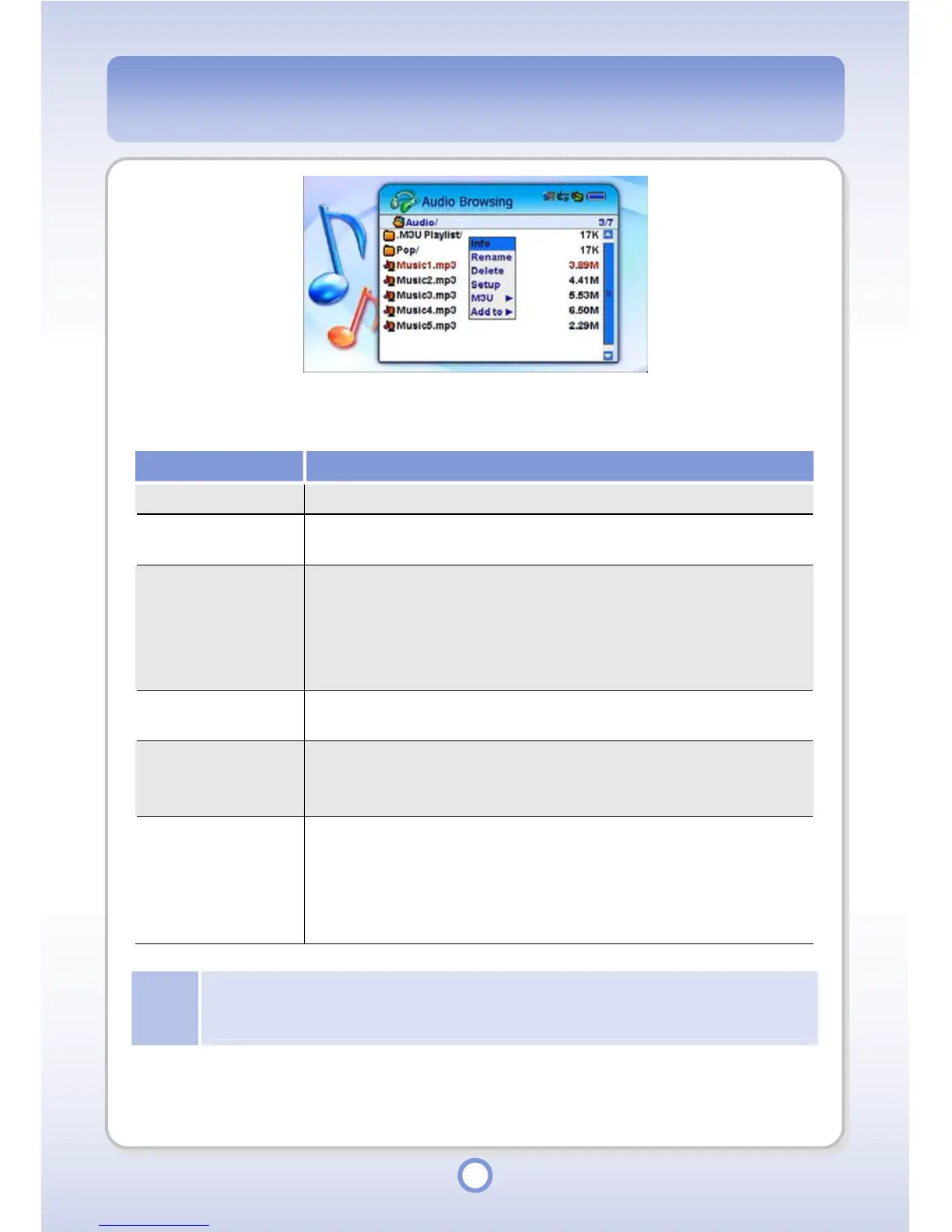
When you press the <MENU> button in the file list, a pop-up menu providing the following
functions appears.
Item Description
Info You can view information about an audio file or folder.
Rename You can rename an audio file or folder. Enter a new name using the
screen keyboard.
Delete You can delete an audio file or folder.
Select an audio file of folder to be deleted and press the <MENU>
button. Select <Delete> from the pop-up menu. If you delete a folder,
all the files and folders included in the folder are also deleted. You
cannot restore a deleted file or folder.
Setup You can set up audio settings. For more detailed information, refer to
“Audio Setup” on page 103.
M3U You can create an M3U.
●
Generate: Select to create all audio files included in the folder.
●
Edit New: Select to create a new M3U file.
Add to You can add an audio file to the playlist or M3U.
●
Default Playlist: Select to add a file to the default playlist.
●
Select Playlist: Select to add a file to a selected playlist.
●
Default M3U: Select to add a file to the default M3U.
●
Select M3U: Select to add a file to a selected M3U.
Note
Album and M3U Generation Function
To include or not to include sub folders by using the Generate function of the Album/M3U
Generation menu is determined by the “ThisFolder/AllFolder” setting in Setup.


 To Next Page