Manual Predia Touch Pro
42
Sound Mode
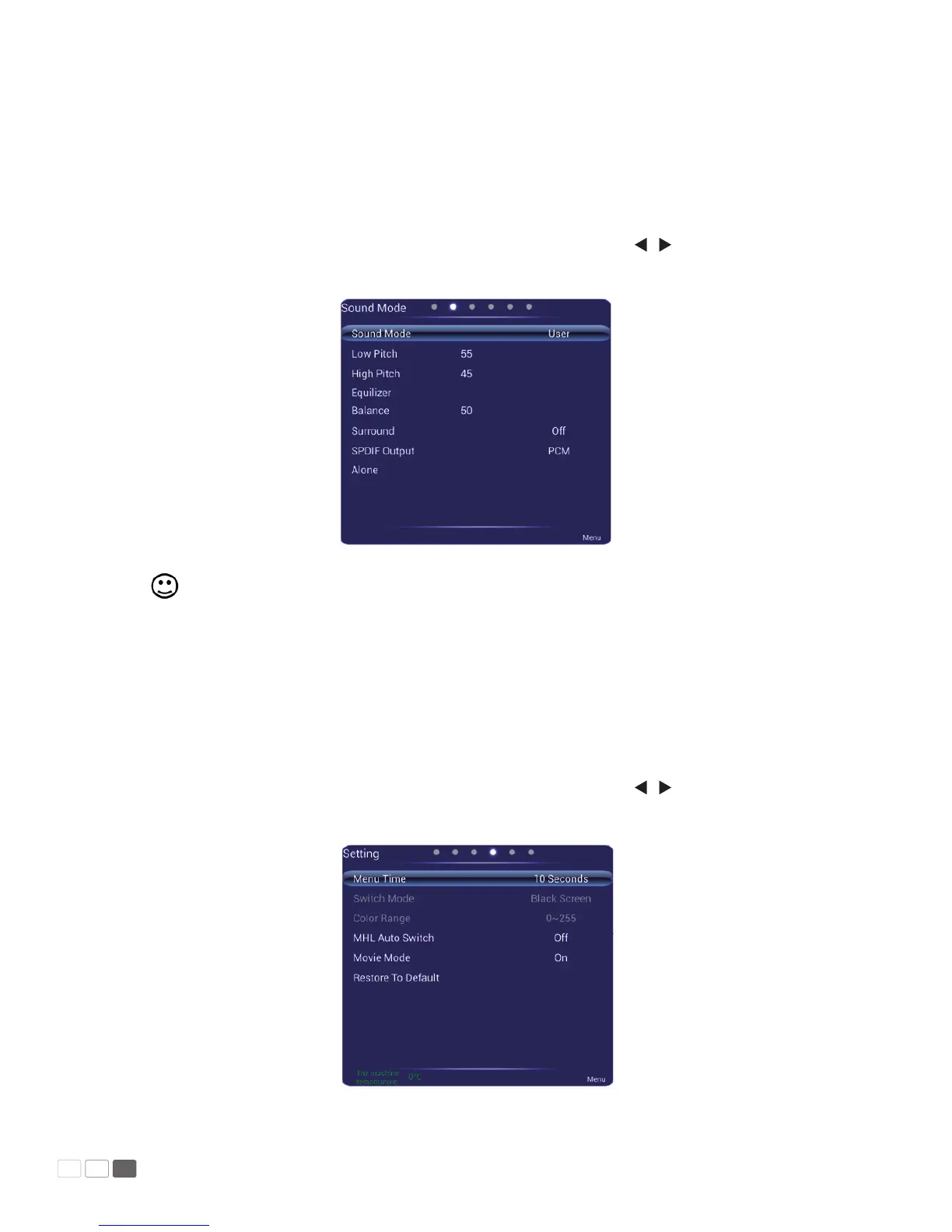
The Sound Mode menu shows options including Sound Mode, Equalizer, Sound Balance, Sur-
round, SPDIF Output and Listen Alone. There are two ways to set it:
1.1 Click an icon and set it.
1.2 Press s / t to move the cursor onto an option. Press OK and press / to adjust the value.
Press Back to quit the menu.
Note: When the sound mode is set to Custom, you can adjust High Pitch and Low Pitch.
Setting
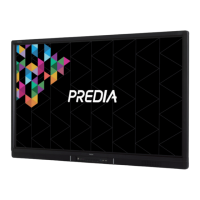
The Setting menu shows options including Display Time, Switch Mode, Color Range, MHL Auto
Switch, Movie Mode, and Default Setting. There are two ways to set it:
1.1 Click an icon and set it.
1.2 Press s / t to move the cursor onto an option. Press OK and press / to adjust the value.
Press Back to quit the menu.



 To Next Page