Manual Predia Touch Pro
12
Basic Operation
Start Up
•
Power the interactive panel with a 100-240V 50/60Hz AC power supply.
•
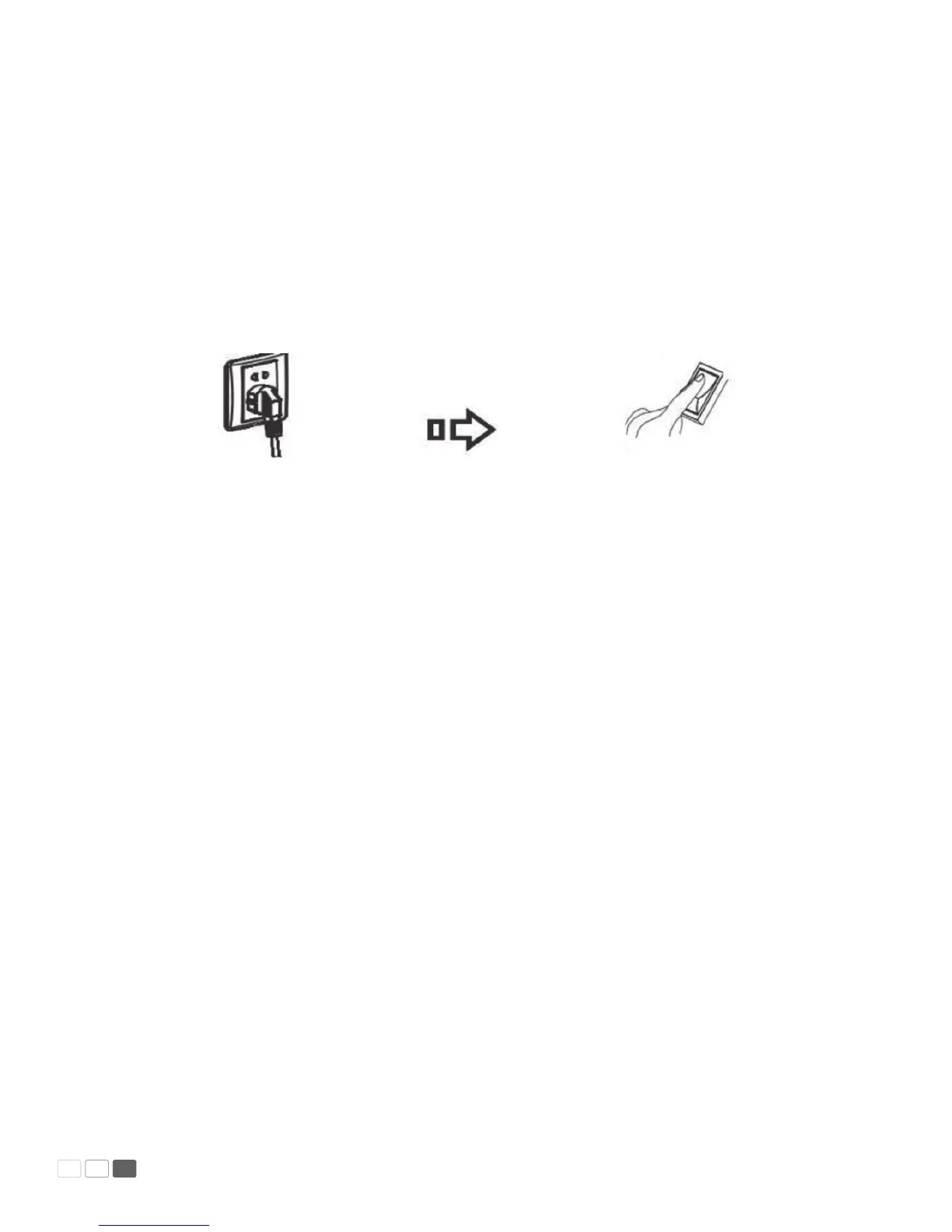
Connect the panel to the power supply. Switch on the rocker switch (on the left of the rear of the
panel, next to the power cable port) to enter the standby status. The power LED turns red.
•
Press Power on the control panel or Standby on the remote controller to turn on the interactive
panel. The OPS computer is started. The power LED turns green.
Shutdown
•
Press PC Power to turn o the OPS computer (for all-in-one models only).
•
Press Power on the control panel or Standby on the remote controller to enter the standby status.
The power LED turns red.
•
Under the standby status, switch o the rocker switch to turn o the interactive panel.
Note:
1. Please turn o the OPS computer before the interactive panel. Otherwise, the computer can be
damaged.
2. Please disconnect the interactive panel from power after the panel enters standby status. Otherwi-
se, the panel can be damaged. A sudden power failure can damage the interactive panel.
Calibration with Driver
To ensure that the handwriting display works properly, you need to make the handwriting shown
on the display coincides with the actual handwriting and realize accurate coincidence. You need to
calibrate under the following circumstances:
•
When you rst use the interactive LED display;
•
Re-install the drive program;
•
When you connect the display to another PC;



 To Next Page