Manual Predia Touch Pro
47
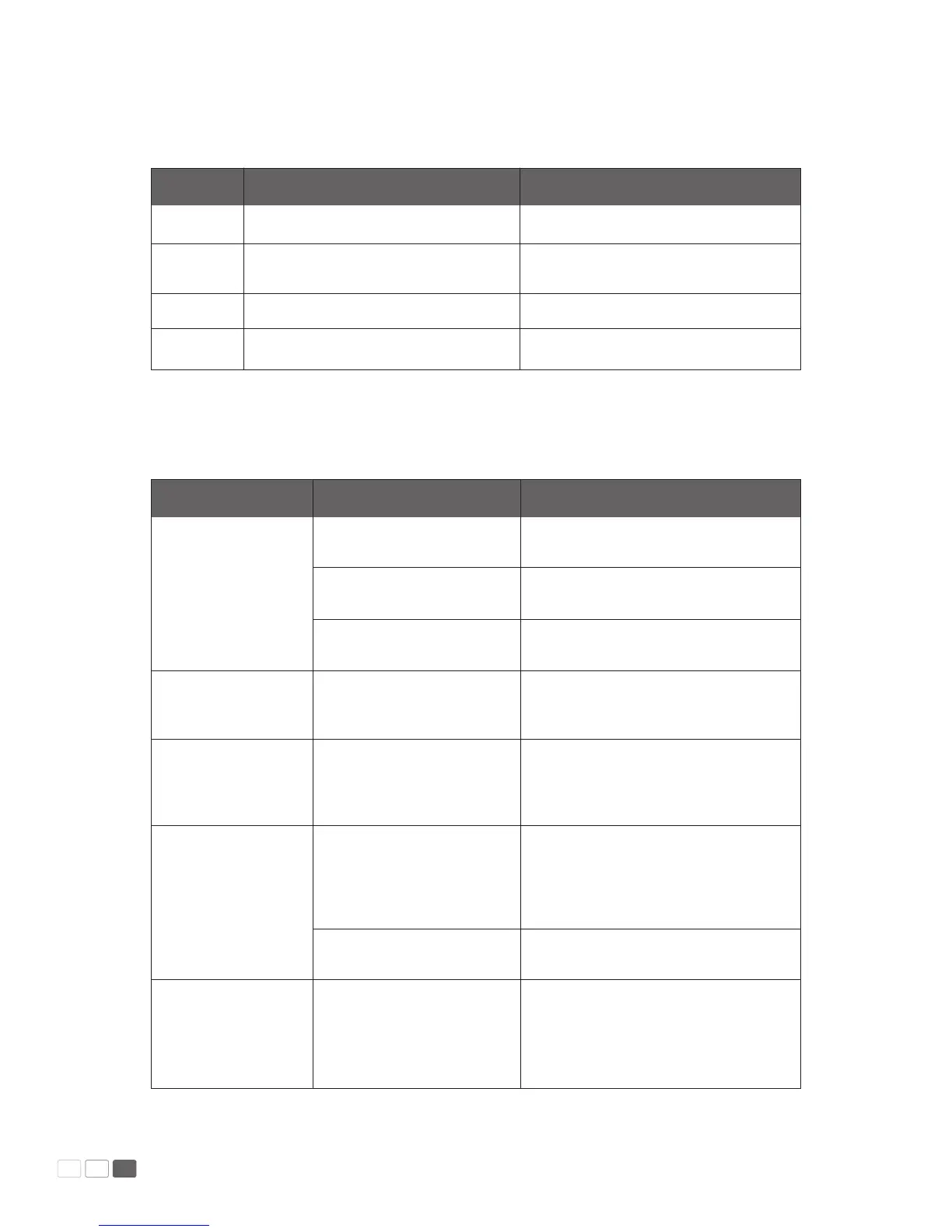
Formats Supported by USB Mode
FAQ & Troubleshooting
(Hz)
Image
Movie
Music
Text
Formats
JPEG, BMP and PNG
MPEG1, MPEG2, MPEG4, H264, RM, RMVB,
MOV, MJPEG and FLV
WMA, MP3, M4A, (AAC)
TXT
Formats
.jpg, .bmp and png
.avi, .mpg, .dat, .vob, .div, .mov, .mkv, .rm,
.rmvb, .mp4, .mjpeg, .ts, .trp, .asf and .v
.mp3 and .m4a
.txt
Failure
Fail to connect to the
service program
The panel needs
re-positioning every time
it is switched on.
The positioning is
inaccurate.
The cursor of the pen
is unstable when the
pen is used.
The handwriting is
discontinuous.
Possible cause
The drive program is not
correctly installed.
The USB interface (lead) is not
connected or is faulty.
The infrared tube is blocked.
The computer is equipped with
a recovery card.
You do not perform the
positioning as instructed.
Wrong writing method
Strong light or infrared
interference
Wrong writing method
Solution
Install the drive program correctly.
Change the USB lead or check if the USB
interface is faulty.
Ensure that the surrounding infrared tubes
are not blocked.
Disable computer protection and perform
the positioning again.
Press Auto on the remote controller to fully
cover the display with an image and use
the pen provided together with the panel
to perform positioning again.
Use the pen rather than a nger to write.
Grasp the pen as far to the nib as possible.
The angle between the pen and display
should be larger than 60 degrees. Do not
let sleeve or wrist touch the display.
Remove the interference source or change
the using environment.
Use the pen rather than a nger to write.
Grasp the pen as far to the nib as possible.
The angle between the pen and display
should be larger than 60 degrees. Do not
let sleeve or wrist touch the writing surface.



 To Next Page