Overview Getting
Started
Controls and
Connections
Cascading
Units
Technical
Information
2 GETTING STARTED PreSonus
™
FireStudio
™
Mobile
16
Overview Getting
Started
Controls and
Connections
Cascading
Units
Technical
Information
2.2 Studio One Artist
START PAGE: Setup Area (continued)
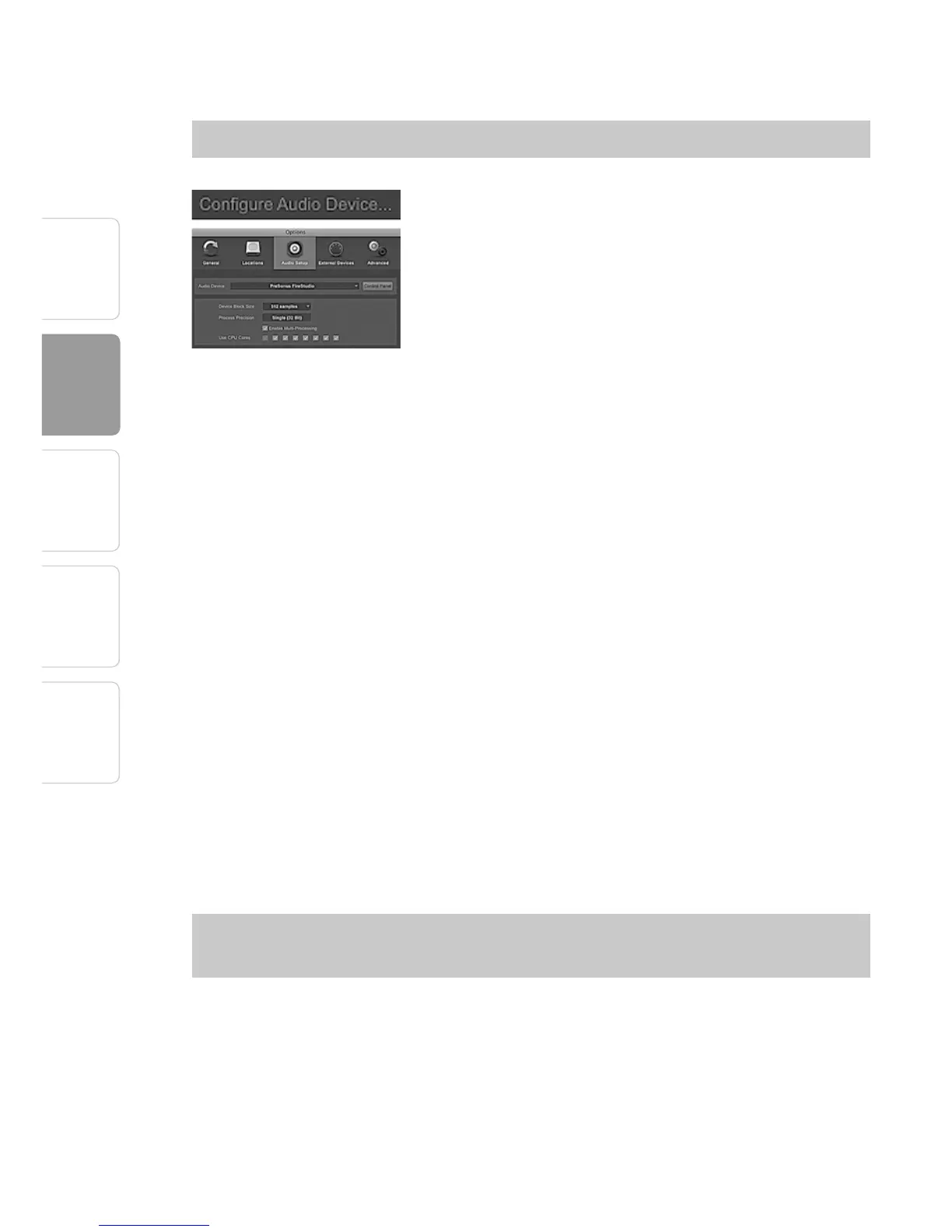
Selecting a Different Audio Driver
If you do not see “PreSonus FireStudio” on the Start
page when you launch Studio One, click on the
Configure Audio Devices link in the Setup area to
open the Audio Setup Options window.
In the Audio Device menu, select “PreSonus
FireStudio.” Click the Apply button and then OK.
After you have verified that the PreSonus FireStudio
driver has been detected, please continue to Section
2.2.3 to set up your external MIDI devices. If you do
not have any MIDI devices to connect at this time,
please skip to Section 2.2.4.
2.2.3 Configuring Your MIDI devices
From the External Devices window in Studio One
Artist, you can configure your MIDI keyboard
controller, sound modules, and control surfaces.
This section will take you through setting up your
MIDI keyboard controller and sound module with
the FireStudio Mobile. Please consult the Reference
Manual located on your Studio One Artist installation
DVD for complete setup instructions for other MIDI
devices.
Setting Up an External MIDI Keyboard
Controller From the Start Page:
A MIDI keyboard controller is a hardware device
that is generally used for playing and controlling
other MIDI devices, virtual instruments, and software
parameters. In Studio One Artist, these devices
are referred to as Keyboards, and they must be




 To Next Page