GETTING STARTED 2Owner’s Manual
21
Overview Getting
Started
Controls and
Connections
Cascading
Units
Technical
Information
Studio One Artist 2.2
how to set up a Song and will discuss some general
workflow tips for navigating through the Studio One
Artist enviroment.
2.2.4 Configuring Audio I/O
Now that you’ve configured your MIDI devices, let’s
create a new Song and set up your default Audio I/O.
Creating a New Song: Setting Up Default Audio I/O
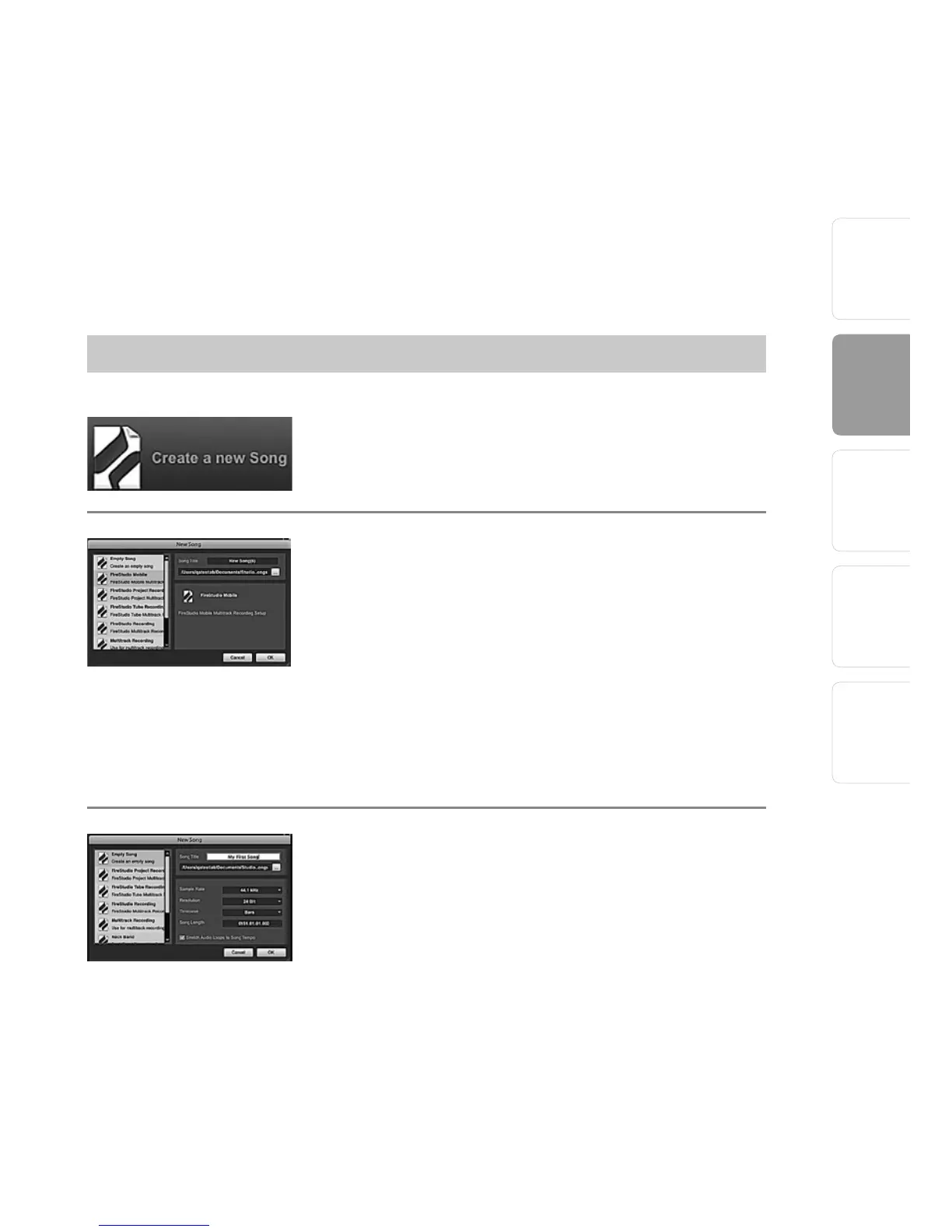
1 From the Start page, select “Create a new Song.”
2 In the browser window, name your Song and choose
the directory in which you’d like it saved. You’ll
notice a list of templates on the left. The FireStudio
Mobile template will create a Song with a track for
each of the available inputs. Every track is armed for
recording, and no further setup is required. Simply
select this template and click “OK.”
The rest of this section will guide you through
creating a Song from an empty session.
3 To begin a new Song, select “Empty Song” from the
Templates list. At this point, you should give your
Song a name and select your preferred sample rate
and bit depth. You can also determine the length of
your Song and the time format you would like to use
(Notation Bars, Seconds, Samples, or Frames). Click
the OK button when you are finished.
If you plan on importing loops into your Song, you
may want to select “Stretch Audio Loops to Song
Tempo” so that any loop of a known BPM (like those
in the included content library) will import at the
correct tempo.




 To Next Page