CONTROLS & CONNECTIONS 3Owner’s Manual
37
Overview Getting
Started
Controls and
Connections
Cascading
Units
Technical
Information
Software 3.1
and can route playback streams from your host
application.
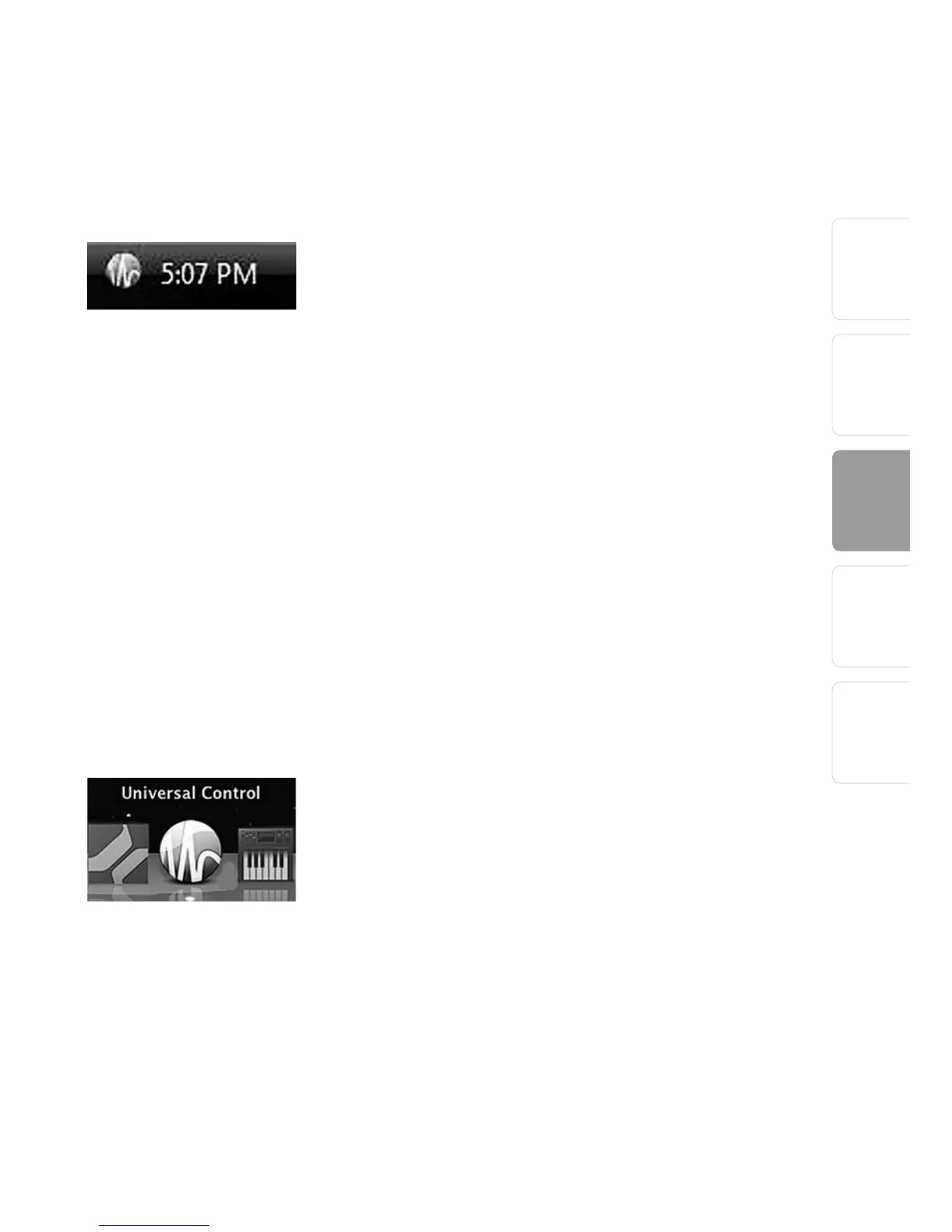
3.1.1 Universal Control Application Icon
If you are using Microsoft Windows, once you
have successfully installed your FireStudio Mobile,
the Universal Control will be available from the
Notification Area of your taskbar (typically at the
bottom right corner of your screen, near the clock).
The Universal Control icon is red when your
FireStudio Mobile is disconnected or not installed
and blue when the FireStudio Mobile is connected
and properly installed.
Open the Universal Control by double-clicking
the blue Universal Control icon or by right-clicking
the icon and selecting “Open PreSonus Universal
Control.”
Right-click the Universal Control icon and select
“Quit” to exit the Universal Control application
and remove it from your taskbar. The Universal
Control application can also be accessed from the
PreSonus folder in the Start Menu.
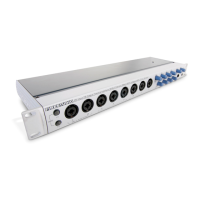
Mac OS X users will find the Universal Control
application in the Applications folder. We
recommend that you move it to your Dock for easy
access.




 To Next Page