Overview Getting
Started
Controls and
Connections
Cascading
Units
Technical
Information
3 CONTROLS & CONNECTIONS PreSonus
™
FireStudio
™
Mobile
52
Overview Getting
Started
Controls and
Connections
Cascading
Units
Technical
Information
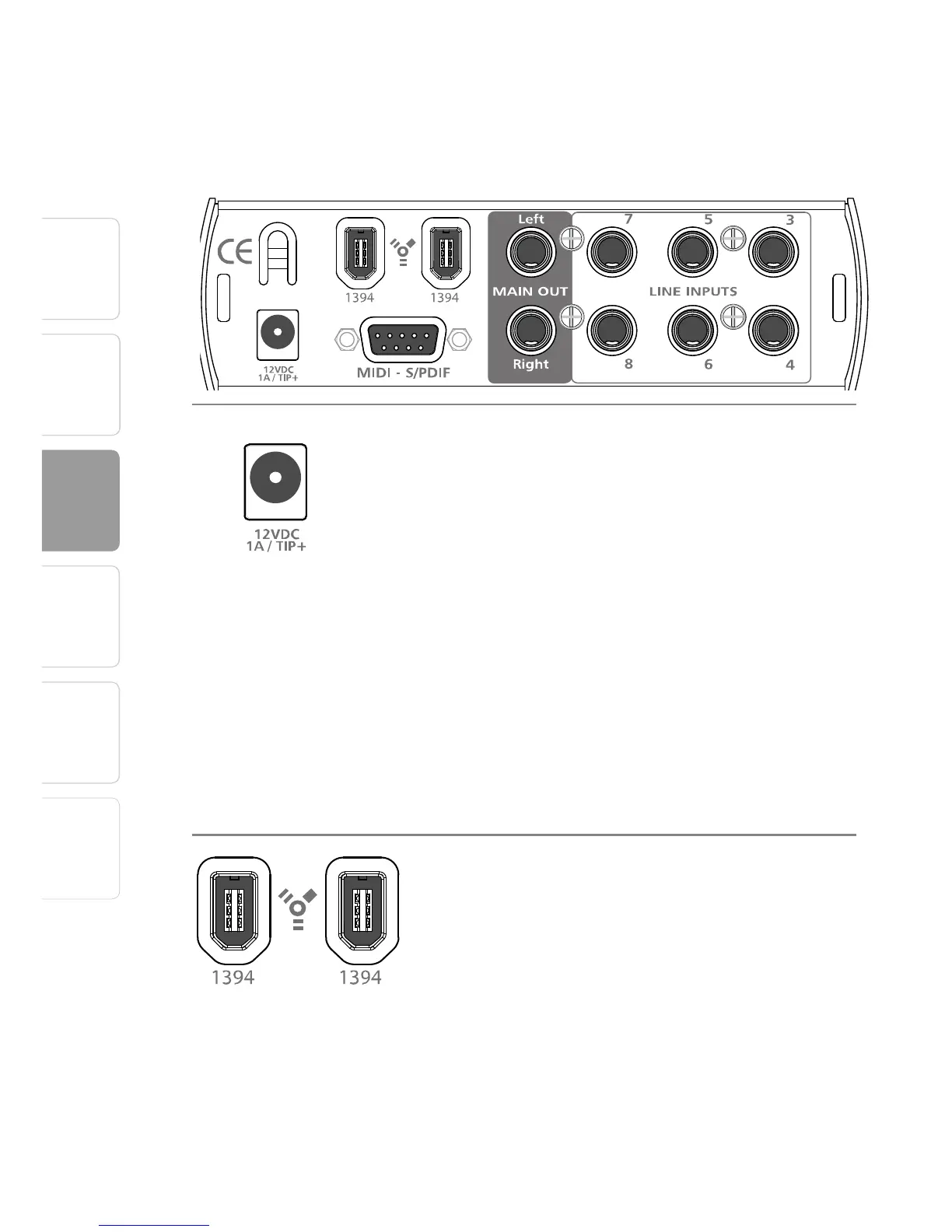
3.3 Back-Panel Layout
3.3 Back-Panel Layout
Power Adapter Input. This is where you plug in
the proprietary power supply. If your computer
has a standard IEEE 1394 6-pin connection, your
FireStudio Mobile can be bus-powered (from the
computer).
If you are using a computer with a 4-pin
connection, or if you need to daisy-chain another
bus-powered device from your FireStudio Mobile,
then your FireStudio Mobile might not receive
adequate power. When you plug in the power
supply to your FireStudio Mobile, the unit will
choose its power from the stronger source—the
FireWire bus or the external supply—and will
automatically switch to the best option.
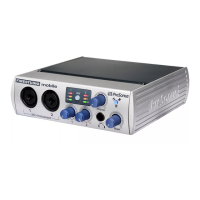
FireWire Ports. There are two standard 6-pin
FireWire ports on the back of the FireStudio Mobile.
Either (and only one) should be used to connect
your FireStudio Mobile to a FireWire port on your
computer. If your computer has a 4-pin connector
(commonly found on laptops), you will need a
4-to-6-pin adapter to connect your FireStudio
Mobile to your computer. Four-pin connections do
not provide power to FireWire devices, so you will
need to power your FireStudio Mobile using the
included power supply.




 To Next Page