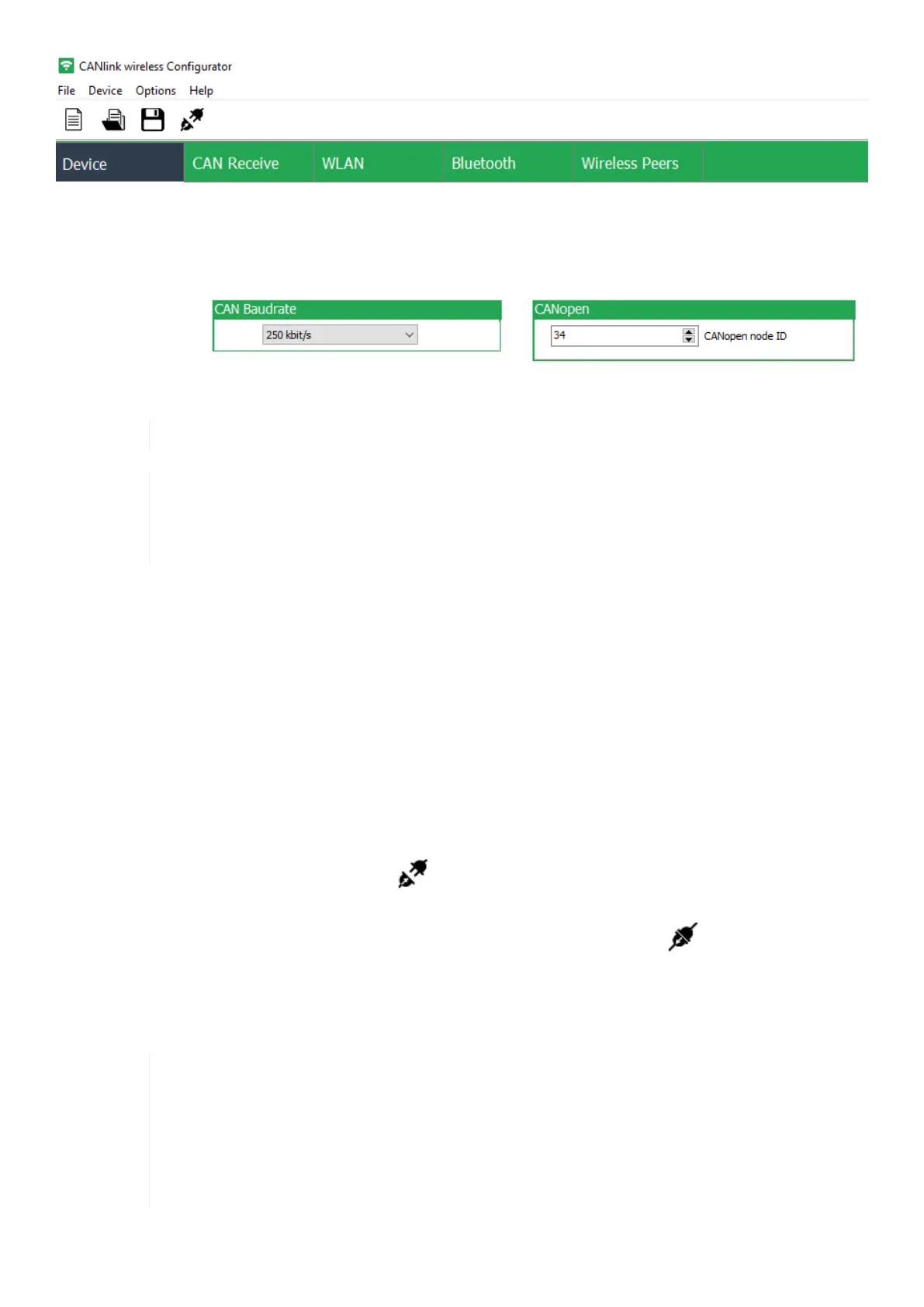
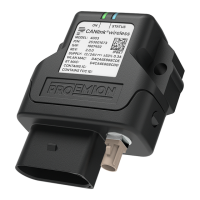
Figure 36. CANlink wireless configurator
The software can be downloaded from our Download Center at the Document Library.
In this document, only the basic settings for the individual connection methods are listed in chapter
Configuring the Device. Further details on how to configure the CANlink wireless 4000 and
additional information regarding the advanced options, can be found in the CANlink wireless
Configurator manual at the Document Library.
6.1.1. Connect CANlink wireless 4000 with CANlink wireless configurator
1. Make sure that the CANlink wireless 4000 is already paired with your PC according to Connection with a PC via
Bluetooth.
2. Make sure that the latest version of the CANlink wireless configurator is installed.
3. Make sure that the CANlink wireless 4000 is not connected to any other CANlink wireless 4000 or software
application. The virtual COM port must not be blocked by an existing connection.
4. Start the CANlink wireless configurator.
5. Click on Options ¬ Connection Settings.
6. Select the corresponding COM Port of the current Outgoing Bluetooth link and click on Close.
7.
Click on Device ¬ Connect or the plug in icon.
¬ The CANlink wireless 4000 is connected with the CANlink wireless configurator
¬ Both device LEDs glow steady pink.
8. Create a support archive to have a backup of the latest device configuration.
Due to restricted pairing readiness, such as when the device is configured for WiFi mode, it is
strongly recommended to create an archive before and after each configuration installation. In the
event that a device cannot be connected to the configurator right away due to a specific
configuration, a reset must be carried out to re-establish a connection with the CANlink wireless
configurator. This deletes the customer-specific configuration and must be reinstalled. In order to
have a backup that is as up-to-date as possible for restoring the configuration in such cases, it is
recommended to create a support archive after making any changes.
CANlink wireless 4000 Device Manual



 To Next Page