RT-7600S Auto Hematology Analyzer User’s Manual
Click “Cancel” button, the system will not select any record.
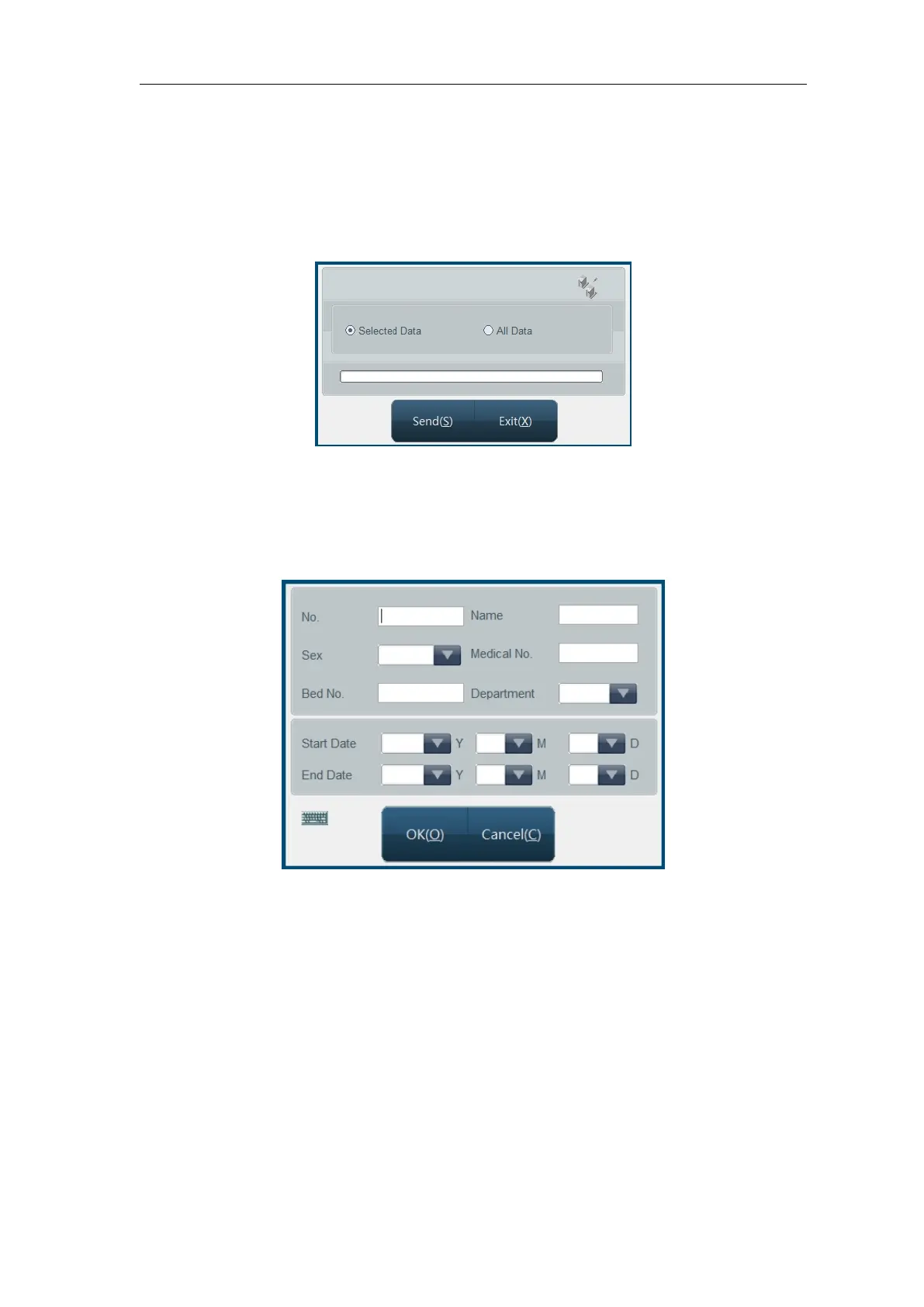
It provides data transfer function, data selecting methods: a) use select function. b) Use
mouse to click list column, select one history data; using keyboard Ctrl key or Shift key,
you can select multiple columns. If no data are selected, all data can be sent. Click
“Send” button, open transfer dialog box as follows:
Fig.6-3 Data transfer
Select data to send, click “send”.
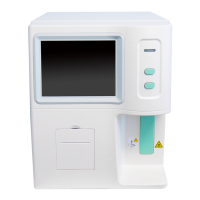
Search function allows user to search required record according to designated condition,
click “Search” button, open search dialog box as follows:
Fig.6-4 Search condition
Sample no. is the only identification of history record. If input sample no., other
conditions are disabled. User can use one or multiple condition to retrieve, input
message, click “OK”, if there is compliant record, it will be shown in history record list. If
there is no compliant record, the system will give a message.
Delete function can be used to delete selected data and all history data. Data can be
selected in following methods: a) use select function. b) Use mouse to click list column,
select one history data. Using keyboard Ctrl key or Shift key, multiple columns can be
selected. If no data are selected, the system will prompt to delete all sample data.
Print function prints selected history data according to system setting print mode. See
print setting in Chapter 7 “System Setting”.


 To Next Page