XC3000Series Motion Control System of Laser Cutting - User Manual
V1.0 Raytools AG © Copyright 39 |87
www.raytools.ch
2.1.27 Optimize
Optimize the graphics.
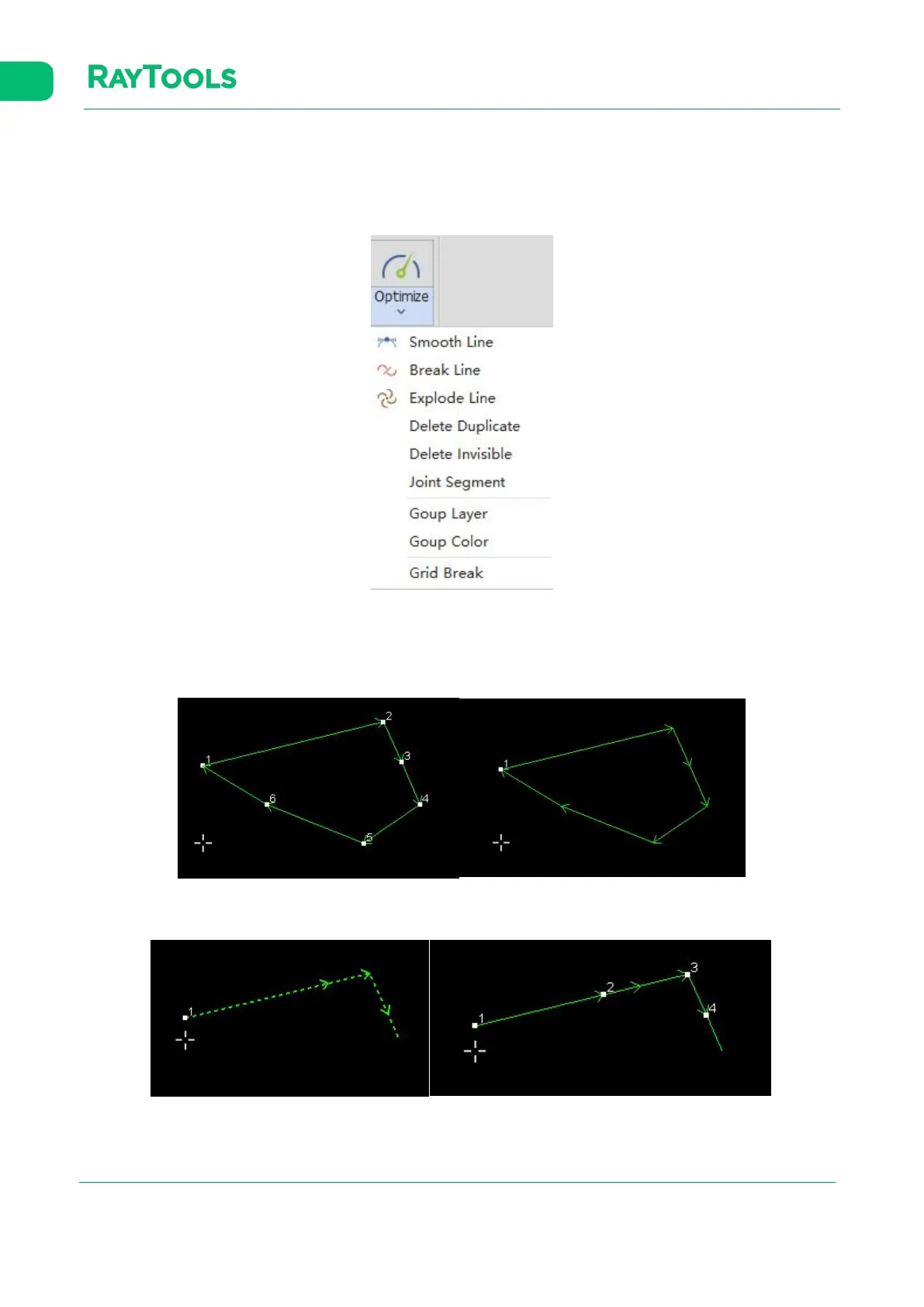
Click on Optimize button in the Home sub-page, and the drop-down bar will pop up with selections as shown below:
(1) Smooth Line: select multiple lines to be optimized and click on Smooth Line. Then set the precision and click on OK to
complete. The graphics will be auto-optimized, as shown below:
(2) Break Line: click on Break Line and then click on the point on the graphic contour to break it. The process can be
continuous and can be canceled by pressing the ESC button, as shown below:



 To Next Page