Chapter 2 31
Playing DVDs
Selecting Subtitles
By default, subtitles are off. To turn subtitles on:
1. While the disc is playing, press INFO on the remote.
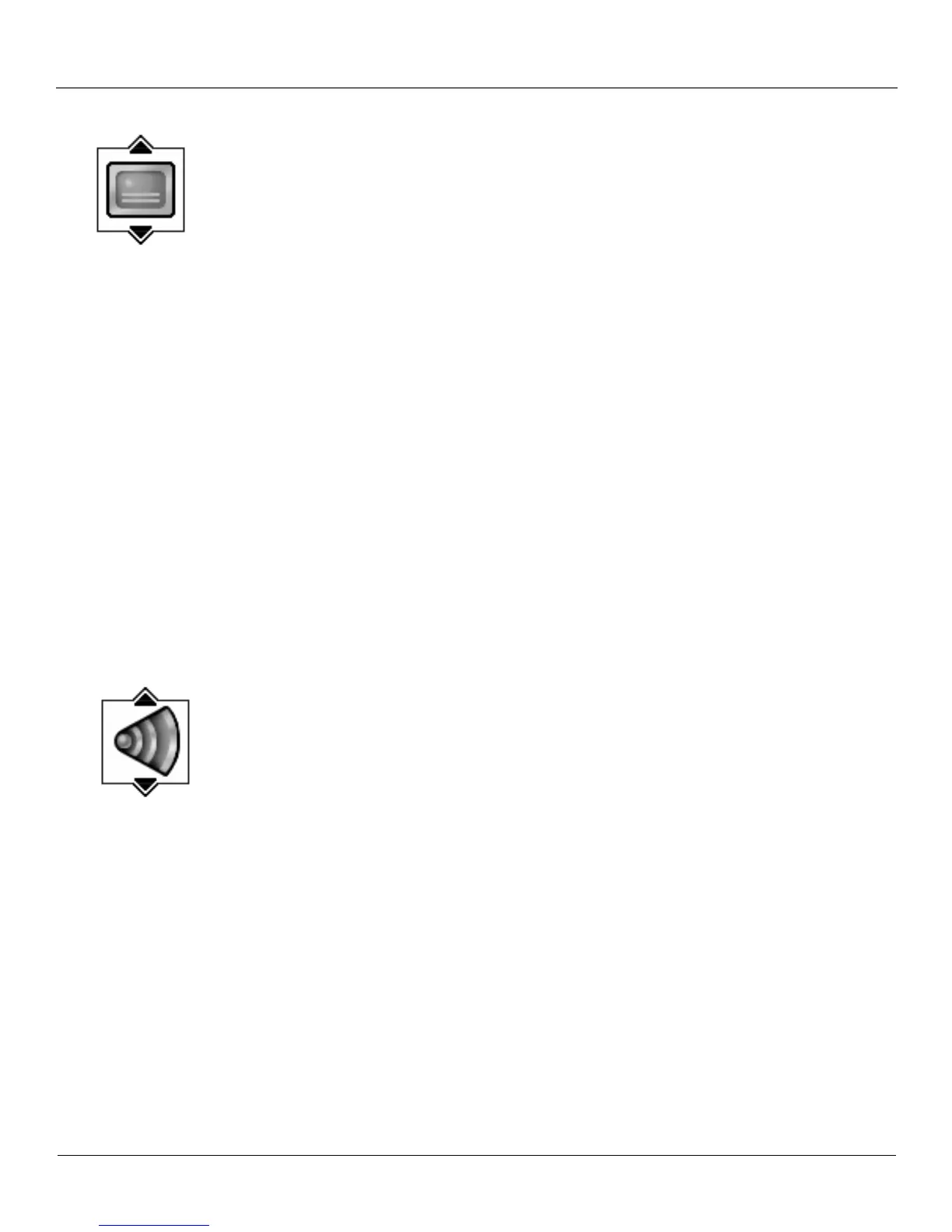
2. Highlight the Subtitles icon. The Subtitle icon acts as a toggle to turn subtitles on and off.
When subtitles are on, the text box below the icons will display the current subtitle language.
Selecting the Subtitle Language
You can change the Subtitle language while you’re watching a DVD disc, but only if the disc was
created with subtitles.
1. While the disc is playing, press INFO on the remote.
2. Press the left/right arrow buttons to highlight the Subtitle icon and if subtitles are off, press
OK to turn them on.
3. Use the up/down arrow buttons to scroll through the subtitle languages that are available on
the disc. If subtitles aren’t available, the text in the text box will read Subtitles: Not Available.
If subtitles are available, the language currently showing in the text box is the active selection.
The subtitles will be shown in that language.
4. To make the Info Display disappear, press the INFO button on the remote.
Notes:
Changing the subtitle language with the Info Display will only affect the disc currently being played.
When the disc is removed or the unit is turned off, the subtitle language will revert to the language
setting specified through the DVD’s main menu.
The subtitle language can also be changed through the DVD’s main menu.
Changing the Audio Language
If the disc was created with different language tracks (recorded in different languages), you can
use the Info Display to temporarily change the DVD’s Audio Language setting.
1. While a disc is playing, press INFO on the remote to bring up the Info Display.
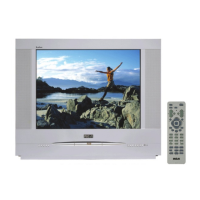
2. Press the left/right arrow buttons to highlight the Audio icon. The current audio language
appears in the text box below the row of icons.
3. Press the up/down arrow buttons to scroll through the audio languages that are available on
the disc until the audio language you want to use appears in the text box. Audio will be
played in that language.
4. To make the Info Display disappear, press the INFO button on the remote.
Notes:
The language feature only works if the disc was created with multiple audio tracks.
When you choose an audio language from the Info Display, you only override the audio language
setting in the DVD’s main menu temporarily.
The audio language can also be changed through the DVD’s main menu.


 To Next Page