Other Information
Chapter 7 91
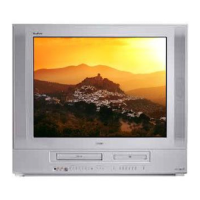
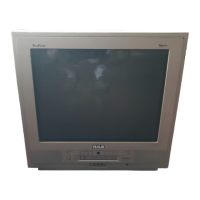
The Front of Your TV/DVD
Front Panel
If you can’t find your remote control you can use the buttons on your TV/DVD to operate many of
the TV/DVD’s features.
OPEN/CLOSE Press to open and close the disc tray.
STOP Stops disc play.
REW Allows you to move to the beginning of the preceding title, chapter, or track on a disc (in
effect, “skipping” the title, chapter, or track).
PLAY/PAUSE Begins disc play. If in play mode, will pause disc.
FWD Allows you to move to the beginning of the next title, chapter, or track on a disc (in effect,
“skipping” the title, chapter, or track).
CH – Scans down through the current channel list. When you’re using the menu system, it acts like
the arrow down button on the remote control.
CH + Scans up through the channel list. When you’re using the menu system, it acts like the arrow
up button on the remote control.
VOL – Decreases the volume. When you’re using the menu system, it acts like the left arrow button
on the remote control.
VOL + Increases the volume. When you’re using the menu system, it acts like the right arrow button
on the remote control.
TV/DVD Puts the TV/DVD in TV mode. If in TV mode, puts in DVD mode.
POWER Turns the TV/DVD on and off.
Front Panel Jacks
When in TV mode, you can access the component you connected by pressing the WHO•INPUT
button on your remote until FRNT appears on the screen.
VIDEO (in) Allows you to connect a component such as a video game console, camcorder, VCR or
Internet access device.
L/MONO (left audio) and R (right audio) Receives audio signals from another component such
as a VCR, camcorder or Internet access device.
Phones Allows you to connect headphones to listen to the sound.


 To Next Page