Using the DVD’s Menu System
64 Chapter 4
On-Screen Displays
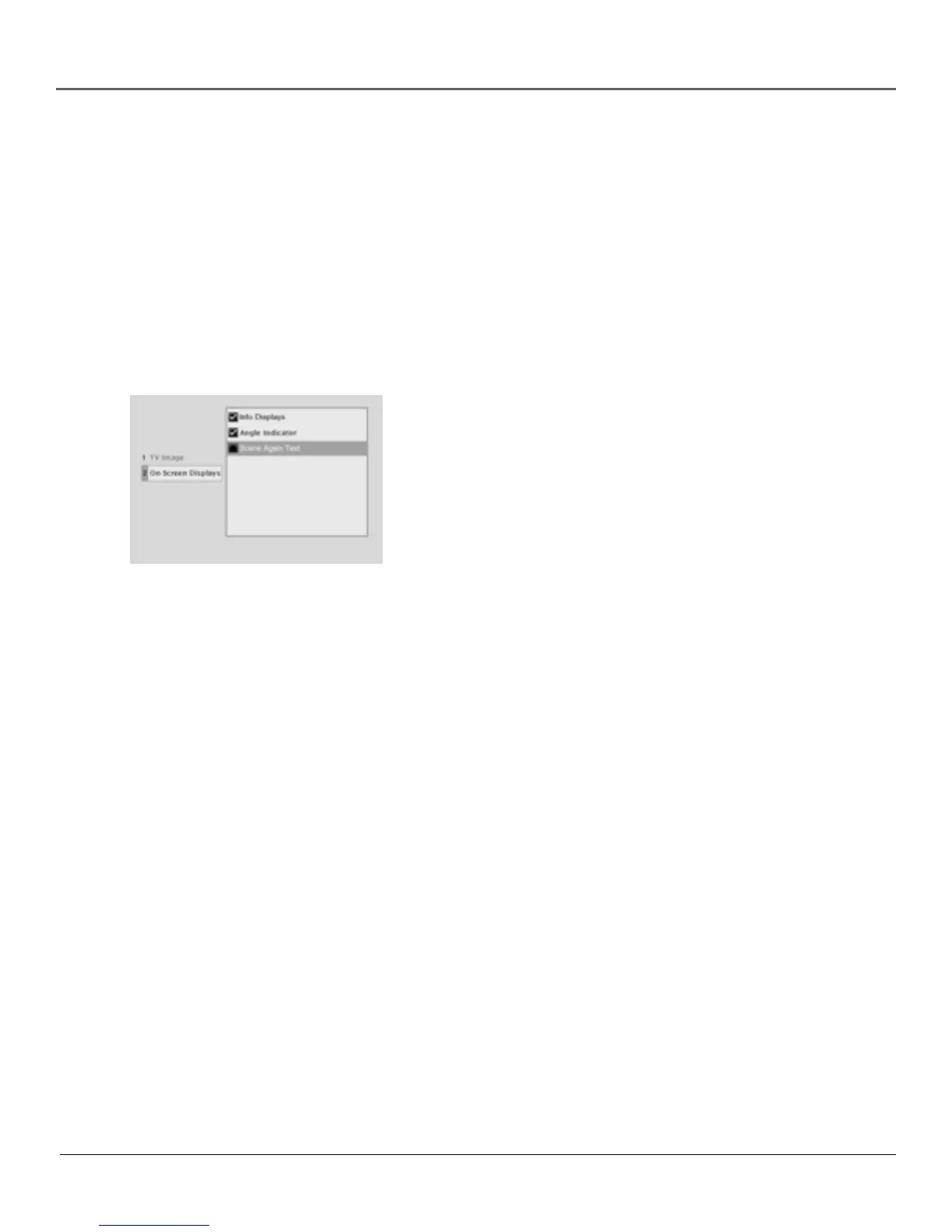
This feature lets you select whether you want certain on-screen displays to appear on the screen. It
contains three choices with check boxes next to them:
• Information Display – When turned on, displays time transport information when you are fast
forwarding or reversing playback.
• Angle Indicator – When turned on, displays camera angle icon if more than one camera angle
is available.
• Scene Again™ Text – When turned on, displays subtitles when you use the Scene Again™
feature.
The default is to show all on-screen displays. To turn one of the options on or off:
1. From the main menu, highlight the Display option and press OK
(the Display menu appears).
2. Highlight the On-Screen Displays option and press OK (the three on-
screen display options appear on the right).
3. Highlight an option and press OK. This toggles the option on or off.
4. Press the left arrow key to return to the main menu.
The On-Screen Displays option lets you
choose which on-screen display items
appear on your TV/DVD.
The Sound Menu
The Sound menu lets you select different sound settings to match the equipment you have
connected to your unit.
Digital Output
Digital output lets you choose which type of digital audio is output from your unit. If you’ve used
an optical cable to connect a Dolby Pro Logic, Dolby Digital, or DTS receiver, you must adjust this
setting. There are two options:
• Dolby Digital: Choose this setting if you connected a Dolby Digital receiver.
• DTS: Choose this setting if you connected a DTS receiver or decoder to your unit.
The default is Dolby Digital. To change the digital output:


 To Next Page