Chapter 4 65
Using the DVD’s Menu System
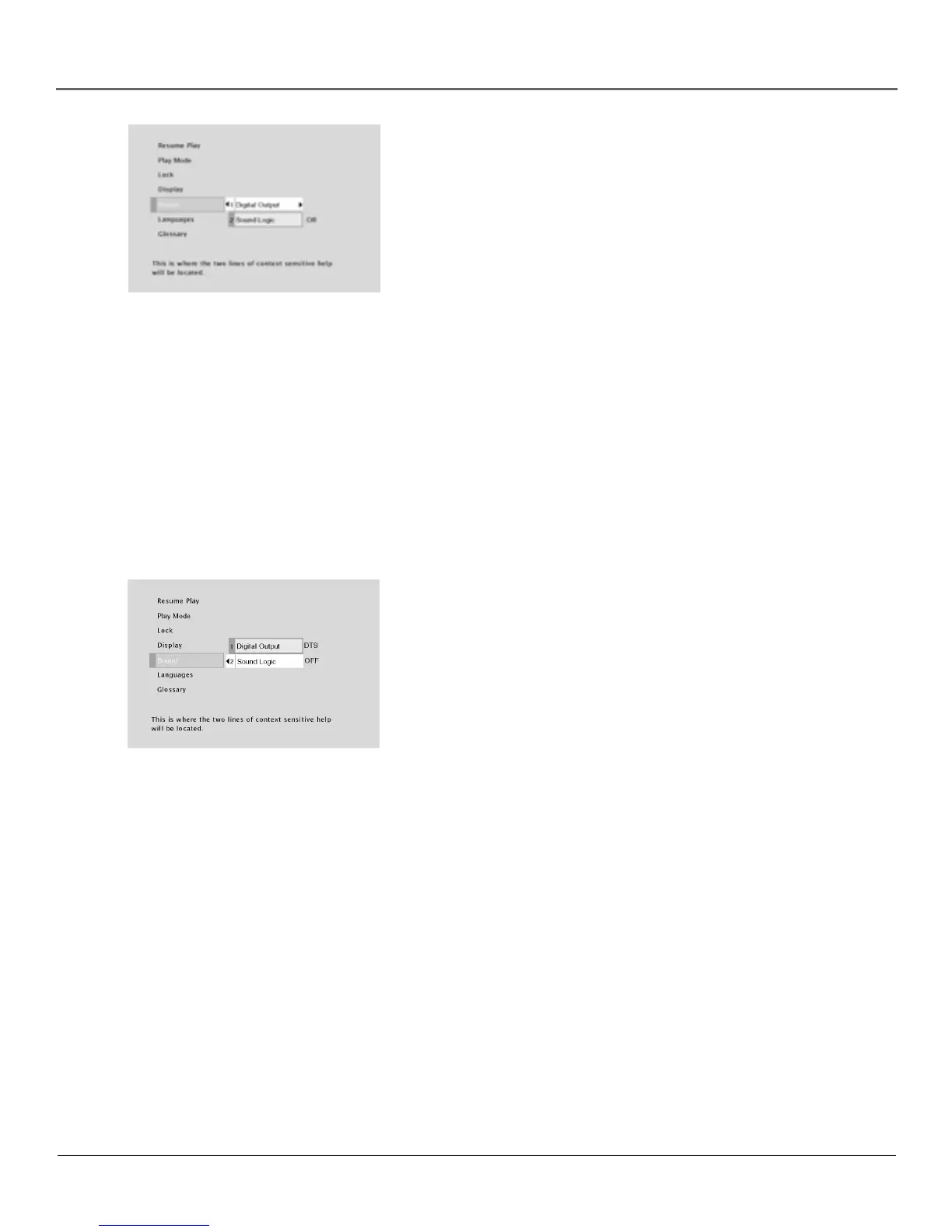
1. From the main menu, highlight and select the Sound option and
press OK (the Sound menu is displayed).
2. Highlight the Digital Output option and press OK.
3. Highlight the desired output and press OK.
4. Press the left arrow key to return to the main menu.
Notes: If you set Digital Output to DTS, you must have your unit connected
to a receiver or decoder with the DTS feature and the disc you play must
support the DTS audio format. If you choose DTS and your receiver or
decoder doesn’t support DTS, you won’t hear any audio.
If you don’t want to make any changes, press CLEAR to return to the main
menu or GO BACK to return to the Speaker Setup menu.
Select the Digital Output option
from the Sound menu.
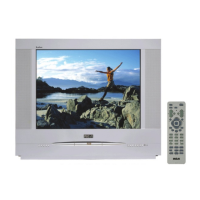
Sound Logic
The Sound Logic feature compresses the dynamic range (quietest sound to loudest sound) of a
disc’s soundtrack. For example, action scenes might be very loud, while whispered dialog is quiet.
The Sound Logic feature evens out the range of the volume by making loud sounds quieter and
soft sounds louder. The Sound Logic option is a toggle, it can be turned on or off.
The default setting is off. To turn the Sound Logic feature on:
1. From the DVD’s main menu, highlight Sound and press OK (the
Sound menu appears).
2. Highlight the Sound Logic option and press OK.
3. Press the left arrow button to return to the main menu.
Note: The performance of the Sound Logic feature varies depending on
the type of equipment you have connected to your TV/DVD and the audio
format of the disc you’re playing.
Select the Sound Logic option from the
Sound menu and press OK to toggle
Sound Logic on or off.


 To Next Page