Playing Other Types of Discs
80 Chapter 6
Changing the Audio Channel Output (Available only on Video
CDs)
If you are playing a stereo Video CD, you can change the channel output.
1. Press INFO on the remote to bring up the Info Display.
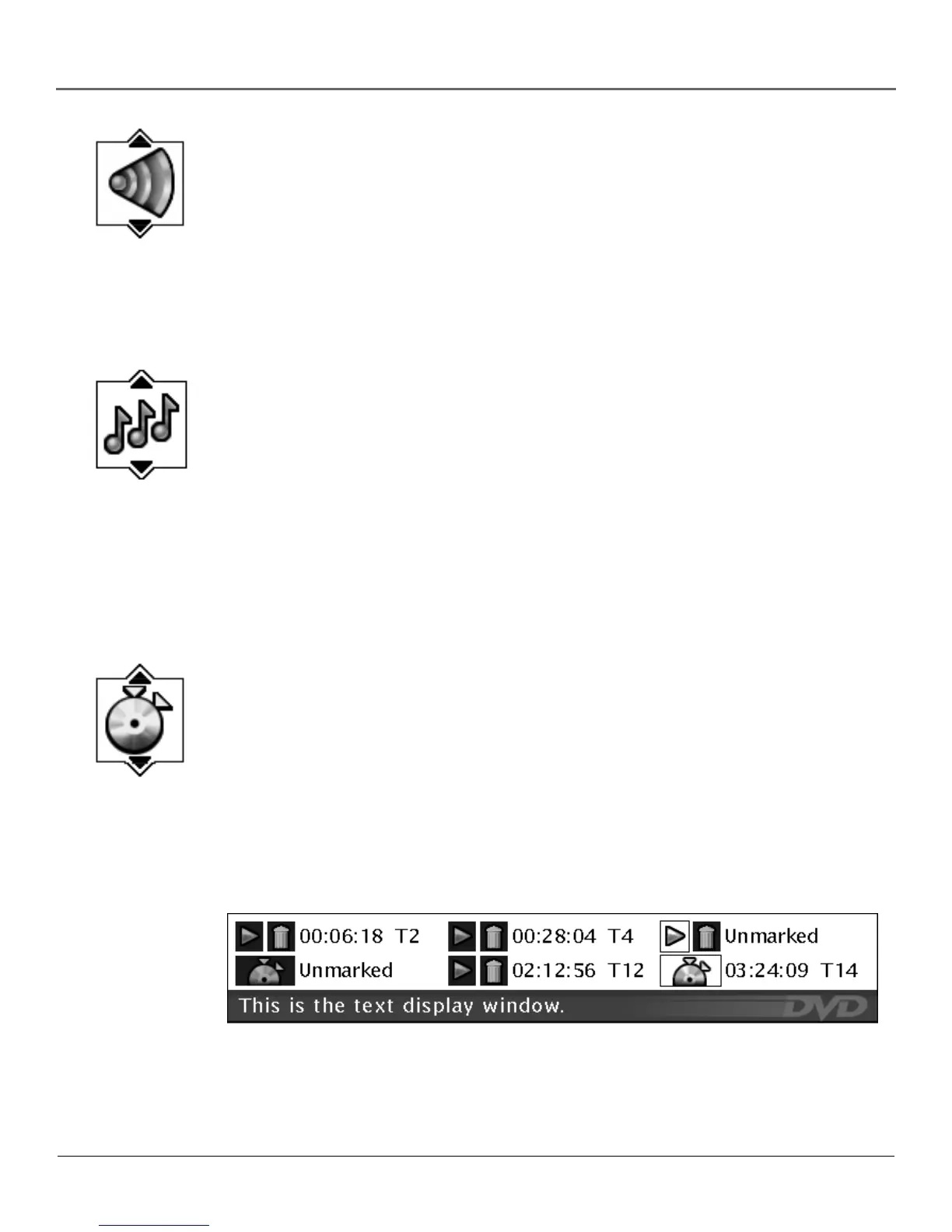
2. Highlight the Audio Channel icon on the Info Display.
3. The audio channel choices appear in the text box. Use the up/down arrow keys to scroll
through the choices: Stereo, Left, Right or Mono. Whatever choice is displayed becomes the
active choice.
Using IntroScan (Available only on Audio CDs and MP3s)
IntroScan plays the first ten seconds of each track on the CD (similar to the scan feature that’s on
many car radios). To use IntroScan:
1. Press INFO on the remote (the Info Display appears).
2. Highlight the IntroScan icon. Press OK. The first ten seconds of each track will play.
• After IntroScan goes through all of the tracks, it stops.
• If you want to stop IntroScan while it’s in progress, press PLAY on the remote. The current
track starts playing in its entirety.
• You can also access IntroScan from the Play Mode menu in the DVD’s main menu.
Using Bookmarks (Available only on Audio CDs)
The bookmark feature lets you mark a point on the disc that you can go to quickly. You can store
up to 6 bookmarks per disc. When you turn the player off or remove the disc, bookmarks are
cleared.
Storing a Bookmark
1. While a disc is playing, press INFO on the remote.
2. Highlight the Bookmark icon and press OK.
3. The Bookmark Menu appears. An available unmarked icon will be highlighted (a disc with two
arrows).


 To Next Page