Chapter 4 63
Using the DVD’s Menu System
The Display Menu
The Display menu contains the settings that affect how disc content looks on your TV/DVD.
TV Image
The TV Image menu adjusts the way a movie appears on your TV/DVD. Standard TVs are
4 x 3 format.
1. From the DVD’s main menu (in DVD mode, no disc playing),
highlight Display and press OK (the Display options appear).
2. Highlight TV Image. Press OK. The TV Image options appear.
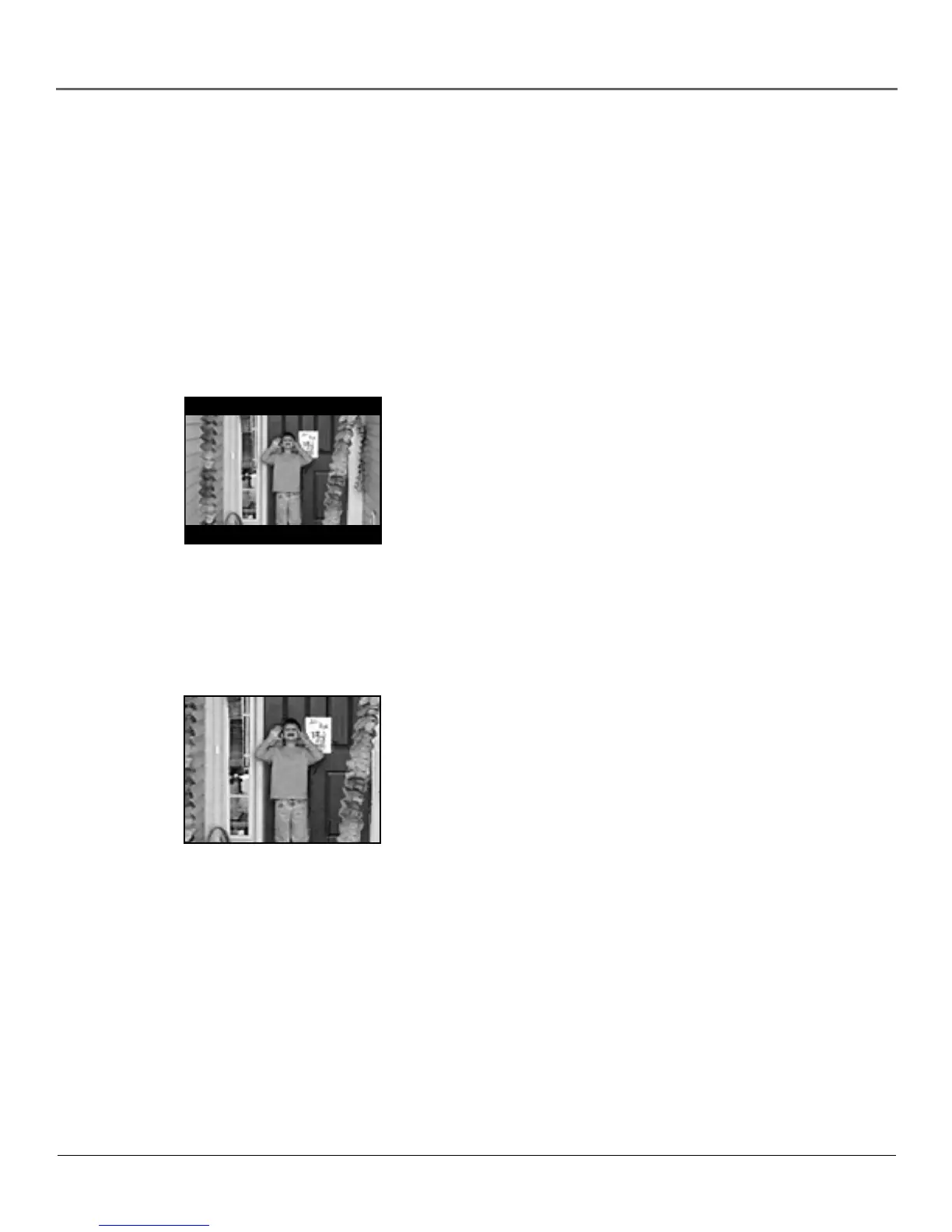
4 x 3 Letterbox – Choose this setting if you want to see movies in
their original aspect ratio (height-to-width ratio). You’ll see the entire
frame of the movie, but it will take up a smaller portion of the
screen vertically. The movie might appear with black bars at the top
and bottom of the screen.
4x3 Letterbox
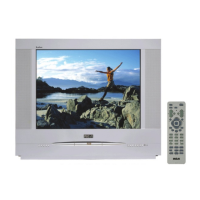
4 x 3 Standard – Choose this setting if you want the movie to fill
the entire screen of your TV/DVD. This might mean that parts of the
picture (the left and right edges) won’t be seen.
Most discs produced in a widescreen format can’t be cropped in this
fashion. This means the black bars will appear at the top and the
bottom of the screen.
4x3 Standard


 To Next Page