Chapter 2 29
Playing DVDs
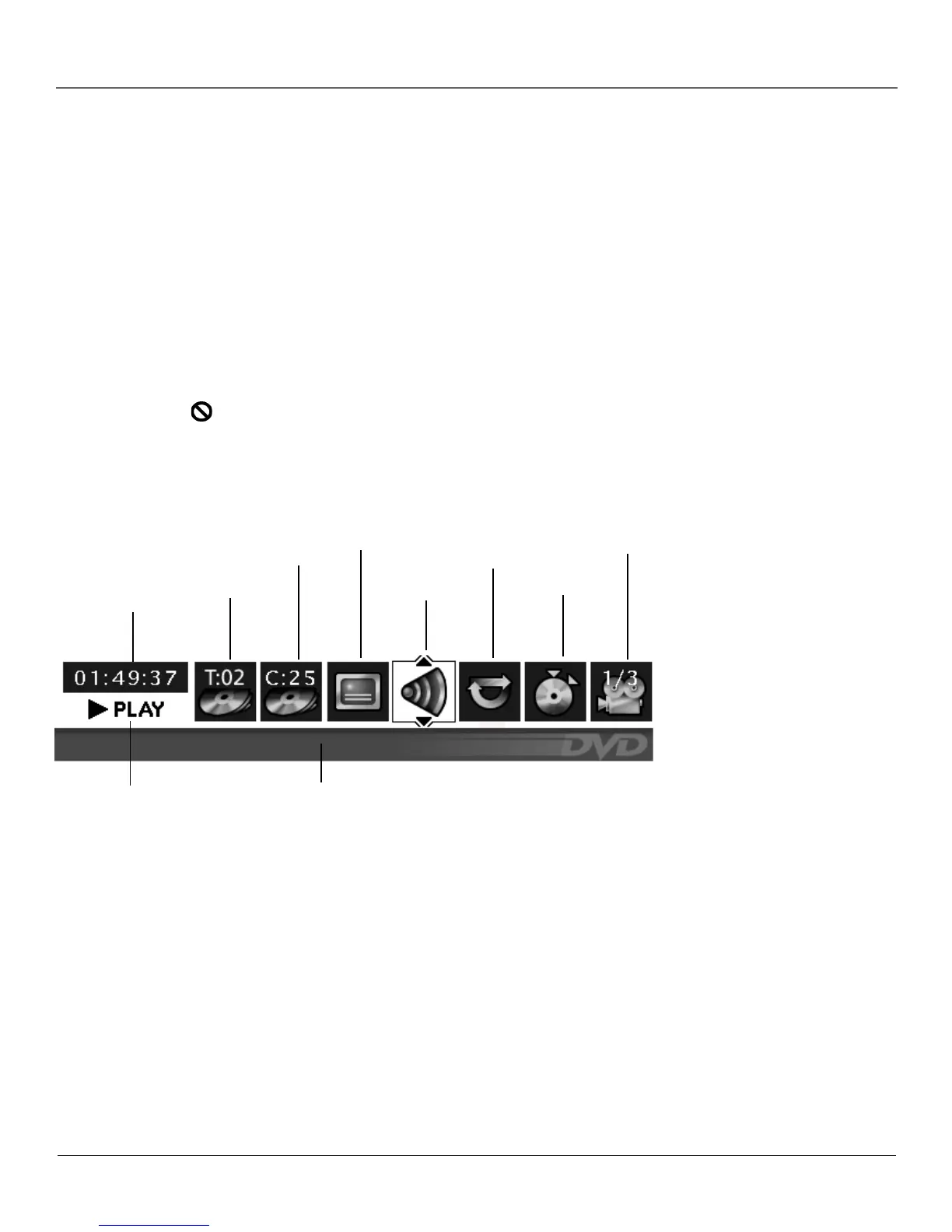
Title
Repeat
Audio
Bookmarks
Text about your
Info Display selection
appears here
Time Display
Angle
Subtitles
Chapter
Transport mode
Using the On-Screen Info Display
The on-screen Info Display contains many playback features. To see the Info Display, press the
INFO button on the remote while a disc is playing. The Info Display appears across the top of the
screen. Each feature is illustrated with an icon. Use the left/right arrow buttons on the remote to
move through the different icons in the Info Display.
When an icon is highlighted, use the up/down arrow buttons on the remote to scroll through the
choices displayed in the text box under the icons.
Remember, you can only access the Info Display when you’re playing a disc. Also, the Info
Display features are only available if the disc was created with that particular feature (i.e., if you
select the Subtitle icon, you won’t be able to change the subtitle language unless the author of the
disc created the disc with subtitles).
The invalid symbol appears on the screen when you press a button that doesn’t have any
function. If one of the icons is “grayed out,” that Info Display feature isn’t available for the disc
you’re playing. To make the Info Display disappear from the screen, press INFO on the remote.


 To Next Page