*3
Enter the paper size using the number keys in System Settings. For details about Tray Paper Size: Tray 2-4, see
“System Settings”, Network and System Settings Guide .
*4
Press the [ ] key, and then select the paper size.
*5
Press the [ ] key, and then enter the paper size using the number keys.
*6
If you want to copy onto thick (105 g/m
2
, 28 lb. or heavier) paper, select [Thick Paper]. See “Copying from
the Bypass Tray”, Copy and Document Server Reference .
*7
When loading paper, make sure the stack height does not exceed the limit mark of the paper tray. See “Loading
Paper”.
*8
If you wish to copy onto OHP transparencies, select [OHP (Transparency)].
*9
It is recommended to place one sheet at a time.
*10
The paper tray fence is fixed. If you wish to change the size of paper, contact your service representative.
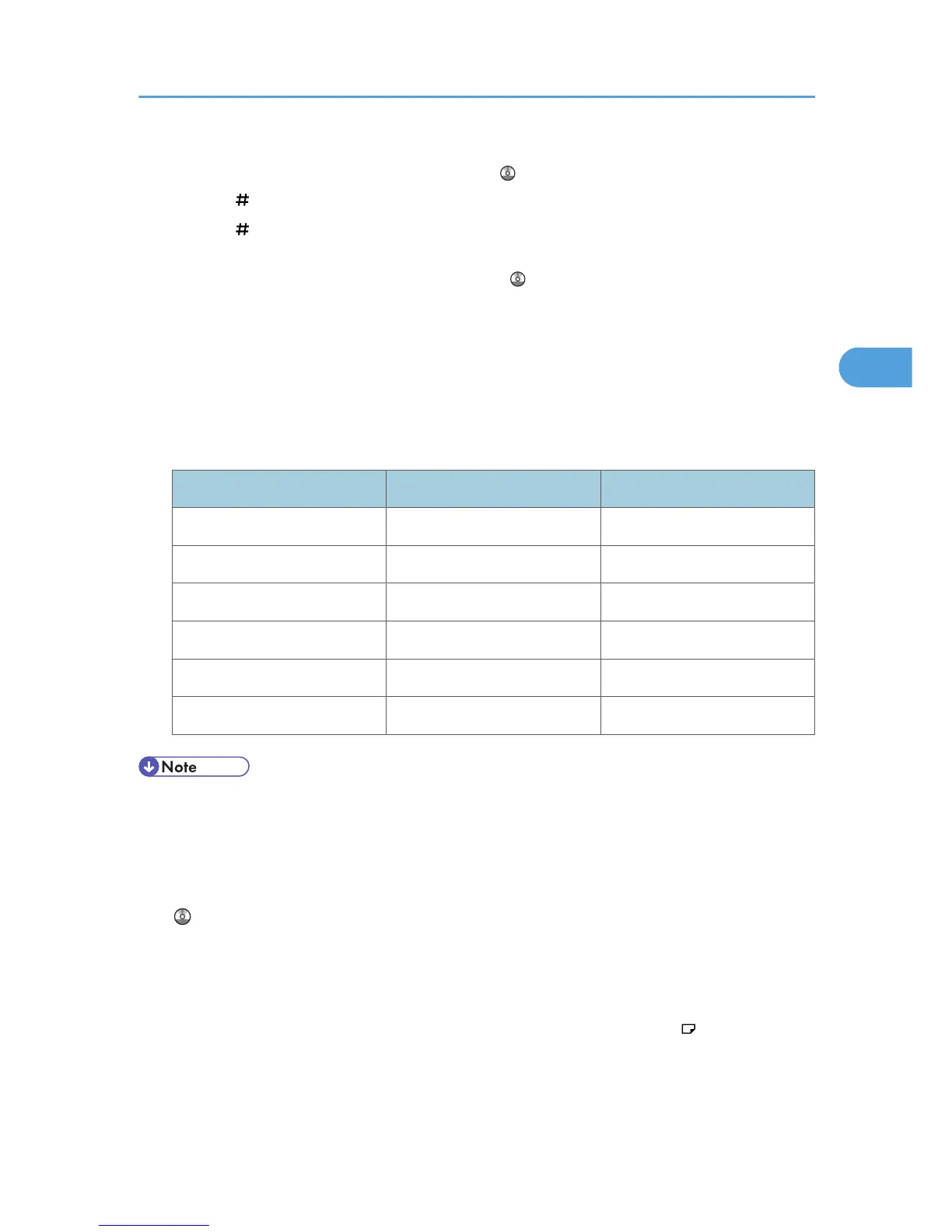
Paper Thickness
Paper Thickness Metric version Inch version
Plain Paper 1 60 - 74 g/m
2
16 - 20 lb.
Plain Paper 2 75 - 90 g/m
2
20 - 24 lb.
Middle Thick 91 - 105 g/m
2
24 - 28 lb.
Thick Paper 1 106 - 169 g/m
2
28 - 45 lb.
Thick Paper 2 170 - 220 g/m
2
45 - 58.5 lb.
Thick Paper 3 221 - 256 g/m
2
59 - 68 lb.
• Certain types of paper produce noise when delivered. This noise does not indicate a problem and
print quality is unaffected. (Glossy paper and OHP transparencies can produce noise when
delivered.)
• When using translucent paper or label paper, make sure to select the appropriate paper type. For
details about Paper Type: Bypass Tray, see “System Settings”, Network and System Settings Guide
.
• When loading paper in the paper trays 1 - 2, the tray 3 (LCT), and the lower paper trays, place the
print side face up.
• When loading paper in the bypass tray, and the large capacity tray, place the print side face down.
• When you use the bypass tray, it is recommended to set the paper direction to .
• Do not use paper designed for inkjet printers, as these may stick to the fusing unit and cause a misfeed.
• Do not use color OHP transparencies with coatings that are easily melted by heat.
Recommended Paper Sizes and Types
91



 To Next Page