52
When the
software is started for the first time, the system may apply for positioning (as shown in Figure 21), select
"Allow when using APP", and apply for data when the software is running (as shown in Figure 22), select
"Wireless LAN and cellular mobile network".
Apple APP installation and connection process video:
https://drive.google.com/drive/folders/1h6Dbqum3b8uy0Ph7yRd4xhGcx8vHsdCZ?usp=sharing
After the installation is complete, the mobile APP icon is shown in the figure
on the right:
3.2.1 APP Update
You can get the latest software from the Apple Store. When the software is
updated, you will be prompted to update the version.
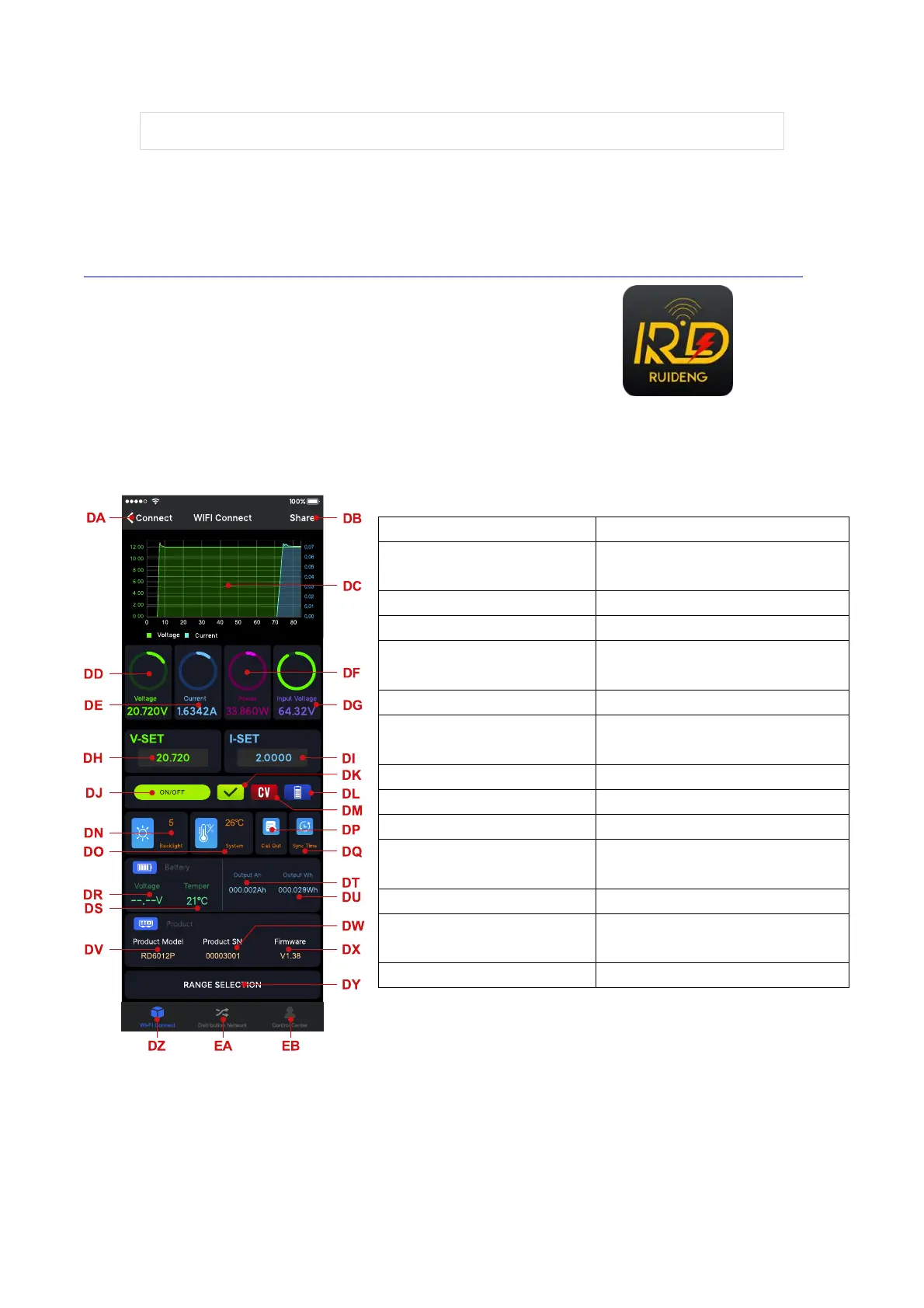
3.2.2 UI Instruction
You can see the user interface as shown in Picture below.
3.2.3 APP Operation
3.2.3.1 Network Distribution
Connect Wi-Fi for the first time, please insert the WiFi board to the right place,
DB: export data to mobile
phone
DP: data group quick call out
DD: actual output voltage
DE: actual output current
DS: external sensor temperature
detecting value
DT: accumulated output capacity
DG: input voltage
measurement value
DU: accumulated output power
DV: model being connected
DK: protection status
indication
DL: battery status indication
DM: constant voltage/
constant current status
EA: network distribution page


 To Next Page