2: System Description
31
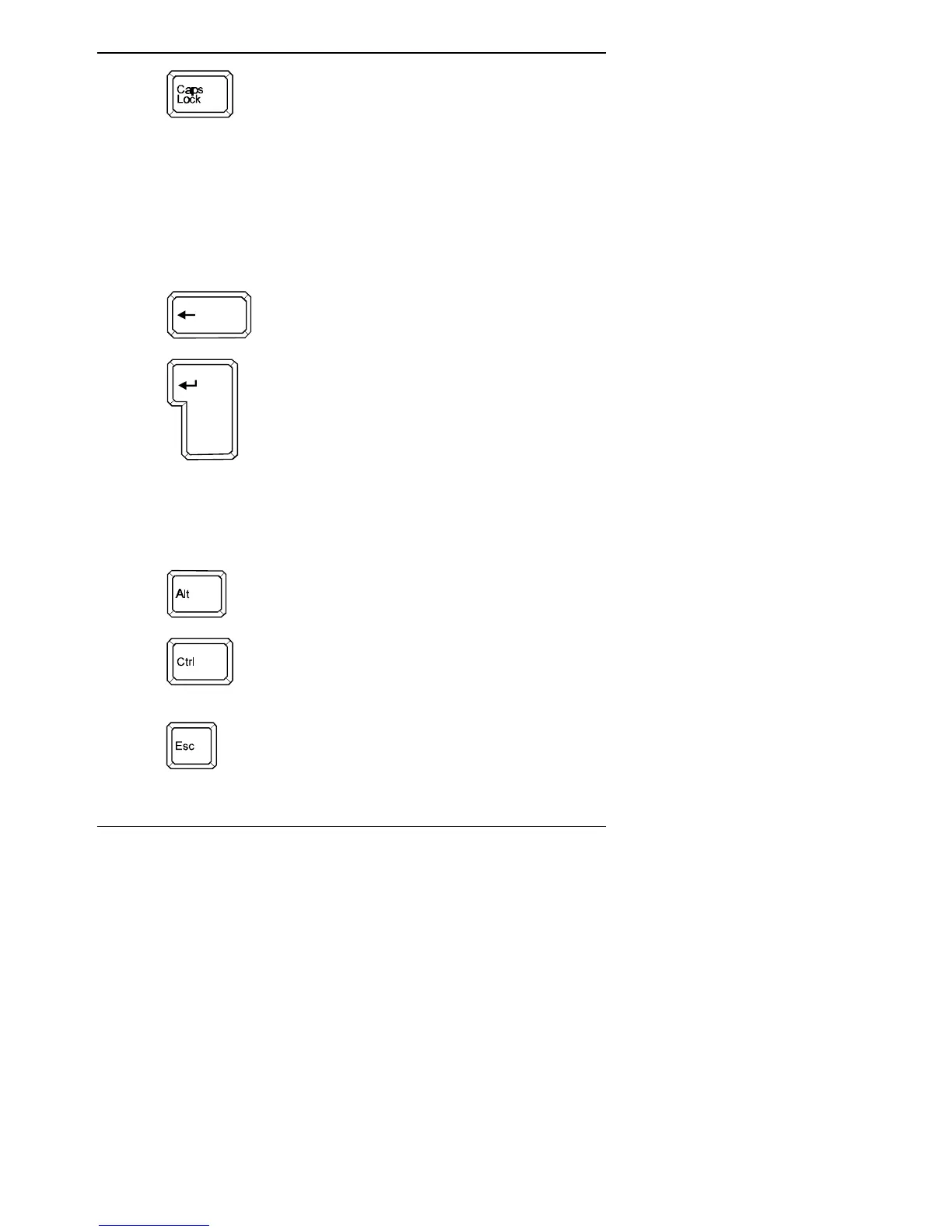
Press <Caps Lock> if you want the alphabetic keys
to produce upper-case letters. The Caps Lock
indicator LED lights to show that <Caps Lock> has
been pressed. Using <Caps Lock> has no effect on
non-alphabetic keys.
To return the alphabetic keys to lower-case mode,
press <Caps Lock> again. The Caps Lock indicator
LED goes out.
When the Caps Lock LED is on, use the <Shift>
key to type a lower-case letter.
The <Backspace> key moves the cursor back one
position to the left and erases the letter, character,
tab or space in that position.
The <Enter> key is similar to the carriage return
key on a typewriter. It moves the cursor to the start
of the next line on the screen.
The <Enter> key is also used to instruct the
computer to carry out commands.
Additional special keys
The following keys cannot be found on a typewriter, but are located
in the main part of the keyboard. These keys also carry out special
functions, depending on the program you are running.
The <Alt> (Alternate) key is used in conjunction
with other keys. For examples of other functions,
see page 34.
The <Ctrl> (Control) key is also used in
conjunction with other keys to perform a particular
function. For examples of these functions, see
page 34.
The <Esc> (Escape) key can often be used to
cancel a function or command, depending on the
program you are running.


 To Next Page