2: System Description
32
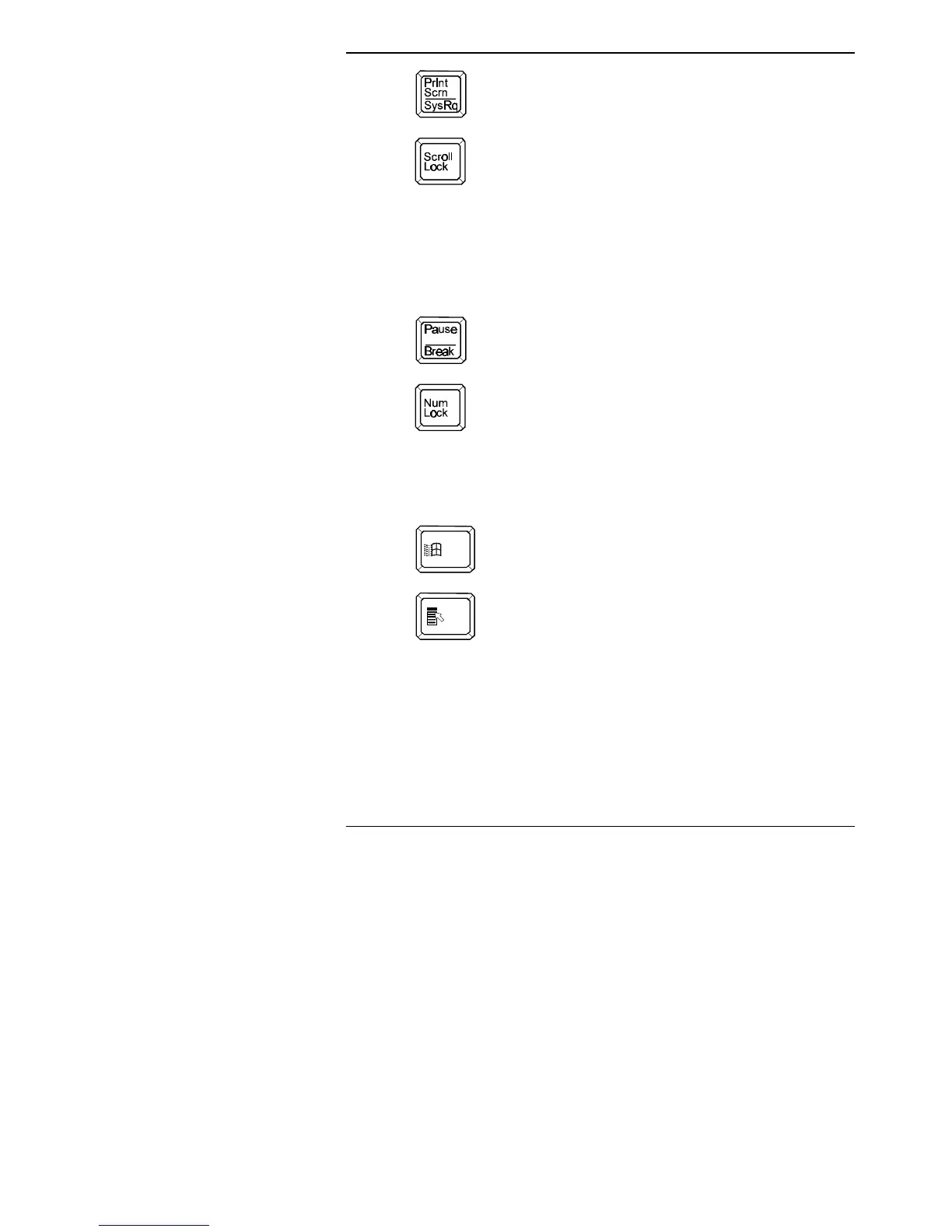
The <Print Scrn> key can be used in certain
circumstances to print the screen display, if the
computer is connected to a printer.
Pressing the <Scroll Lock> key causes the <↑>
and <↓> arrow keys to move the text displayed on
screen up or down one line. The cursor does not
move from the line it is positioned on until
<Scroll Lock> is pressed again. This key is only
effective when using certain types of applications,
e.g. terminal emulation software.
The Scroll Lock LED is lit to show that
<Scroll Lock> has been pressed.
The <Pause> key stops the contents of the screen
scrolling, depending on the program you are
running. Press any other key to restart scrolling.
If the <Num Lock> key is pressed, the keys on the
numeric keypad (see later) produce numbers rather
than move the cursor.
Windows 95 keys
These keys are located in the main part of the keyboard. These
keys only carry out special functions while running Windows 95.
If the <Start Menu> key is pressed, the Start
Menu will be opened.
Pressing the <Right Click> key is the
equivalent of pressing the right-hand mouse
button. (The right hand mouse button is used a
lot more in Windows 95 than older versions of
Windows).
Function Keys
The function keys (F1 to F12) are located along the top of the
keyboard.


 To Next Page