NK Series User Guide (1.0) Operation • 5–7
The MACRO key will stop flashing to indicate the panel has exited macro recording mode.
When appending macros or adding one macro to another, if you use a single input or output in more than one
macro, it will override the previous status of that key.
Example
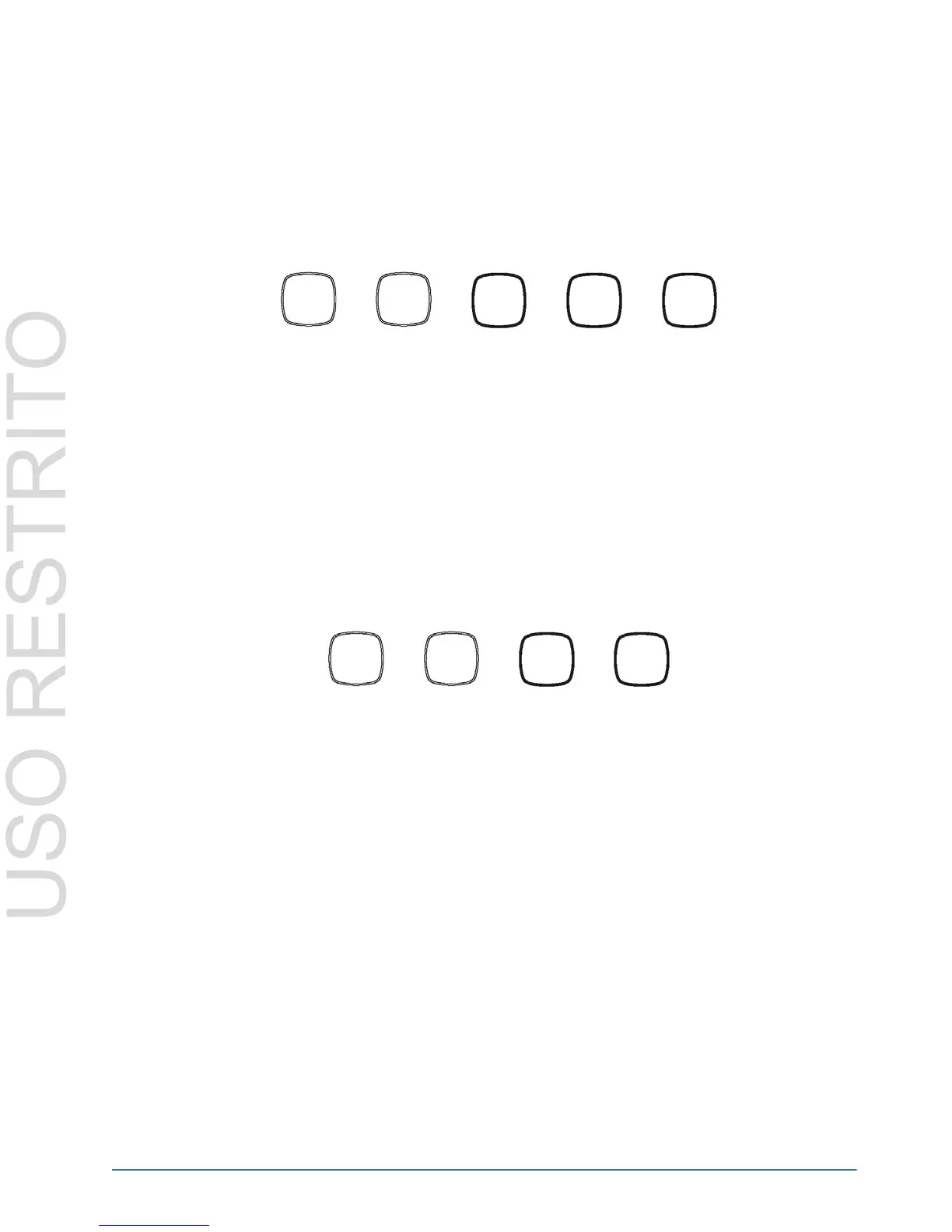
If you wish to add the output status Input 9 to Output 10 to an already existing macro (Macro1 from Example 1 in
the previous heading, Recording Macros) you would follow this sequence of key presses:
Adding one Macro to another Macro
Adding one macro to another can be useful when you have more than one macro that shares the same output status
(the same source to destination switch assignments) but where one macro also has output status that the other macro
has not assigned.
As the macro function is only an event recorder, other macros are stored as one single event, not the sum of the
events in that macro. Similarly, if a macro that has already been added to another macro is changed, the appended
macro when played back will reflect that change.
Example
If you wish to append Macro1, adding Macro2 to it (from Examples 1 and 2 in the previous heading, Recording
Macros) follow this sequence of key presses:
In the example above, the Macros are as follows:
• Macro1 = Input 1 to Outputs 1, 2 and 3, and also sends input 2 to outputs 7, 8 and 9.
• Macro2 = Input 1 to Outputs 4, 5, 6 and 7, and also sends Input 2 to Outputs 8 and 9.
In this example, because Output 7 is used twice, the last status added will be the one used when the macro is played
back. The final status of Macro1 when it is played back will be as such will be:
• Input 1 to Outputs 1,2,3,4,5,6 and 7.
• Input 2 to Outputs 8 and 9.
To cancel recording or appending a Macro
To cancel recording or appending a macro, press the macro key after entering macro record mode.
Macros can not be cancelled after entering events in macro recording mode. If a mistake has been made, you will
have to exit macro recording mode and enter it again to re-enter events you wish to be played back.
Protect Key
The PROTECT key is used to lock current destination from use by other sources, as well as from other linked
panels. The PROTECT key is especially useful in instances where destination must be held after a switch has been
made.
Key press 1 Key press 2 Key press 3 Key press 4 Key press 5
Key press 1 Key press 2 Key press 3 Key press 4
Macro1 Macro1
Out10 In9 Macro1
Macro1 Macro1
Macro2 Macro1


 To Next Page