NK Series User Guide (1.0) Configuration • 4–9
but the switches may be activated by the router at any time. For more information on the NK video/switching
reference feature, please refer to “Video Referencing” on page 5–15.
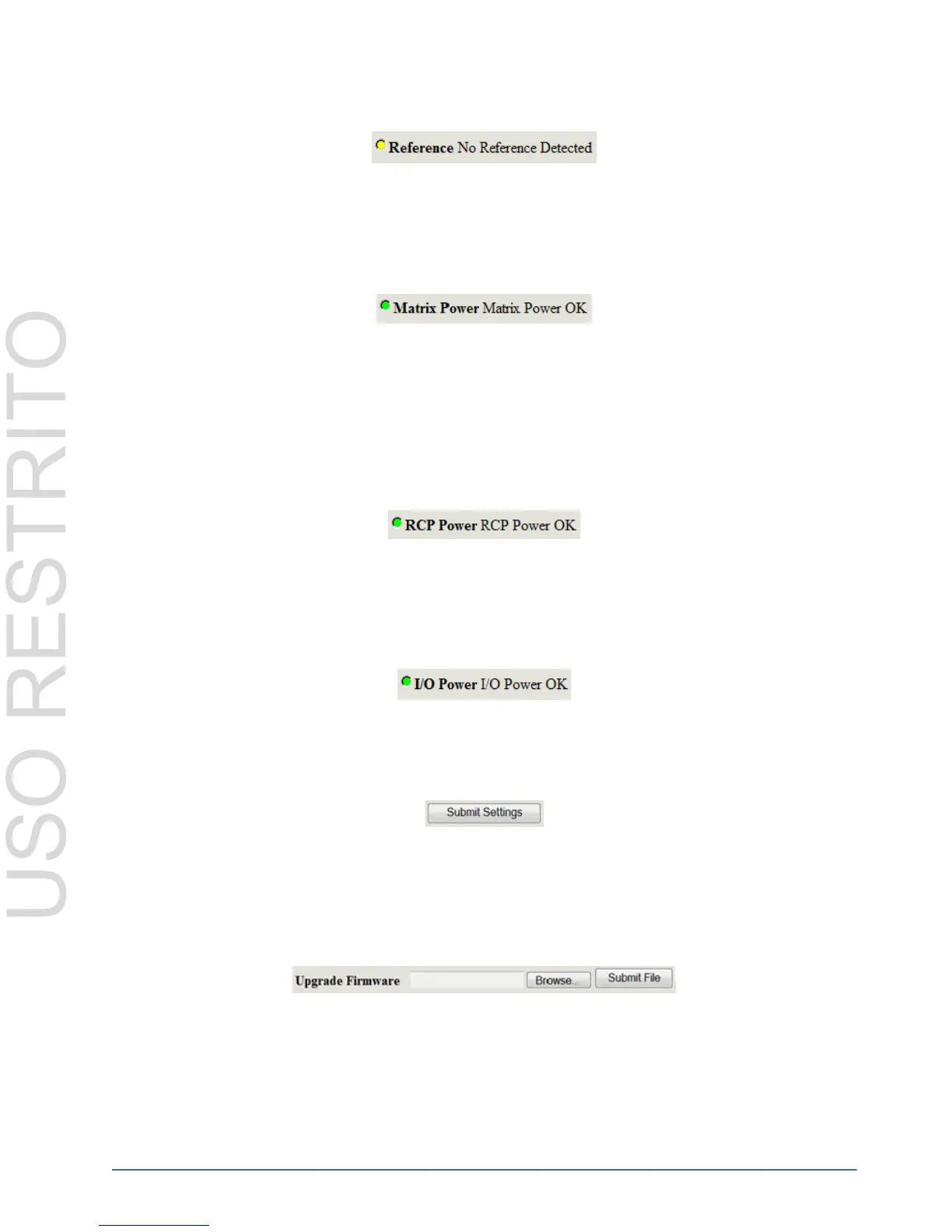
Matrix Power
The Matrix Power status alarm indicates the power status of the router. A router that displays any alarm status other
than Green (safe) should be switched off and unplugged. Another power pack can be used to test the router frame
again, but if the status alarm remains on the Device Properties page, a Ross Video representative should be
contacted.
RCP Power
The RCP Power status alarm indicates the power status that the router distributes to the control panels connected to
it. For any alarm status other than Green (safe), panels should be disconnected one by one, and the alarm status
checked. In some instances there may be too many devices connected to the router to ensure regulated power
consumption by each device. If all devices have been disconnected from the router and the alarm status remains
activated, the router should be switched off and unplugged. Another power pack can be used to test the router frame
again, but if the alarm status remains higher than Green on the Device Properties page, a Ross Video representative
should be contacted.
I/O Power (NK-64 Routers only)
The I/O Power status alarm indicates the I/O card status for the router. As NK-64 routers are comprised of 8
separate I/O cards, each card has its own alarm. If any card has a fault or fails during operation, the I/O Power status
alarm will be triggered. If the alarm has been triggered, each input and output card should be checked individually
before using the router for further operations.
Submit and Upgrade Fields
Submit Settings
The Submit Settings button will upload the settings to the device.
If users wish to cancel or ignore the settings they have made, click the Online tab to return to the Online Devices
page, or click the Refresh button of your browser to revert to the original settings displayed.
Upgrade Firmware
The Upgrade Firmware button is used to upload to the device the latest firmware, contained in a binary file.
Upgrading firmware allows new features, enhancements and improvements of the NK router to be installed.
Configuration Options — Phoenix
Any device that can be configured from a web browser via the IPS may also be configured by the Phoenix Control
Surface with the default interface.


 To Next Page