Page 23 of 52
7.1 Bluetooth registration
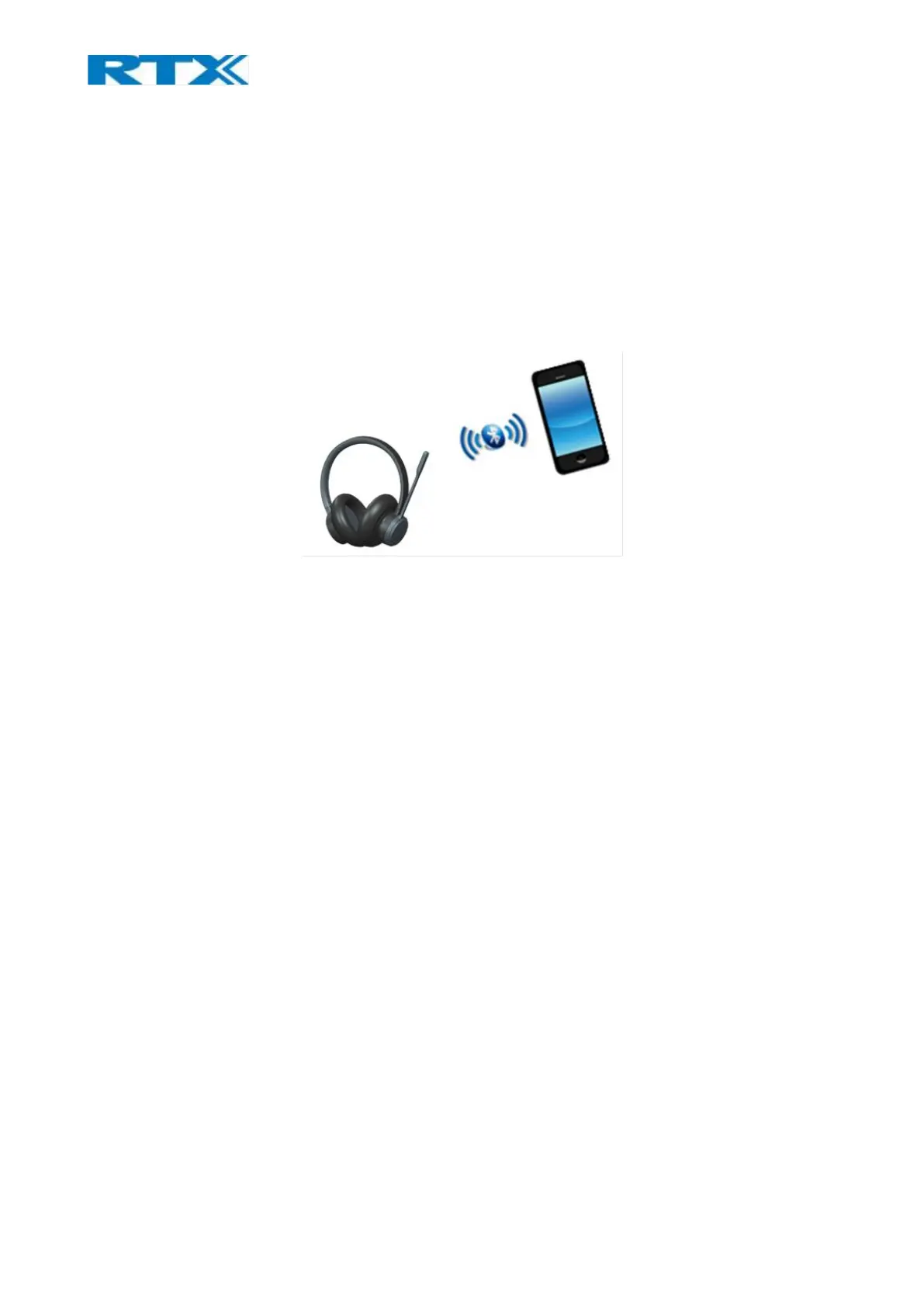
The headset is registered to a Bluetooth device by holding the BT button for 2 seconds (Fig.16). This will
enable pairing mode for the headset which then allows it to be discovered by other Bluetooth devices. The
RTX725x can store up to 4 paired BT devices’ information and remain connected to 2 of them at the same
time. In case of reaching the limit and pairing a new device after the 4 existing ones, the oldest device
information will be overwritten by the new agent.
Major mobile platforms are supported, such as iOS and Android.
Fig.16 BT connection
7.2 Connect RTX725x headset to PC/Laptop using RTX3741 Dongle
Step 1 Press the FP dongle DUT button more than 3s to enter pairing mode. The Blue
LED is blinking.
Step 2 Press RTX725x DECT button more than 3s and release to enter pairing mode.
The LED flashes blue/red alternately.
Step 3 When registration is successful, the FP dongle blue LED will become static and
RTX725x green LED will blink 3 times.
7.2.1 Deregister RTX725x Headset from RTX3741 Dongle
To deregister a registered headset from the dongle simply press and hold the button on the dongle for 10
seconds. Blue LED will start blinking, indicating that the dongle is in registration mode.
7.3 Hybrid functionality
The RTX725x headset, RTX745x base and RTX3741 Dongle are designed to work together with consideration
of the modern hybrid office. The Headset can be registered to both Base and Dongle and that allows the user
to be more flexible and use the headset together with the dongle on the go. We can switch between the two
registrations with a single click of the DECT button.



 To Next Page