EasyManua.ls Logo

Samsung BD-D5500 - Setup; Initial Settings Wizard

Samsung BD-D5500
91 pages
Print Icon
To Next Page IconTo Next Page
To Previous Page IconTo Previous Page
Loading...
Setup
Initial Settings
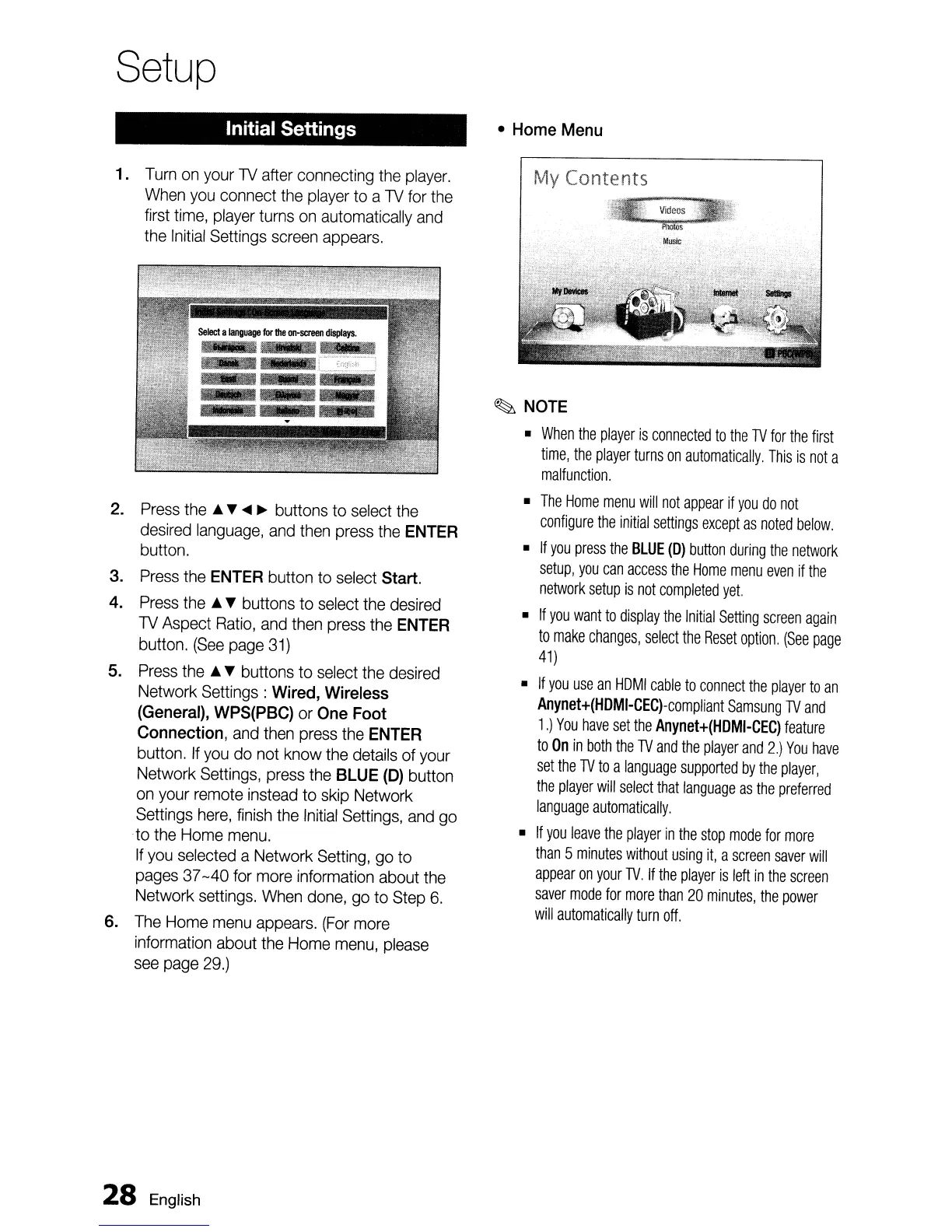
1.
Turn
on
your
lV
after connecting
the
player.
When
you
connect
the
player
to
a
lV
for
the
first
time,
player
turns
on
automatically
and
the
Initial
Settings
screen
appears.
2.
Press
the
..
~
....
~
buttons to
select
the
desired
language.
and
then
press
the
ENTER
button.
3.
Press
the
ENTER
button to select Start.
4.
Press
the
..
~
buttons to
select
the
desired
lV
Aspect
Ratio,
and
then
press
the
ENTER
button.
(See
page
31)
5.
Press
the
..
~
buttons to
select
the
desired
Network Settings: Wired, Wireless
(General),
WPS(PBC)
or
One Foot
Connection,
and
then
press
the
ENTER
button.
If
you
do
not
know
the
details
of
your
Network
Settings,
press
the
BLUE (0) button
on
your
remote
instead
to
skip
Network
Settings
here,
finish
the
Initial
Settings,
and
go
to
the
Home
menu.
If
you
selected
a Network
Setting,
go
to
pages
37
-40
for
more
information about
the
Network
settings.
When
done,
go
to
Step
6.
6.
The
Home
menu
appears.
(For
more
information
about
the
Home
menu,
please
see
page
29.)
28
English
Home Menu
My Contents
~
NOTE
When
the
player
is
connected
to
the
TV
for
the
first
time,
the
player
turns
on
automatically,
This
is
not
a
malfunction.
The
Home
menu
will
not
appear
if
you
do
not
configure
the
initial
settings
except
as
noted
below.
If
you
press
the
BLUE
(0)
button
during
the
network
setup,
you
can
access
the
Home
menu
even
if
the
network
setup
is
not
completed
yet.
If
you
want
to
display
the
Initial
Setting
screen
again
to
make
changes,
select
the
Reset
option.
(See
page
41)
If
you
use
an
HOMI
cable
to
connect
the
player
to
an
Anynet+(HOMI-CEC)-compliant
Samsung
TV
and
1.)
You
have
set
the
Anynet+(HOMI-CEC)
feature
to
On
in
both
the
TV
and
the
player
and
2.)
You
have
set
the
TV
to
a
language
supported
by
the
player,
the
player
will
select
that
language
as
the
preferred
language
automatically.
If
you
leave
the
player
in
the
stop
mode
for
more
than
5
minutes
without
using
it,
a
screen
saver
will
appear
on
your
TV.
If
the
player
is
left
in
the
screen
saver
mode
for
more
than
20
minutes,
the
power
will
automatically
turn
off.

Table of Contents