Network
Before you begin, contact your ISP
to
find out
if your
IP
address
is
static or dynamic.
If
it
is
dynamic, and you are using a wired or wireless
connection, we recommend using the Auto
procedures.
If
you are using a wireless connection
and your router has the capability, you can use
WPS(PBC) or One Foot Connection.
If
your
IP
address
is
static, you must use the
manual set up procedure for both wired and
wireless connections.
Network
Settings
To begin setting up the network connection for
your player, follow these steps:
1.
In
the Home menu, press the
~ ~
buttons to
select
Settings,
and then press the
ENTER
button.
2.
Press the • T buttons to select
Network,
and
then press the
ENTER
button.
3.
Press the • T buttons to select
Network
Settings,
and then press the
ENTER
button.
4.
Press
the.
T buttons to select
Wired,
Wireless
(General),
WPS(PBC)
or
One
Foot
Connection,
and then press the
ENTER
button.
5.
If
you have a wired network, go
to
Wired
Network below.
If
you have a wireless
network, go
to
Wireless Network on pages
38-40.
Wired
Network
Setting
Up
a Wired Connection -
Auto
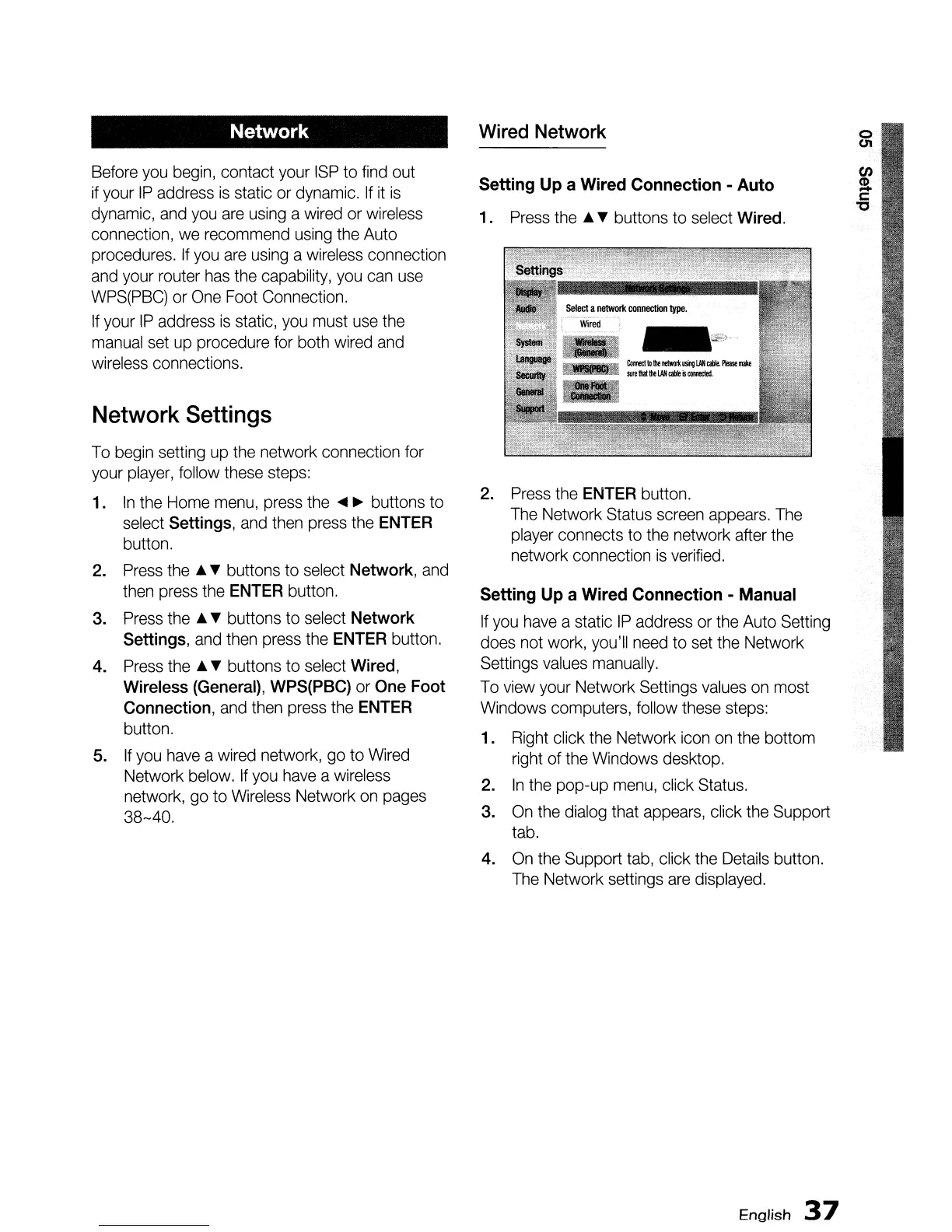
1. Press
the.
T buttons to select
Wired.
2.
Press the
ENTER
button.
The Network Status screen appears. The
player connects to the network after the
network connection
is
verified.
Setting
Up
a
Wired
Connection - Manual
If
you have a static
IP
address or the Auto Setting
does not work, you'll need to set the Network
Settings values manually.
To view your Network Settings values on most
Windows computers, follow these steps:
1. Right click the Network icon on the bottom
right of the Windows desktop.
2.
In
the pop-up menu, click Status.
3. On the dialog that appears, click the Support
tab.
4. On the Support tab, click the Details button.
The Network settings are displayed.
English
37




 To Next Page